Picture the last quote you sent for a cut piece. Say it was 6mm toughened glass, 742 by 519. You worked out the price, typed it into an email, hit send, and waited.
Some of those people reply. A lot don’t, because by the time you got back to them they had found a shop that showed a price on the spot. That is the quiet way cut-to-size businesses bleed money online. Not on quality. On the wait.
WooCommerce doesn’t help. Out of the box it sells one product at one price. There is nowhere to type a size, and nothing that turns a size into money. So people force it two ways. They bolt on a “request a quote” form, which is just the inbox again with extra clicks. Or they reach for variations and give up somewhere around the 400th combination, when it sinks in that they would need a separate one for every width and every length a customer might ever ask for.
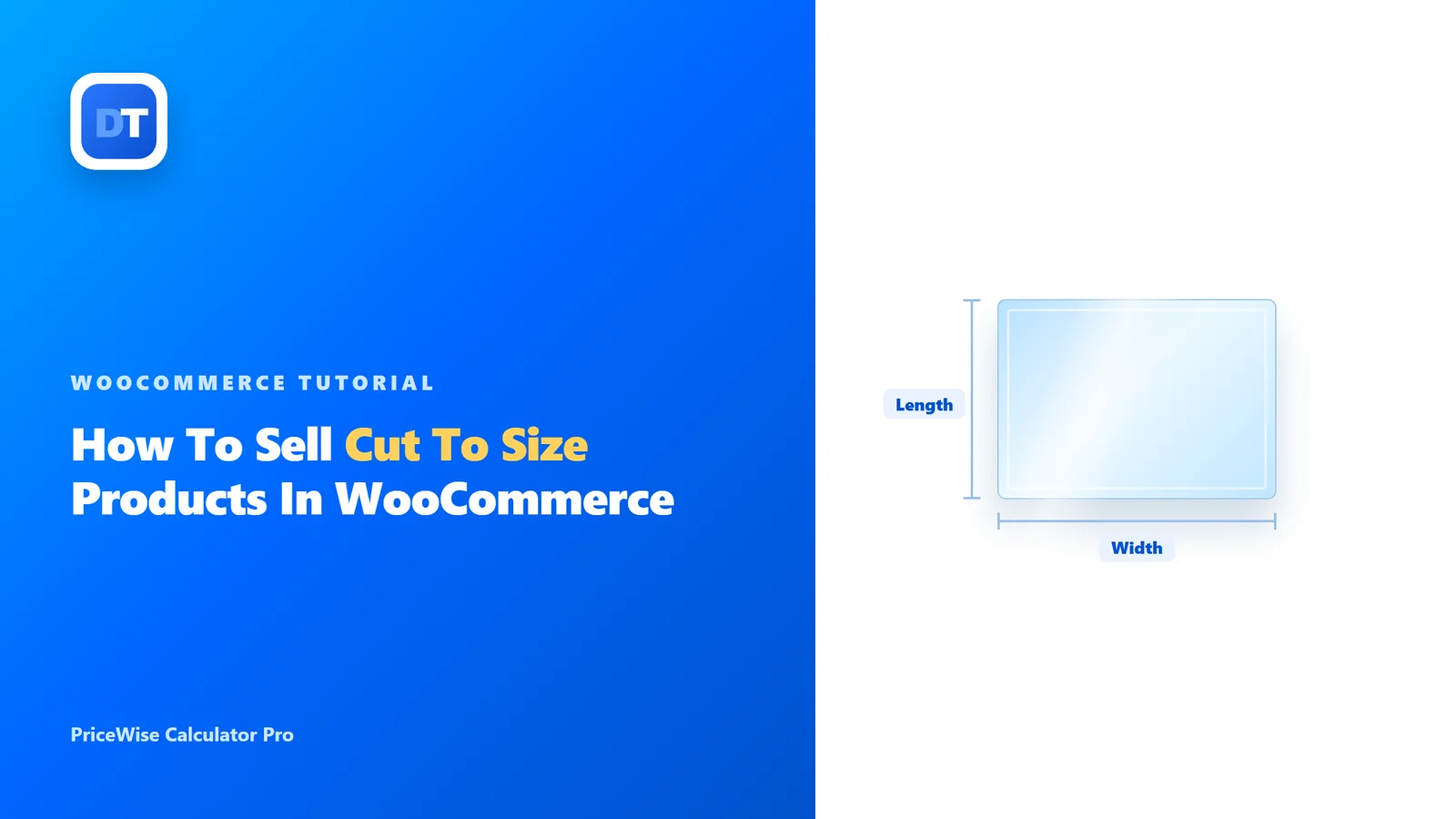
What you actually want is boring for the buyer, and boring is the goal here. Two boxes, width and length. A price that moves while they type. And the size saved onto the order, so whoever is on the saw isn’t texting you to ask what “that one” was.
Below I will build one with PriceWise, the calculator plugin I make. I’m using glass for the example on purpose. Glass is the fussiest thing to price because of the unit conversions, so once it’s right, plywood and acrylic are easy.
Setting it up (I’ll use glass)
In the WordPress menu, open Calculator Pro and click Add New. Name it something you’ll still recognize in six months, like “Cut To Size Glass”. On the Basic Information tab, set it to a whole category so it shows on every glass product at once, instead of wiring it up one product at a time.
Then save it. Do that before you touch anything else, because the fields stay locked until the calculator exists, and that one detail trips up almost everybody the first time.
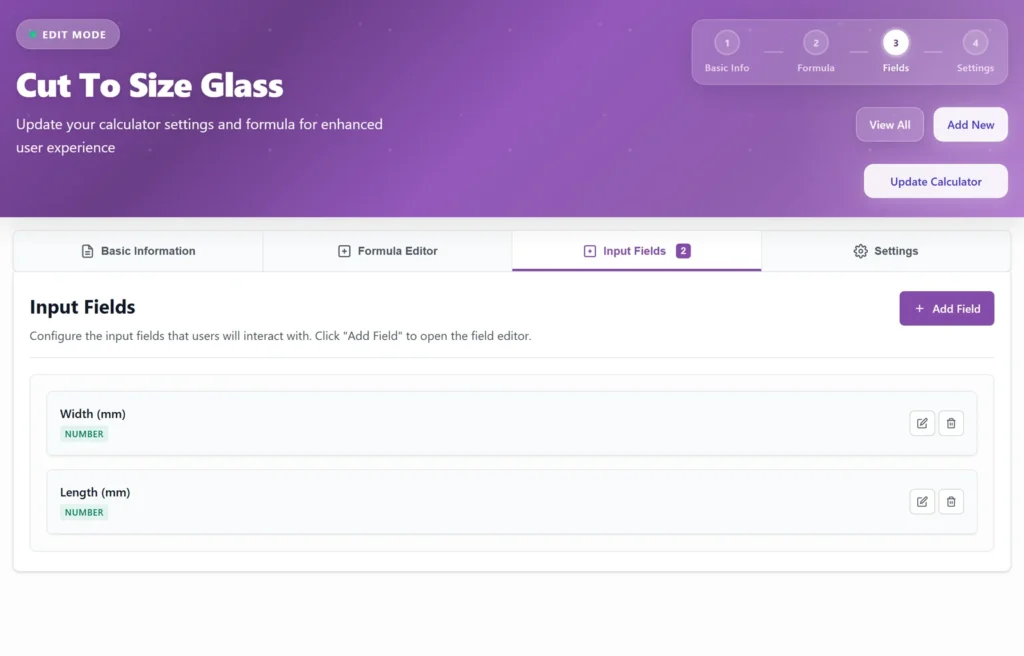
Now add the two boxes the customer fills in. On the Input Fields tab, add a Number field called Width (mm), then a second called Length (mm). Put the unit right there in the label. It looks obvious to you, but it quietly kills a lot of “did you mean cm?” emails.
The formula, and the part everyone gets wrong
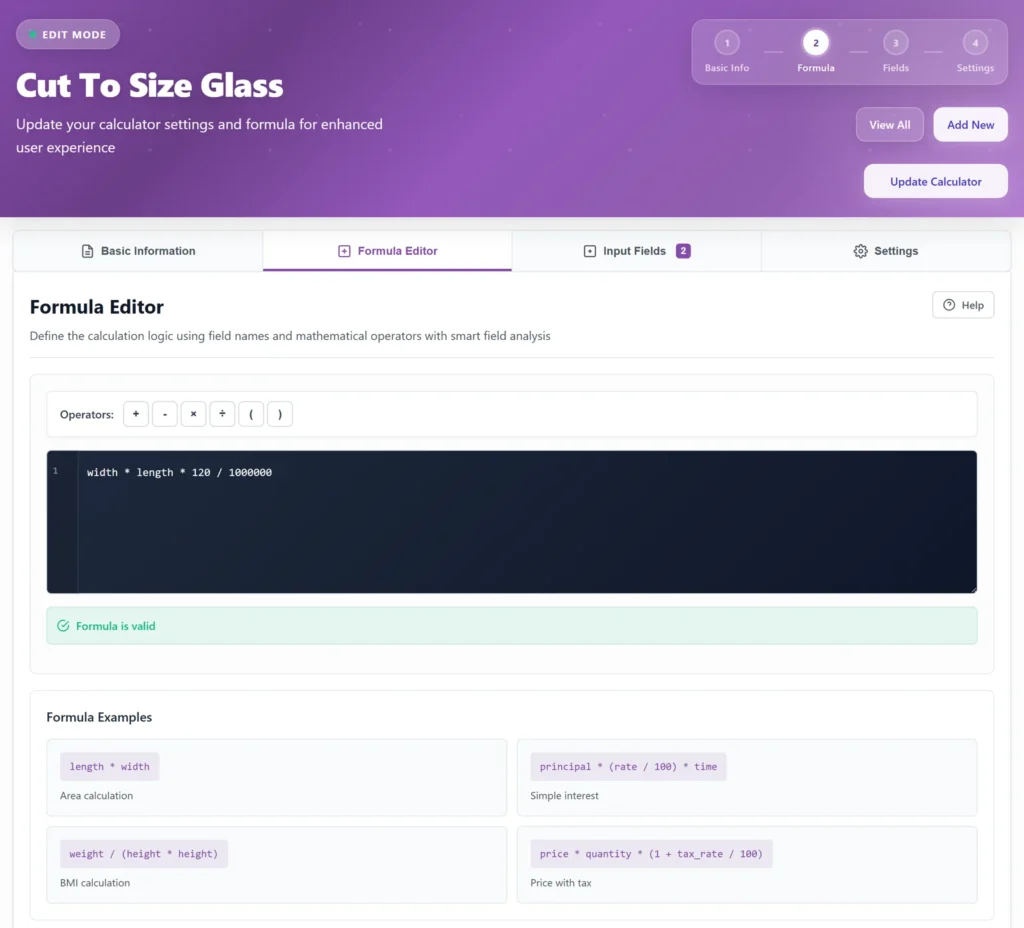
Here is where it actually matters. Open the Formula Editor and, for glass at $120 a square meter with sizes typed in millimeters, write this:
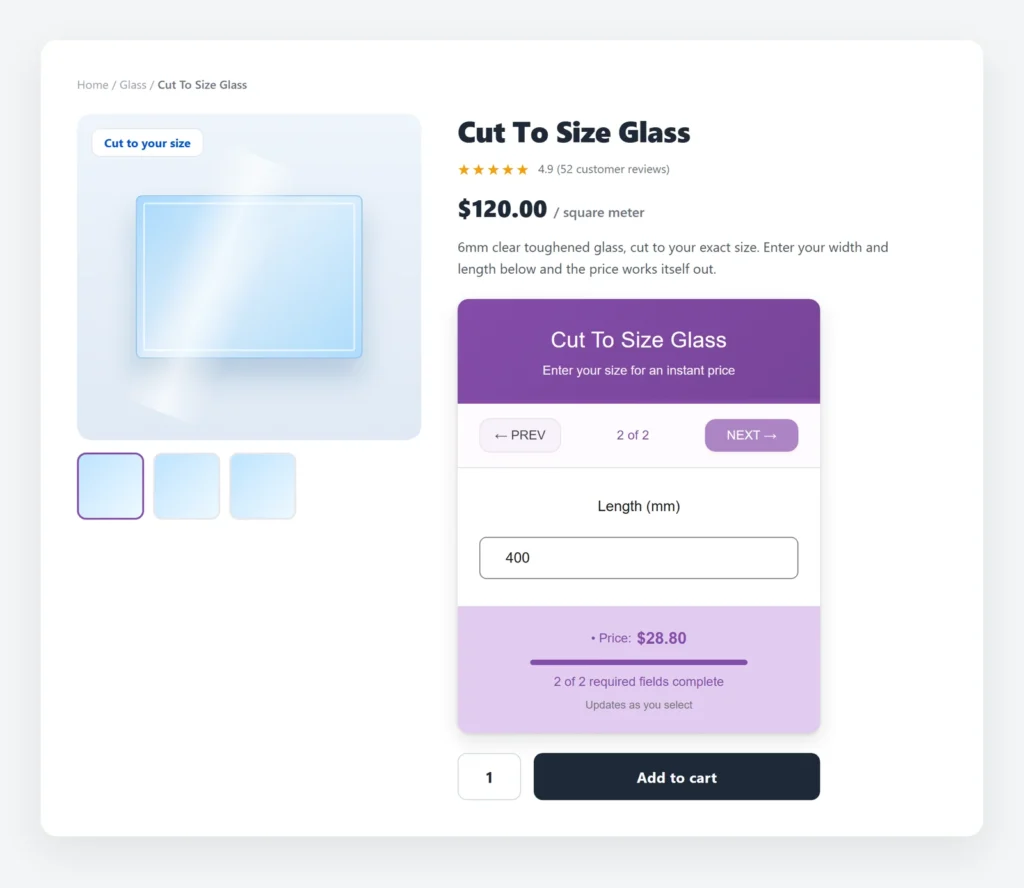
width * length * 120 / 1000000Width times length gives you the area in square millimeters. Someone types 600 and 400, that is 240,000 square mm, and dividing by a million turns it into 0.24 square meters. Multiply by 120 and the price reads $28.80, before they have clicked a thing.
Want proof before you build anything? The demos include a cut-to-size product you can put dimensions into.
That divide-by-a-million is the bit people get wrong, and it is always units. Your formula has to speak the same units as your boxes. Ask for millimeters, divide by 1,000,000. Prefer centimeters, divide by 10,000. Ask for meters, don’t divide at all. The big number is only ever how many of your little squares fit inside a square meter, nothing clever. Pick one unit, match it, move on. Get it wrong and your prices are out by a factor of a hundred, which you will notice quickly.
PriceWise shows “Formula looks good” once it reads cleanly, so you are not guessing whether you typed it right. If you’d rather not touch a formula at all, there’s a Measurement field that asks for width and length, works out the area for you, and prices it at a rate you set, no maths on your side.
One last thing before you test it. On the Settings tab, turn on Hide Quantity Selector. A cut piece is one specific piece. You don’t want someone ordering “3” of a sheet cut to their alcove. Save, open a glass product that has a regular price set, and try a size. If the calculator doesn’t appear at all, it is nearly always one of two things: no fields yet, or no regular price on the product. Check those first.
Real pricing is never just length times width
If you have done this a while, you are already thinking “yeah, but I charge for cutting,” or “I have a minimum,” or “6mm and 10mm are not the same price.” Fair. Here is how each of those goes, and every one of them is a setting or a field, not a fight.
A cutting or handling fee. On the Settings tab there’s a setup fee box. Put your cutting fee there and it’s added once to every order, on top of the size price. The customer sees a tidy breakdown, the cut price and then the fee, so nothing looks like a mystery. (You can also just add it on the end of the formula with + 8 if you prefer.)
A minimum charge. There’s a minimum charge box on the same tab. Set your floor, say 15, and any cut that works out lower is lifted to it automatically, while bigger cuts price as normal. No formula tricks, no note in the description hoping people read it.
Different thicknesses and materials. This is where it gets good. Instead of a separate product per thickness, add a dropdown. Give it the key rate and feed it options as label then price, one per line:
4mm Clear|90
6mm Clear|120
10mm Toughened|220
Then point the formula at whatever they chose:
width * length * rate / 1000000The customer picks the glass, the rate follows, the price updates. One product now covers your whole range. Show the choice as clickable tiles instead of a plain dropdown if you want it to look the part. The same trick handles an edge finish, polished against raw, or any extra you offer: another dropdown, added on the end.
And if some of what you sell goes by the running length instead of by area, like bar or trim or rod, drop the width entirely. One Length field and:
length * rateWhy the order needs the size, not just the price
This is the part that quietly makes the whole thing work, and it is easy to miss because it happens after the sale.
When the customer adds their cut to the basket, the width and length they typed travel with it. The numbers show in the cart, and they save onto the order. So the order that lands in your dashboard already reads 742 by 519, 6mm toughened, the lot. Whoever is cutting reads it straight off the order. No one emails anyone to confirm a measurement. You can also pull a clean, branded PDF of any order if a customer wants the price in writing first.
That is the line between a real shop system and a quote form wearing a costume. A quote form takes a message. This takes an order you can cut from.
Where this runs out of road
I would rather tell you the edges now than let you hit them halfway through a build.
The formula does the usual maths, + - * / ( ), and it also has a handful of functions when you need them: min, max, round, ceil, floor and if. So if a price lands on something ugly like $28.83, you can wrap it in round() and be done. Minimums and setup fees you don’t even do in the formula, they’re the settings above. For the odd shop with deeply conditional pricing there will still be a case the formula can’t express, but it’s rarer than you’d think.
And it prices the cut, not the courier. Shipping a 2-meter sheet of glass is its own headache, so handle that with WooCommerce shipping and most likely a flat rate for the big, fragile stuff. If you quietly add a few millimeters of cutting tolerance, say so on the page. The calculator charges for exactly what the customer types.
None of that is a wall. It is just the stuff worth knowing before you tell a customer a number is final.
FAQ
Can I do this for free?
For simple jobs, yes. Number fields and a formula are free, so cut-to-size by area is covered. The Measurement field, minimum charge, setup fee and PDF quotes are in PriceWise Pro.
Can I price by the thickness or material?
Yes. Add a dropdown with a rate per option and point the formula at it, so one product covers every thickness or material you cut.
Will the cut size show on the order?
Yes. The width, length and any options save onto the order line, so whoever is cutting reads the exact size straight off it.
Getting it live
Strip it back and it is short: two number fields with the unit in the label, a formula with the right divisor for that unit, a dropdown if you sell more than one material, a minimum charge and a setup fee set on the Settings tab, and Hide Quantity Selector switched on so every order is one real piece. That is a working cut-to-size product.
Want to try it on your own shop tonight? Install the free version, add two number fields, and write width * height * rate. Ten minutes and you have a working cut-to-size price. The minimum charge, the setup fee and the PDF quote you send back are PriceWise Calculator Pro, at $49 a year. The demos are cuttable products you can experiment with, and the documentation goes deeper than this article does.
If what you are really selling is a finished thing made to a size, curtains, blinds, that kind of work, that is a slightly different setup and I wrote it up separately: made to measure products. Selling flat material by the square meter is over here. And for loose material sold by the load, soil, gravel, bark, there is sell by volume.