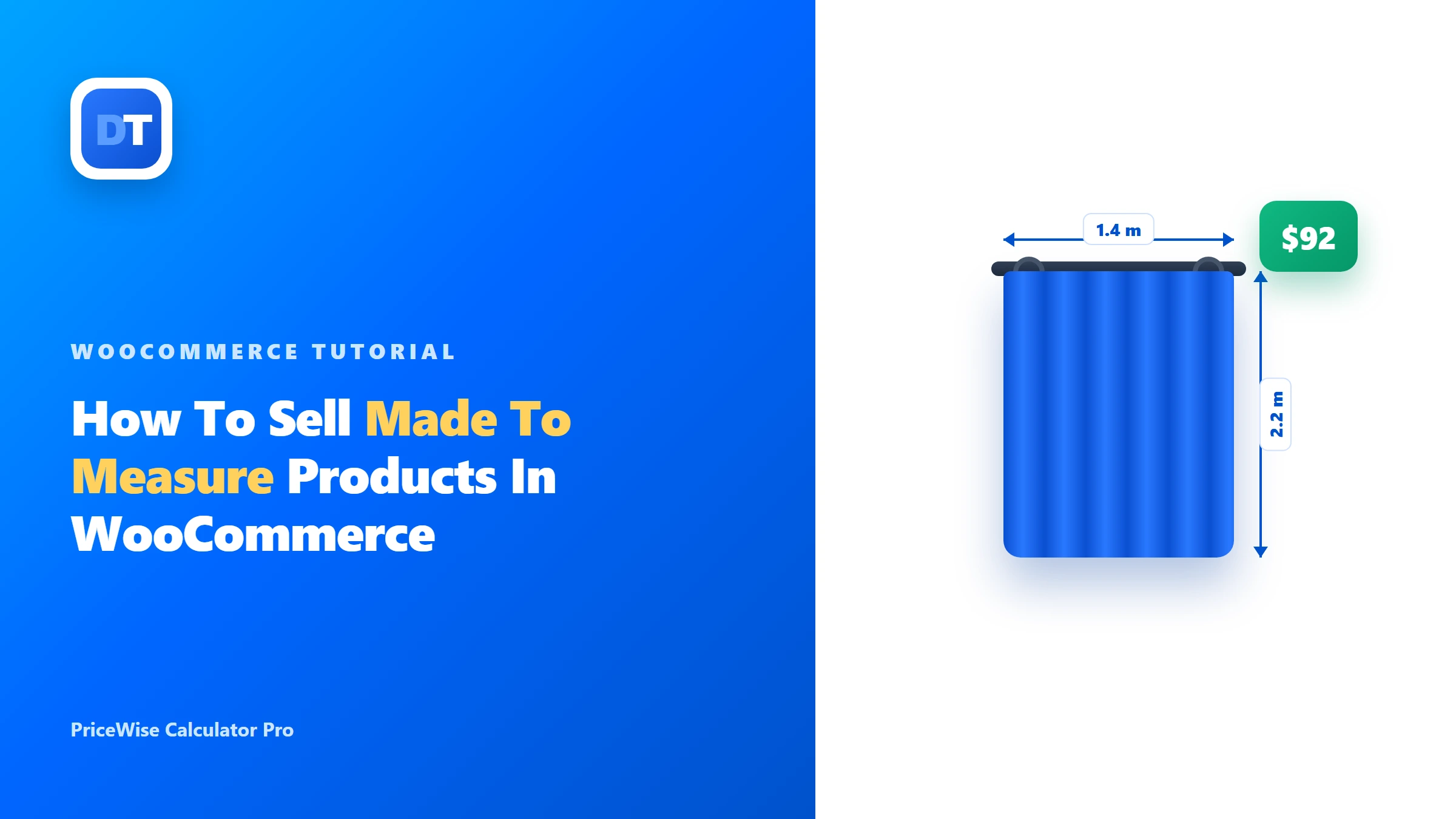
You make things to size. Curtains, blinds, furniture, custom signs. Every order is different. The customer gives you their measurements, and you build it.
But WooCommerce wants one fixed product at one fixed price. So how do you take custom sizes, charge the right price, AND know what to make?
That is what the rest of this page builds. The buyer types their own measurements, the price works itself out, and the sizes save onto the order so you know exactly what to build. I’ll use real steps and be honest about where it gets tricky.
Short version: Made-to-measure needs three things: take the customer’s measurements, price by them, and save them on the order. Plain WooCommerce does none of these. A price calculator does all three.
What made to measure actually needs
Three things, really:
- Take the measurements on the product page (width, drop, height, whatever you cut to).
- Price by those measurements, either with a formula or by size bands.
- Save the measurements on the order, so you know what to make.
A normal WooCommerce product does none of these. It has one price, and no place for the customer to enter a size.
Where stock WooCommerce gives up
One fixed price per product. And variations won’t save you. You’d need a pre-made variation for every width and every drop. That’s thousands of combinations, and you’d still have no clean way to capture the exact numbers the customer wants.
What you need is a calculator: measurement boxes on the product page, a price that follows the size, and the entries saved with the order.
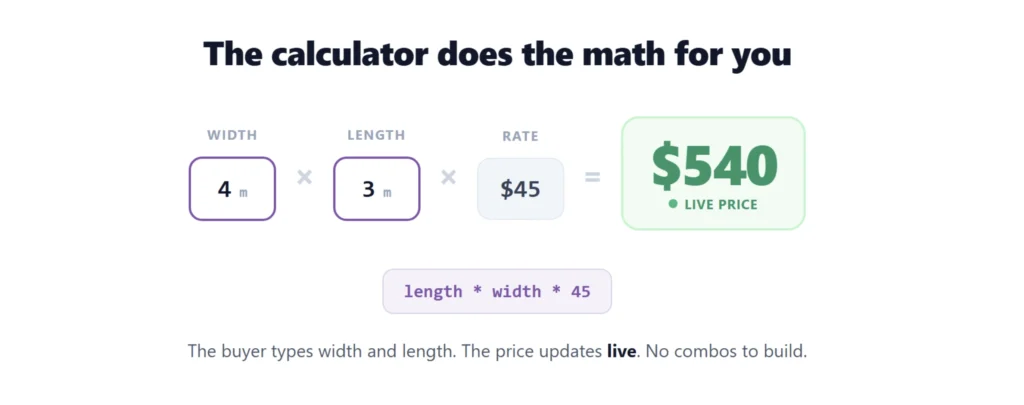
This is what I built PriceWise Calculator Pro for. Here it is in action, then I’ll show you the made-to-measure setup with curtains.
Building it, one step at a time
Step 1: Open the builder. Go to Calculator Pro and click Add New.
Step 2: Name it and assign it. On the Basic Information tab, name it “Curtains”. Under Assignment Strategy, choose Category Calculator and pick your Curtains category.
Step 3: Save it first. Click Save Calculator. You must save before you can add fields.
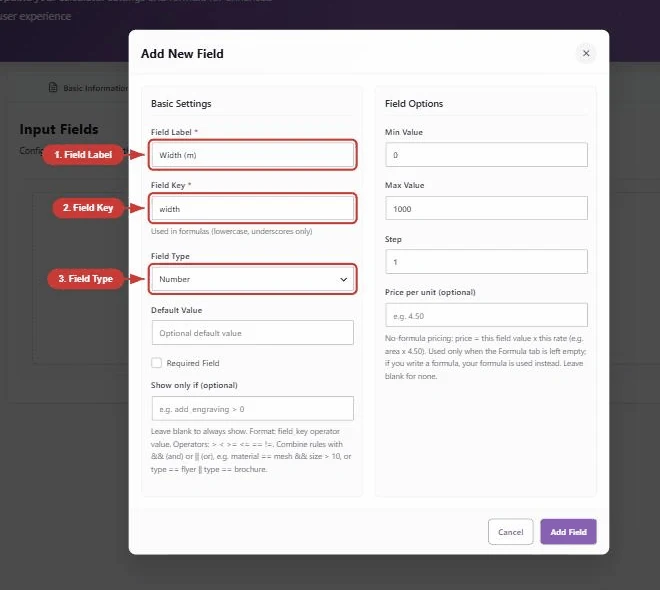
Step 4: Add your measurement fields. Go to the Fields tab and click Add Field:
- Width (m), key
width, type Number. - Drop (m), key
drop, type Number. (Drop is the curtain word for height.) - Optional: a Fabric dropdown, where each fabric carries its own rate.
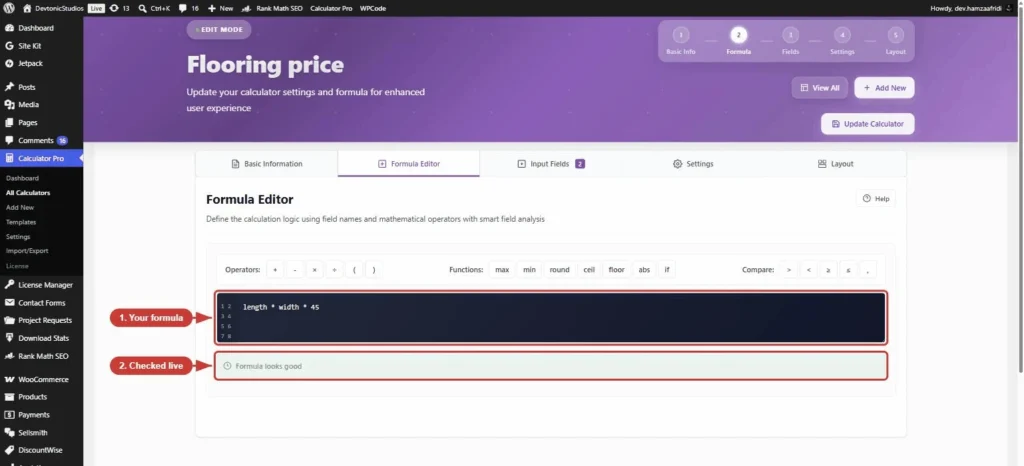
Step 5: Price by the size. Go to the Formula tab. Say your fabric is $30 per square meter:
width * drop * 30Change 30 to your rate. The plugin shows “Formula looks good” when it’s right.
Step 6: Lock it to one item. On the Settings tab, turn on hide the quantity selector. Each made-to-measure piece is custom, so this locks the order to one. No one can accidentally order “2” of a curtain cut to their exact window. If you have a job minimum, set a minimum charge here too, and it’s applied after the size price is worked out.
Step 7: Save, then check on the product. Open a curtains product (with a regular price set). The buyer enters their width and drop, sees the price update, and adds it to the cart.
The part that makes made to measure work: the order knows the size
Here’s the bit most setups miss. When the buyer adds to cart, the width and drop they typed show in the cart, and they save onto the order.
So when the order comes in, you open it and see exactly what to make. The width. The drop. The fabric they picked. No emails back and forth asking “what size was that again?”. The measurements travel with the order. You can also download a clean, branded PDF quote of any order, or have it attached to the order email automatically, which is handy when a customer wants the price in writing before they commit.
That’s the difference between a calculator and a plain “contact us for a quote” form.
There is a working one to poke at: the demos take real measurements and price them live.
Price by drop bands, not just a formula
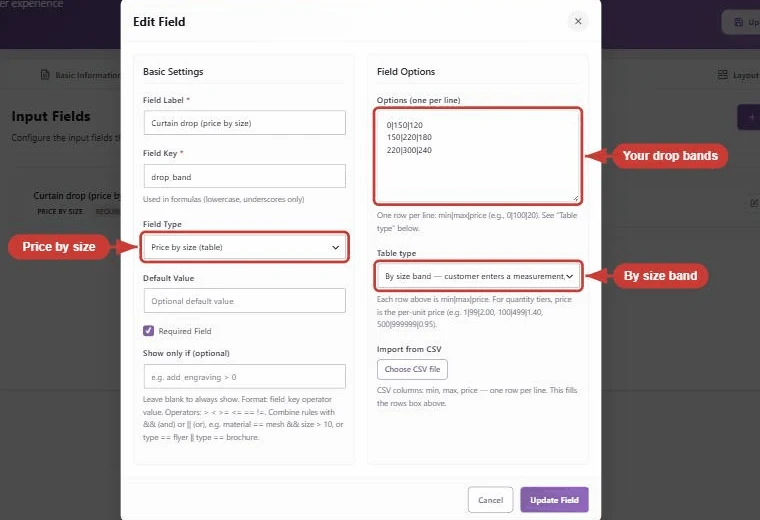
Some makers don’t price by exact area. They price in bands: a drop up to 150cm is one price, up to 220cm is the next, and so on. This used to be the awkward part of made-to-measure. It isn’t any more.
Add a Price by size field instead of a formula. Set the table type to “by size band”, then type one band per line as min|max|price. The customer enters their drop, and the right band price is looked up on your server. No formula, no fiddling.
Add fabric, lining, and options
Real made-to-measure has choices, not just size. Add them as fields:
- A Fabric choice, where each option has its own rate. Show it as colour circles or fabric photo tiles instead of a plain dropdown, so buyers can see what they’re picking.
- A Lining choice (none, standard, blackout) that adds to the price.
- A Header type choice for the style.
Each choice can carry a value you use in the formula, or a flat fee. So a premium fabric or blackout lining bumps the price automatically. You can also add a field only when it matters, for example a “motor side” question that appears only after the buyer picks electric blinds, so the form stays short.
Good to know before you build
- Bands or formula, your choice. Use a formula for smooth by-the-metre pricing, or the Price by size field for set bands. Pick whichever matches how you quote.
- Minimum charge is built in. Set a job minimum on the Settings tab and it’s applied after the size price, so a tiny order never comes in under your floor.
- Keep the field list tight. Very complex products with lots of dependent options can get long. Use show-and-hide rules so buyers only see what applies to them.
FAQ
Will I see the measurements on the order? Yes. The buyer’s entries show in the cart and save onto the order line, so you know what to make. You can also get a branded PDF quote of the order.
Can I price by drop bands instead of a formula? Yes. Use the Price by size field, set it to size bands, and type your min|max|price rows. The buyer’s measurement is matched to the right band on your server.
Can the customer enter centimeters instead of meters? Yes. Just set your rate or bands to match the unit you ask for.
Can I stop people ordering more than one? Yes. Turn on the hide-quantity-selector setting and each order locks to one.
Can I do this for free? Yes, up to a point. Number fields plus a formula come free, which covers basic custom-size pricing. The Measurement and Price by size fields, PDF quotes, and swatches are in PriceWise Pro.
Before you build your first one
Quick checklist:
- Add your measurement fields (Width, Drop), or a Price by size field for bands.
- Set the price: a formula (
width * drop * your rate) or size bands. - Add fabric and lining as choices if you offer them.
- Turn on hide quantity selector, and set a minimum charge if you have one.
- Put a regular price on the product so the calculator shows.
Made-to-measure pricing is arithmetic your customer should never have to wait for. PriceWise Calculator Pro does it while they type and saves the sizes onto the order, from $49 a year. Click a demo, or install the free version and add the Measurement field the day you need it. The documentation covers the rest.
If you sell by area (flooring, tile), see how to sell by the square meter. If you just need product options with live pricing, see how to create multiple options for one product.