Topsoil, gravel, mulch, sand, bark. Whatever you shift by the cubic metre, two problems hit you online.
One: the price depends on how much the customer needs, and that’s volume, not just area. Two: most customers have no idea how much they need.
WooCommerce wants one fixed price per product. It can’t ask for a size and work out the volume. So you get the emails: “how much do I need for my garden?” and “what does that cost?”.
Both problems have the same fix, and this page walks through selling by volume in WooCommerce step by step. The customer enters their length, width, and depth, and the calculator works out the volume and the price for them. The landscaping bits get covered too: settling, delivery, and selling by weight.
In one minute: Volume pricing needs three numbers, not two: length, width, and depth. Add a calculator with those fields and the formula
length * width * depth / 324 * rate(for cubic yards). The volume and the price show as the customer types.
Volume is trickier than area
Flooring is flat. Length times width gives the area, done. But soil, gravel, and mulch are 3D. You’re filling a space to a depth. So you need depth too.
The maths:
- Cubic yards = length (ft) times width (ft) times depth (in), divided by 324
- Metric: cubic meters = length (m) times width (m) times depth (m)
Then multiply by your price per cubic yard (or per cubic meter).
Depth is the part people forget. A 10 by 10 ft bed is the same area whether you spread mulch 2 inches deep or 4. But that’s double the material and double the cost. So depth has to be its own field.
The fix: a volume calculator on the product page
Add three boxes (length, width, depth). The product page does the volume maths and shows the price as the customer types. As a bonus, it also tells them how much they need, which kills the “how much do I order?” emails.
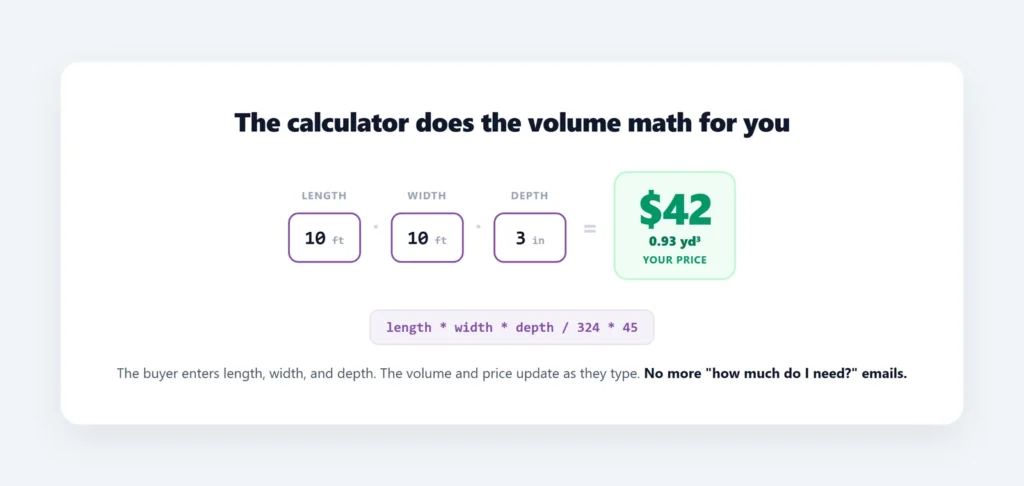
This is what I built PriceWise Calculator Pro for. Here it is in action, then the setup for topsoil sold by the cubic yard.
Setting up the volume calculator
Step 1: Open the builder.
Go to Calculator Pro and click Add New.
Step 2: Name it and assign it.
On the Basic Information tab, name it “Topsoil”. Under Assignment Strategy, choose Category Calculator and pick your bulk materials category.
Step 3: Save it first.
Click Save Calculator before adding fields.
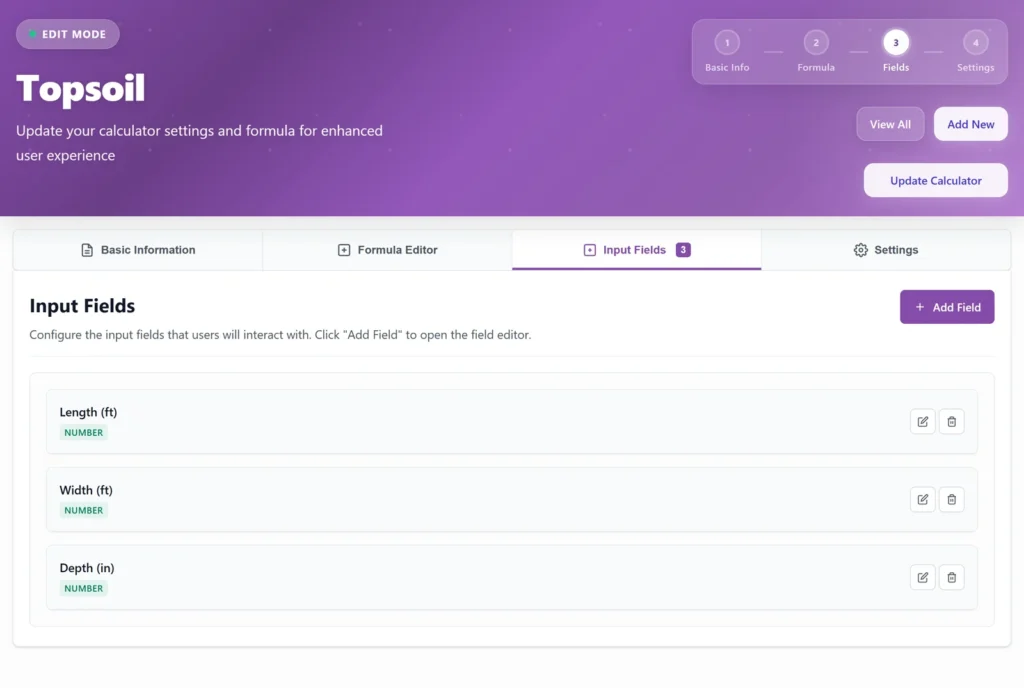
Step 4: Add three number fields.
On the Input Fields tab, click Add Field three times:
- Length (ft), key
length, type Number. - Width (ft), key
width, type Number. - Depth (in), key
depth, type Number.
Step 5: Write the formula.
On the Formula Editor tab, for cubic yards at $45 a yard:
length * width * depth / 324 * 45Change 45 to your price per cubic yard. Selling in metric? Either use length * width * depth * rate with all three in meters, or use the Measurement field set to volume, which asks for the three sizes, works out the cubic meters for you, and has its own waste box. The plugin shows “Formula looks good” when your formula is right.
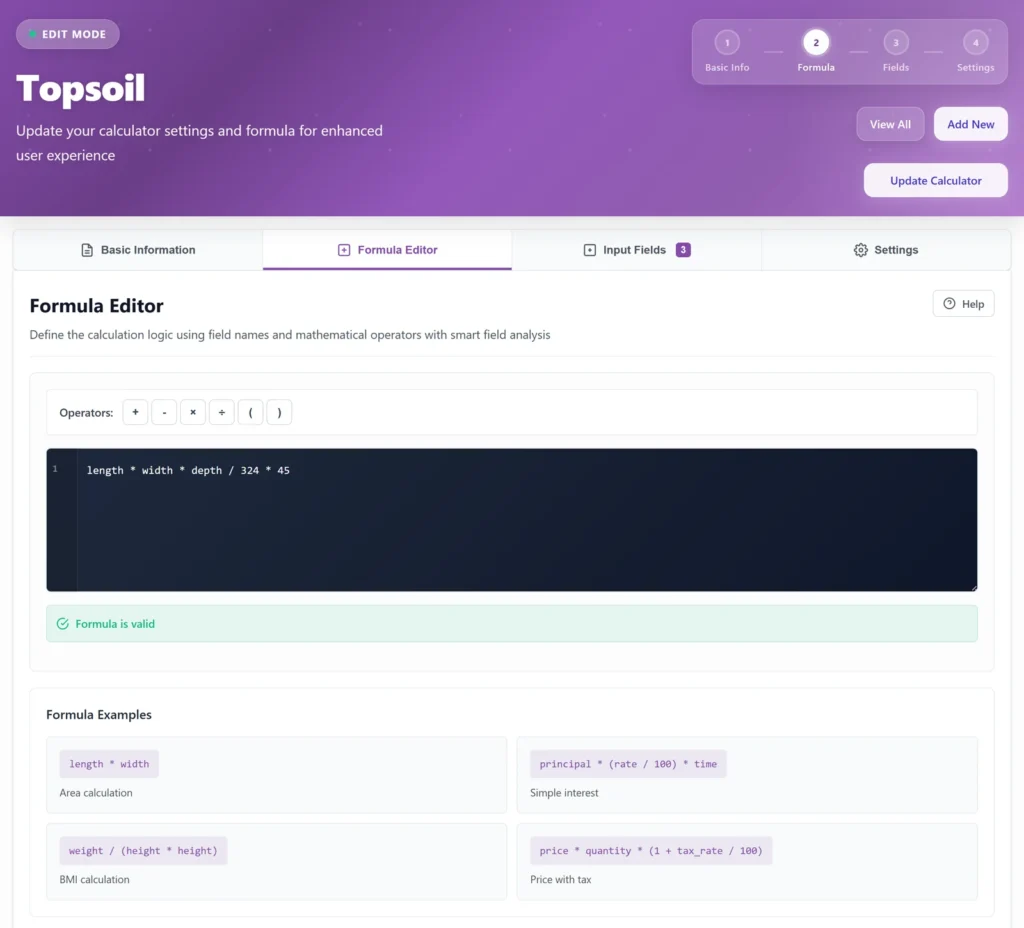
Step 6: Choose where it shows, then save.
On the Settings tab, pick the position and click Save Calculator.
Step 7: Test it.
Open a product (with a regular price set) and enter 10, 10, and 3. Watch the price update.
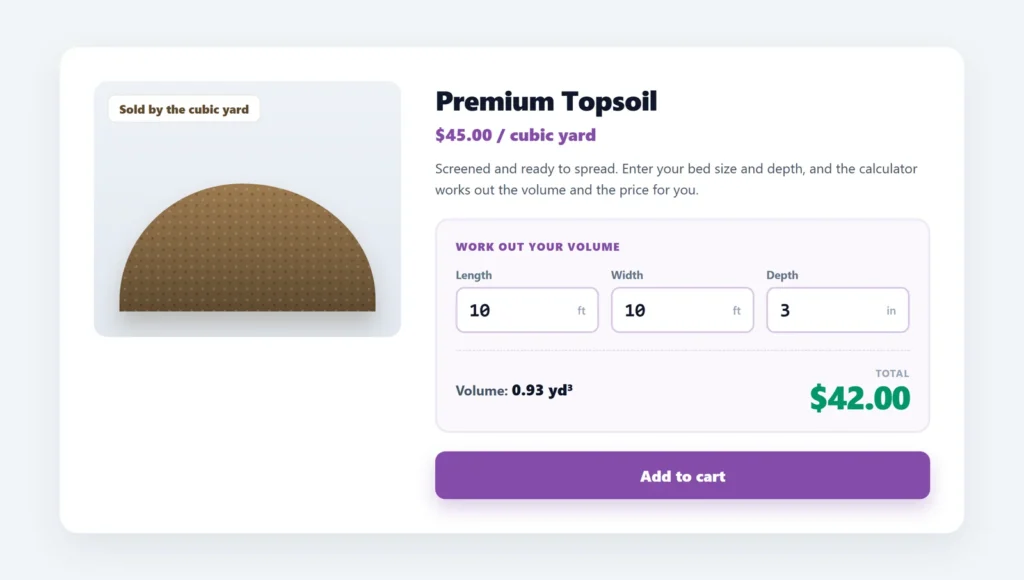
Example: a 10 ft by 10 ft bed, 3 inches deep. 10 by 10 by 3, divided by 324, is about 0.93 cubic yards. At $45, that’s around $42. The customer sees the volume and the price before they buy.
If you would rather see the maths than read about it, the topsoil demo is live right now.
Warning: The calculator won’t show unless it has at least one field AND the product has a regular price set.
The landscaping bits most guides skip
Always order a bit extra.
Loose materials settle and compact. Most pros add 10 to 15%. You can build it into the formula:
length * width * depth / 324 * 45 * 1.15Or, if you use the Measurement field, just type 15 in its waste box and it’s added for you.
Set a minimum load.
Bulk materials almost always have a minimum. Set a minimum charge on the calculator’s Settings tab, and it’s applied after the volume price, so a tiny order never comes in under your minimum load.
Charge delivery by the real weight.
A tonne of gravel and a bag of bark don’t cost the same to deliver. In the calculator’s Settings you can set the cart line’s weight from a formula (your volume times the material’s density), so WooCommerce weight-based shipping charges the right delivery for the load. The heavier the order, the higher the delivery, worked out automatically.
Selling by the bag too?
Bulk by volume and bags are different. For bags, use one field, “How many bags?”, times the bag price, and set the per-bag weight for delivery. Keep bulk and bagged as separate products.
Selling by weight (tonnes)?
Be careful here. Volume to weight depends on the material’s density, and wet soil weighs more than dry. If you price by the tonne, don’t promise an exact volume-to-weight conversion. Price by what you actually sell by.
FAQ
Why do I need depth?
Because volume is area times depth. Same area, deeper layer, more material. Without depth, the price is wrong.
Can it tell customers how much they need?
Yes, that’s the side benefit. They enter their space and see the volume, so fewer “how much?” emails.
Can delivery cost follow the weight?
Yes. Set the cart line weight from your volume in the calculator’s Settings, and weight-based WooCommerce shipping does the rest.
Cubic yards or cubic meters?
Either. Just match your formula and labels to the unit you sell in. For metric, the Measurement field’s volume mode does the maths for you.
Can I do this for free?
Partly. A formula and number fields cost nothing, so plain volume pricing works. The Measurement field (with waste built in) and delivery-by-weight are in PriceWise Pro.
Two things to sort out first
Quick checklist:
- Add three fields: length, width, depth (Number), or a Measurement field in volume mode.
- Set the formula for your unit (
length * width * depth / 324 * ratefor cubic yards). - Add 10 to 15% for settling if you want.
- Set a minimum charge, and set the line weight so delivery charges by the load.
- Put a regular price on the product so the calculator shows.
Put a garden size into the topsoil demo and watch the tonnes and the delivery sort themselves out. That is PriceWise Calculator Pro doing the volume maths, from $49 a year. The basic cubic-metre formula runs in the free version, so you can start without paying; the Measurement field with waste built in, and delivery charged by the load, are the Pro parts. Both are documented in full in the documentation.
Selling flat materials instead? See how to sell by the square meter. Building to a custom size? See made-to-measure products.