Some shops should not show a price to everyone. A trade supplier shows prices only to account customers. A glass or joinery shop prices every job after measuring it. A furniture maker wants the enquiry, not a checkout.
WooCommerce has no setting for this. Every product with a price shows it, with an Add to Cart button next to it.
So I set up a test shop and tried every common way to hide prices and the Add to Cart button in WooCommerce, logged out, the way a visitor sees it. I tested each on a block theme (Twenty Twenty-Five) and on the classic one (Storefront).
Most of them hide the price on the screen and nowhere else. The product can still be bought through a link, and the price still goes to Google and to WooCommerce’s public product feed. Below is what failed, the code that passed every test, and the settings that do it for you.
In short: To hide the price on a few made-to-order products, leave their price empty. WooCommerce then shows no price and no button, and nobody can buy them.
To hide prices from visitors who are not logged in, use the snippet further down. It has four parts, because hiding the price on the page is only one of the four places it gets out.
If a hidden price on your shop means “ask us for a price” (made to order, trade, B2B), you want a quote button in place of Add to Cart. My free QuoteWise plugin does that with the price hidden.
First, decide who should not see the price
The right way depends on this one question. “Catalog mode”, “hide price until login” and “price on request” sound alike, but they are three different jobs:
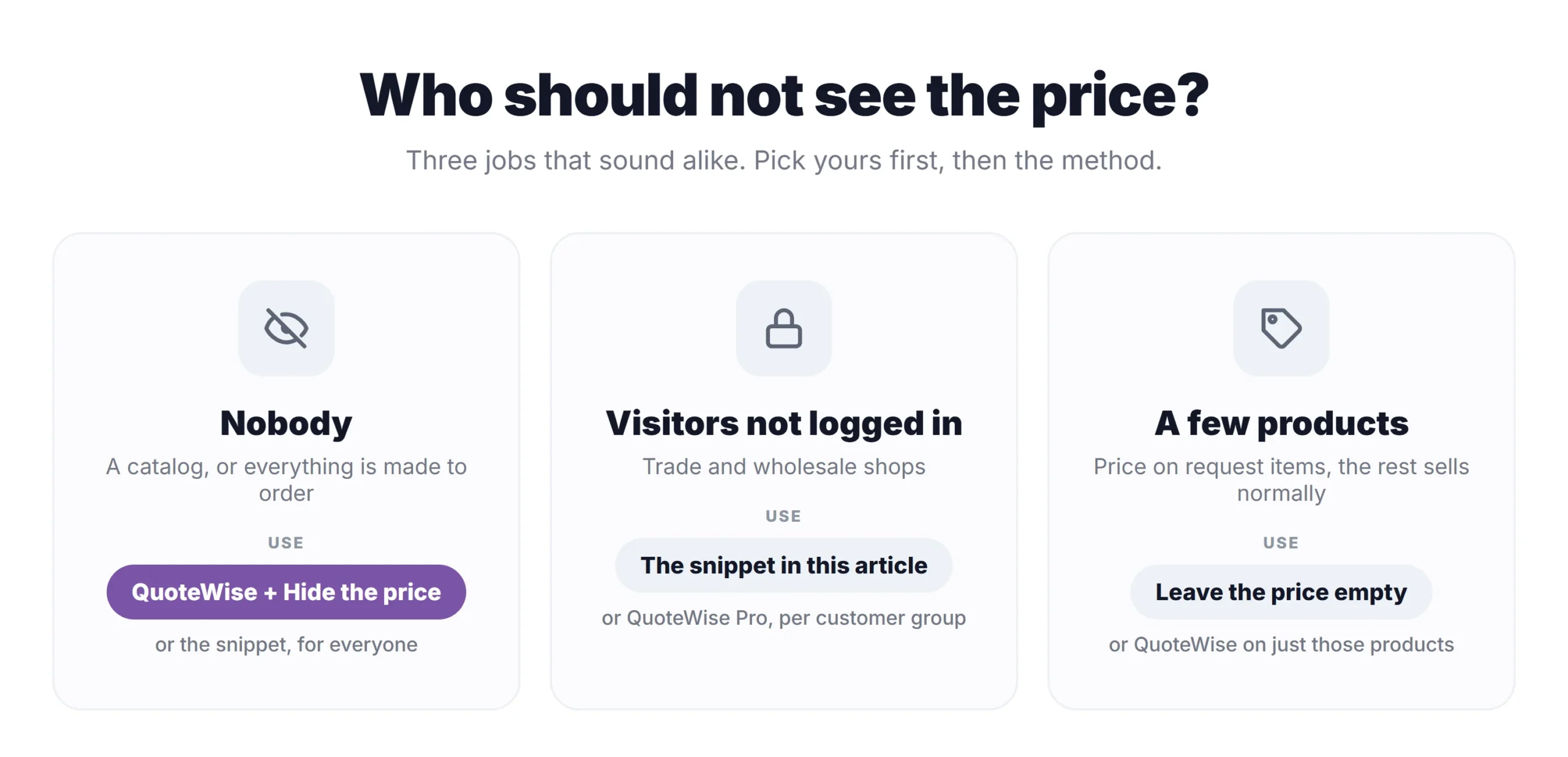
- Nobody sees prices. A catalog, or everything is made to order. Every product gets a quote button and no price.
- Only logged-in customers see prices. A trade or wholesale shop. Guests see “Log in to see prices”, account customers shop normally.
- A few products are “price on request”. Most of the shop sells normally, a handful of custom items don’t.
Why most hide price snippets don’t work anymore
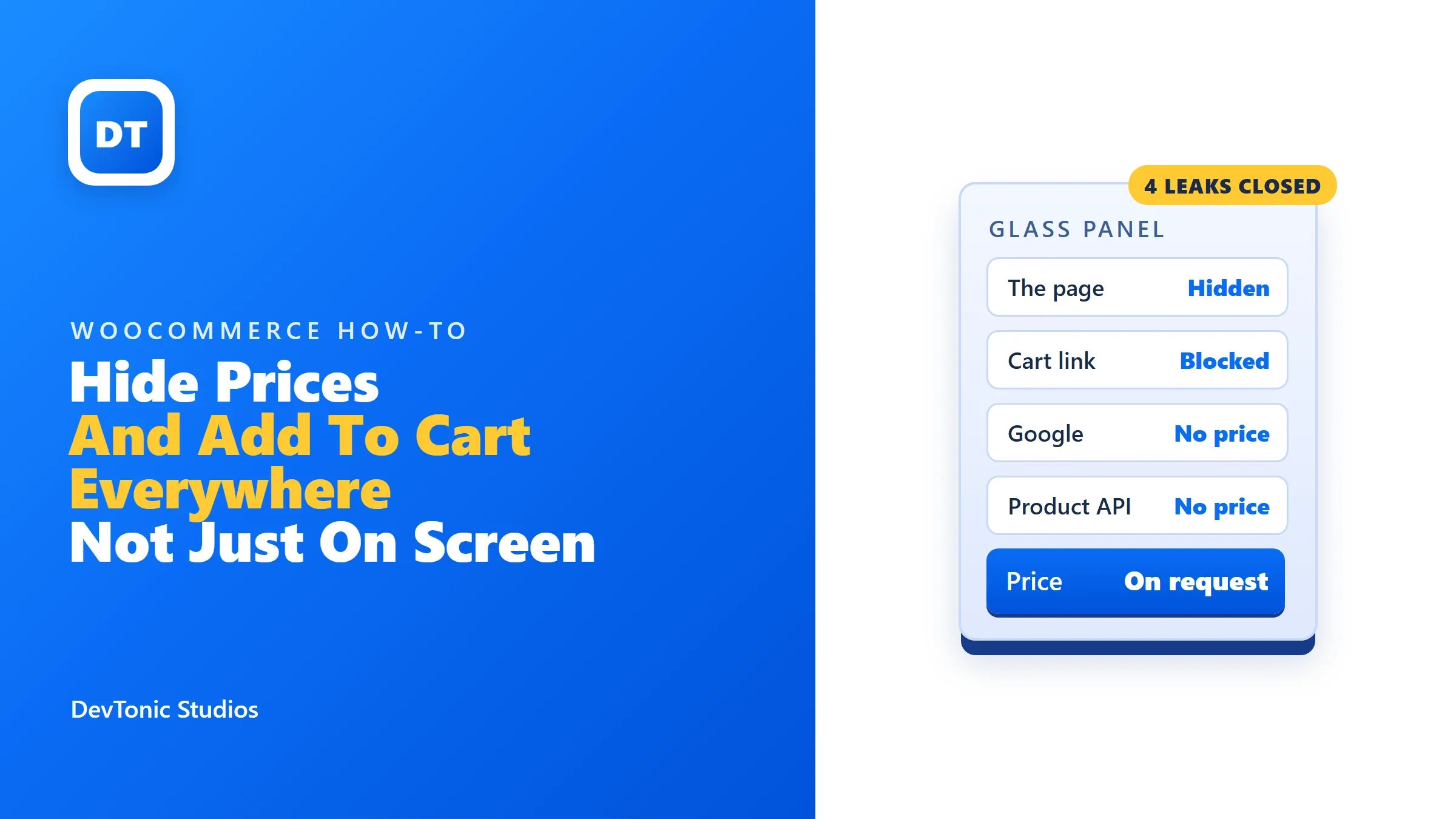
A price in WooCommerce lives in four places, not one:
- The page: the product page, the shop page, and on Storefront the sticky bar that slides in when you scroll.
- The add-to-cart link: any product can be added with a link like
yourshop.com/?add-to-cart=123. No button needed. - Google’s product data: every product page carries hidden product details for Google, price included.
- The public product API: WooCommerce publishes every product at
/wp-json/wc/store/v1/products. The block cart and product blocks use it. Anyone can open it in a browser, no login.
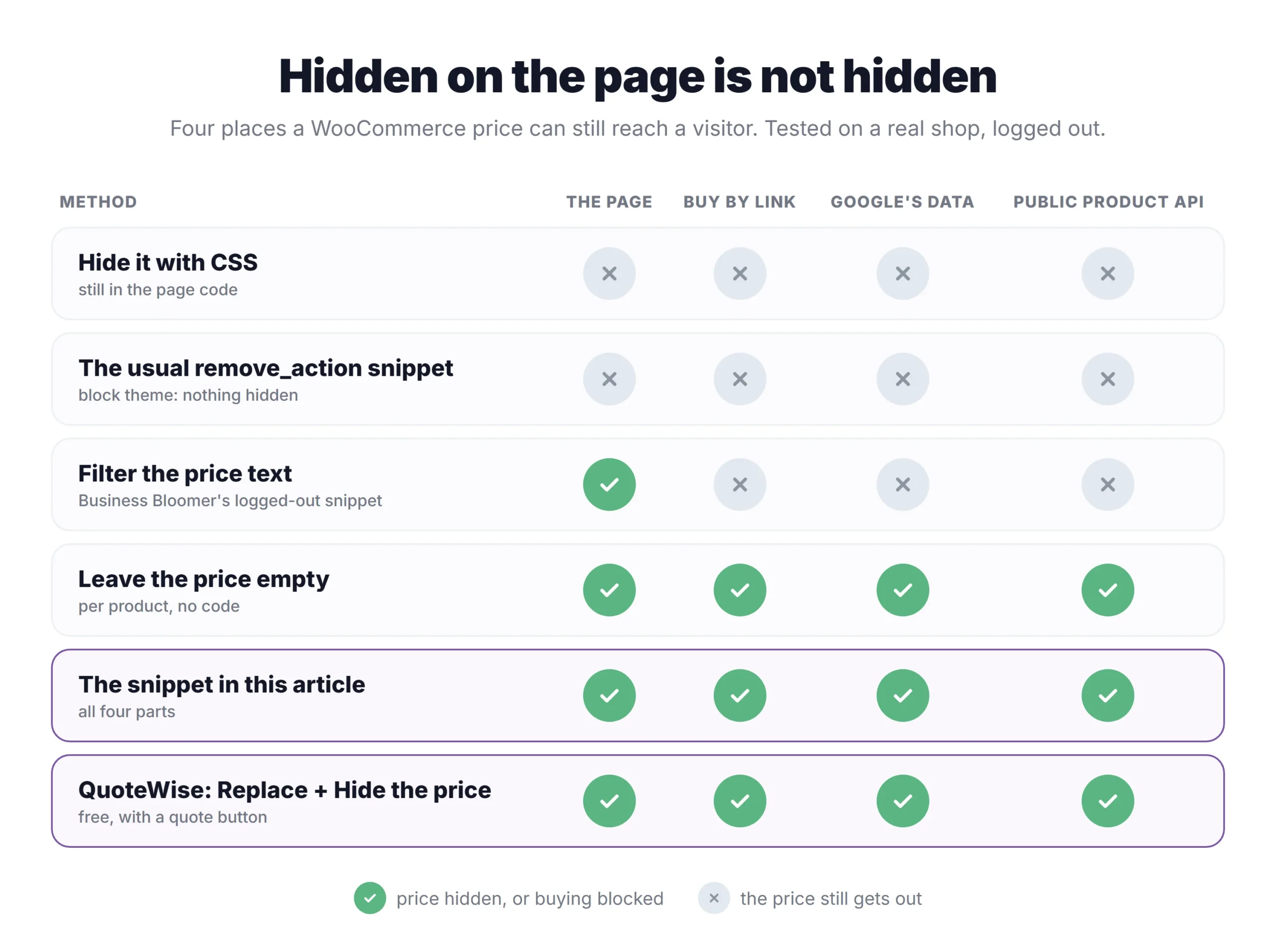
Here is what each method did with all four on my test shop:
The snippet most tutorials give does nothing on a block theme
The code you find most often removes WooCommerce’s price and button with remove_action lines. Those lines take things off the old theme hooks. Block themes like Twenty Twenty-Five don’t use those hooks, so the price and the button simply stay:
On Storefront it hides the main price and button. Then you scroll down, and Storefront’s sticky bar shows the price and an Add to Cart button anyway:

CSS and price filters hide the price, but not the sale
Hiding the price with CSS only hides what you name. My CSS hid the price and buttons on the block theme but missed Storefront’s sticky bar. Either way the price is still in the page code, and the product can still be bought through the link.
Filtering the price text is better: Business Bloomer’s well-known snippet for logged-out visitors hid the price and the button on both themes. But the ?add-to-cart= link still put the product in the cart, at its full price.
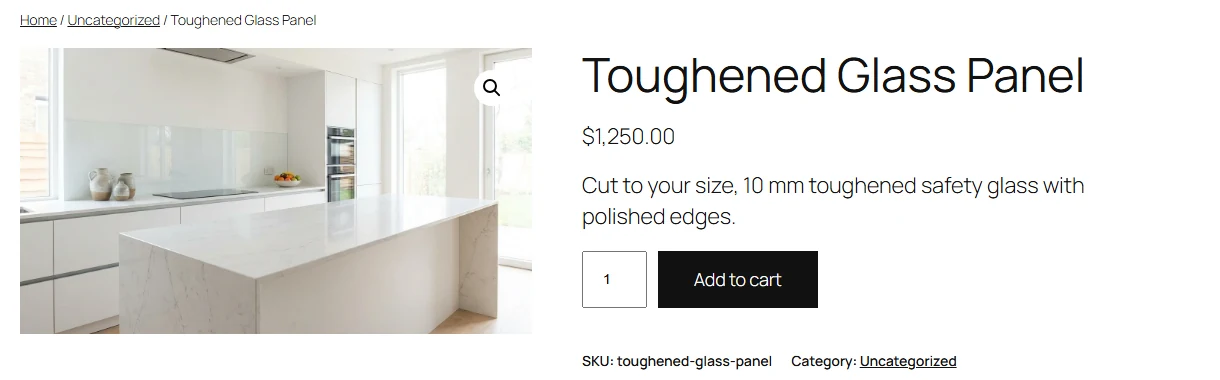
And none of these touch the last two places. Here is part of what the public product API gave for the same product, logged out, with the price hidden on the page by CSS:
{
  "id": 12,
  "name": "Toughened Glass Panel",
  "is_purchasable": true,
  "prices": {
    "price": "125000",
    "regular_price": "125000",
    "sale_price": "125000",
    "currency_code": "USD",
    "currency_minor_unit": 2
  }
}
125000 means $1,250.00 (the API counts in cents). For a trade supplier, that’s the whole price list, readable by anyone.
Way 1: leave the price empty (a few products)
For a handful of made-to-order products, you don’t need code. Open the product, clear the Regular price field on the General tab, and update.
A product with no price can’t be bought. On my test shop it showed no price and no button, the add-to-cart link did nothing, and Google’s data had no price in it. The public API showed 0, not a real price:
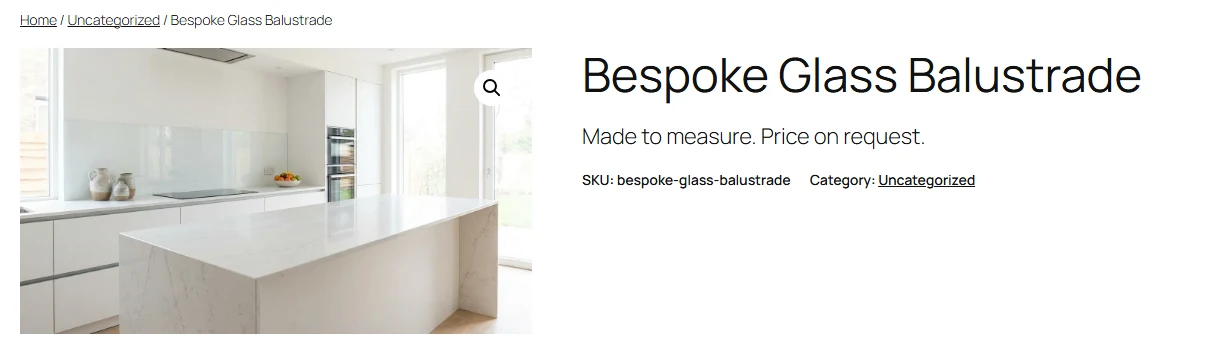
Two limits. On the shop page the button becomes “Read more”, with no word about how to get a price. And the customer has no way to ask, apart from your contact page. Add a line to the product description (“Price on request, call us on …”) or use a quote button (Way 3).
Way 2: a snippet that hides prices from visitors who are not logged in
This is the code that passed every test on both themes. Paste it into a snippets plugin (Code Snippets is the usual one) or your child theme’s functions.php:
/**
 * Hide prices and the Add to Cart button from visitors who are not logged in.
 * Logged-in customers see everything as normal.
 */
add_action( 'init', function () {
	// Who still sees prices: logged-in customers. For a catalog where nobody sees
	// them, change the next line to: if ( is_admin() && ! wp_doing_ajax() ) {
	if ( is_user_logged_in() ) {
		return;
	}

	// 1. Show a login link where the price would be: product page, shop page, blocks.
	//    A variable product also keeps each option's price in the page code, so blank those too.
	add_filter( 'woocommerce_get_price_html', function () {
		return '<a href="' . esc_url( wc_get_page_permalink( 'myaccount' ) ) . '">Log in to see prices</a>';
	}, 100 );
	add_filter( 'woocommerce_available_variation', function ( $data ) {
		$data['price_html']            = '';
		$data['display_price']         = '';
		$data['display_regular_price'] = '';
		return $data;
	}, 100 );

	// 2. Nothing can be bought. This removes the buttons AND blocks ?add-to-cart= links.
	add_filter( 'woocommerce_is_purchasable', '__return_false', 100 );
	add_filter( 'woocommerce_variation_is_purchasable', '__return_false', 100 );

	// 3. Keep the price out of the product data Google reads. With no price, reviews or
	//    rating left, Google calls that data incomplete, so send none at all.
	add_filter( 'woocommerce_structured_data_product', function ( $markup ) {
		unset( $markup['offers'] );
		return ( empty( $markup['review'] ) && empty( $markup['aggregateRating'] ) ) ? array() : $markup;
	}, 100 );

	// 4. Keep the price out of WooCommerce's public product API.
	add_filter( 'rest_post_dispatch', function ( $response, $server, $request ) {
		if ( 0 !== strpos( $request->get_route(), '/wc/store/v1/products' ) || ! $response instanceof WP_REST_Response ) {
			return $response;
		}
		$strip = function ( $item ) {
			if ( is_array( $item ) && isset( $item['prices'] ) ) {
				$item['prices']     = array();
				$item['price_html'] = '';
			}
			return $item;
		};
		$data = $response->get_data();
		$data = isset( $data['prices'] ) ? $strip( $data ) : array_map( $strip, (array) $data );
		$response->set_data( $data );
		return $response;
	}, 10, 3 );
} );
What each part does:
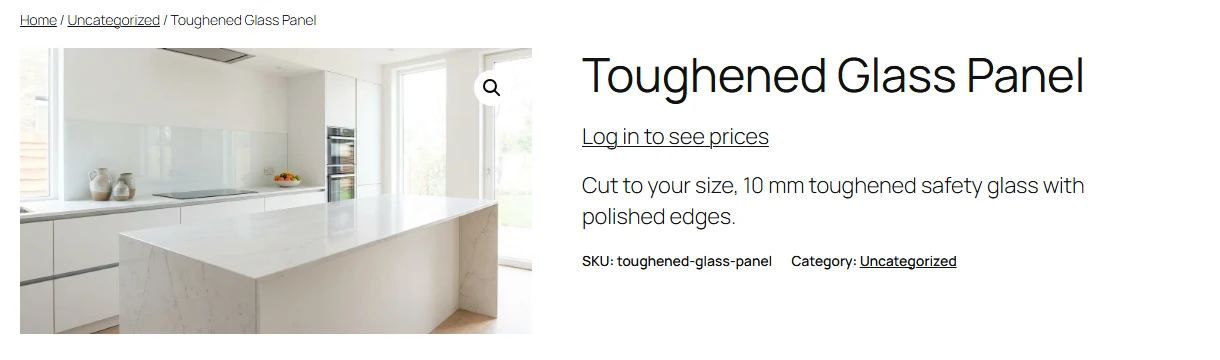
- The price text. Wherever WooCommerce prints a price (product page, shop page, blocks) it prints a “Log in to see prices” link instead. A variable product also keeps each option’s price in the page code, so those are blanked too.
- Nothing can be bought. This is the part most snippets leave out. It removes the buttons on both kinds of theme, and the add-to-cart link stops working.
- Google’s product data. The price comes out. If the product has no reviews, the product data goes completely, because Google calls product data without a price, reviews or rating incomplete.
- The public product API. Prices come out of
/wp-json/wc/store/v1/productsfor visitors who are not logged in.
Logged-in customers see everything as normal. For a catalog where nobody sees prices, change the line if ( is_user_logged_in() ) { to if ( is_admin() && ! wp_doing_ajax() ) {, as the comment in the code says. Then the shop hides prices from everyone, you included, and your wp-admin screens still show them. I tested that version too.
Check it yourself in two minutes
Whatever method you use, open a private window (logged out) and try these. You’ll find the product ID by hovering over the product in Products, All Products.
- Open a product and a category page. No price, no Add to Cart.
- Go to
yourshop.com/?add-to-cart=123, then open the cart. It should be empty. - Open
yourshop.com/wp-json/wc/store/v1/products/123and search the page for “price”. The prices should be empty. - Press Ctrl+U on the product page and search for the price, say 1,250. It should not be there.
If an SEO plugin adds its own price tags to the page, step 4 is where you’ll spot them.
One more thing for trade shops. Once account customers log in and see prices, they usually expect their own trade prices, not the retail ones. The free DiscountWise plugin (also mine) sets a price or a discount per customer role, such as a wholesale role, without code.
Way 3: replace Add to Cart with a quote button
Way 1 and Way 2 hide the price. This part is for shops where a hidden price means “ask us”: the price depends on the job, the customer, or the quantity. There, hiding the price alone leaves the customer with nothing to click. A quote button gives them one, and you get the enquiry with the products, quantities and options already filled in.
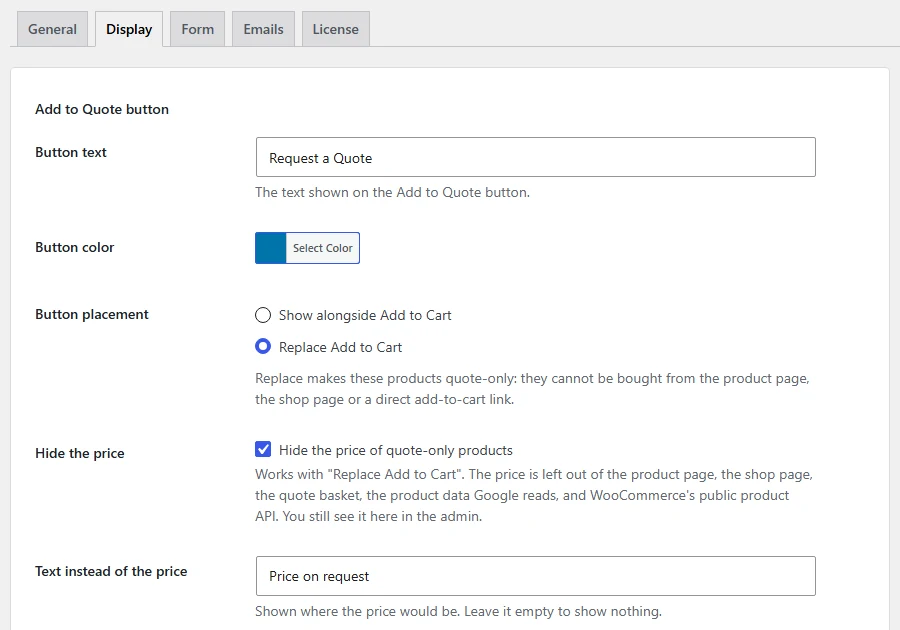
This is what my plugin QuoteWise does, and the free version on WordPress.org does everything in this part. In Quotes, Settings, on the Display tab, choose Replace Add to Cart and tick Hide the price:
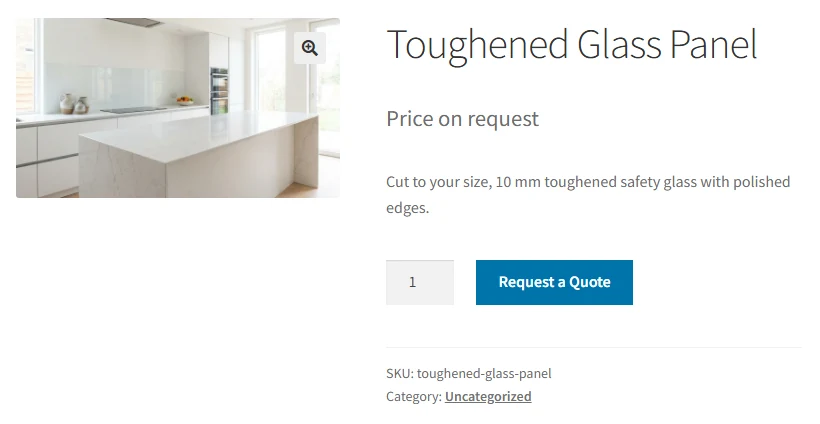
The product page then shows “Price on request” (your own words if you like) and the Request a Quote button. The customer still picks the options and the quantity, and those go into the quote:
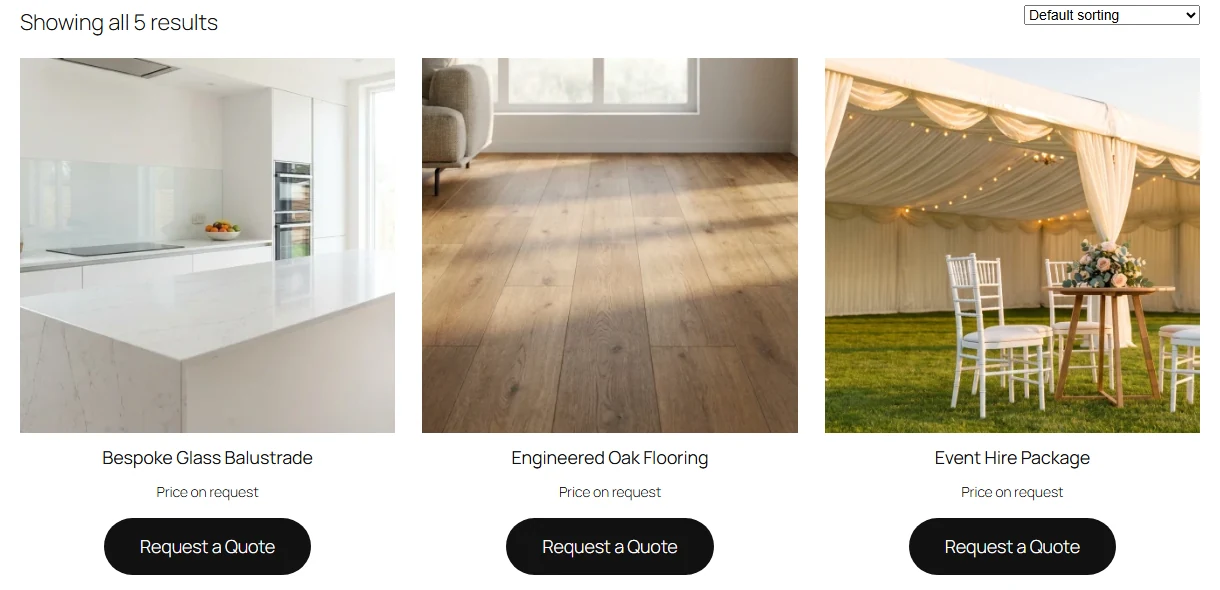
It closes the same four places as the snippet: the product can’t be bought from the shop page, a link or the block cart, and the price stays out of Google’s data and the public API. It also stays out of the quote basket and out of the customer’s own quote page until you send your price. The shop page gets a Request a Quote link in place of Add to Cart:
Quote only some products? On the General tab, set the quote mode to On for products I choose, then switch it on in the Quote settings box on each of those products. I tested it with one product: that one became quote-only with its price hidden, and the rest of the shop sold normally.
The QuoteWise page shows the whole quote flow, from the quote basket to your reply, and what Pro adds.
Hide prices from guests only (QuoteWise Pro)
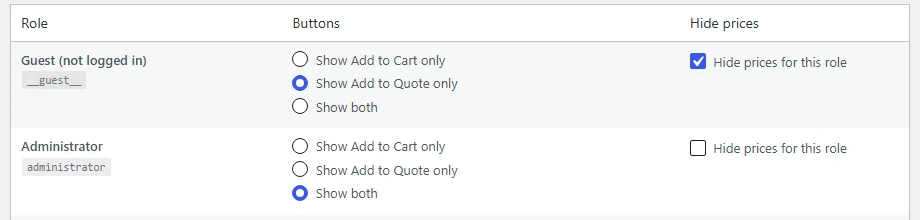
For a trade shop, QuoteWise Pro sets this per customer group in Quotes, Visibility Rules. Guests get “Log in for prices” and the quote button. A wholesale role sees its prices and buys normally, or quotes, whichever you choose:
Pro also turns an accepted quote into a WooCommerce order with a Pay Now link, so the price the customer finally sees is the one you quoted. If you’re still choosing how quotes should work on your shop, I wrote up the request a quote setup that works too.
FAQ
Can I hide the price but keep the Add to Cart button?
You can, but the cart and the checkout show the price anyway. If customers may buy, show the price. If they may not, hide both.
Does hiding prices hurt my SEO?
The pages still get indexed and can still rank. Google just can’t show a price under them in the results. With the snippet above, products without reviews send Google no product data at all, so there is nothing incomplete for Search Console to report.
What is WooCommerce catalog mode?
Catalog mode is a shop that shows products without selling them online: no prices, no cart. WooCommerce doesn’t have it built in. The snippet above with its one-line catalog change does it, and so does QuoteWise with Replace Add to Cart and Hide the price, with a quote button on top.
How do I remove the Add to Cart button but keep the price?
Use only part 2 of the snippet (the two __return_false lines). The price stays, the buttons go, and the add-to-cart link stops working. QuoteWise with Replace Add to Cart and without Hide the price does the same with a quote button in its place.
Why can people still buy after I hid the button?
Because a button is only one way into the cart. The add-to-cart link and the block cart don’t need it. Only making the product “not purchasable” (part 2 of the snippet) closes every way in.
My bottom line
Hiding a price is easy. Hiding it properly means four places: the page, the add-to-cart link, Google’s product data and the public API. Most snippets online cover the first one, and on a block theme not even that.
For a few products, leave the price empty. For a trade shop, the snippet above does all four. If a hidden price should turn into an enquiry, install QuoteWise free, choose Replace Add to Cart, tick Hide the price, and test it with the four checks. QuoteWise Pro adds the per-group rules and turns an accepted quote into a paid order, from $49 a year or $99 once.
Tested on 25 September 2026 with WordPress 7.1.2, WooCommerce 11.1.1, Twenty Twenty-Five and Storefront, logged out, in Chrome. The Business Bloomer snippet is the one published on their “Hide Price & Add to Cart for Logged Out Users” page, last updated June 2025. WooCommerce changes often, so run the four checks on your own shop.