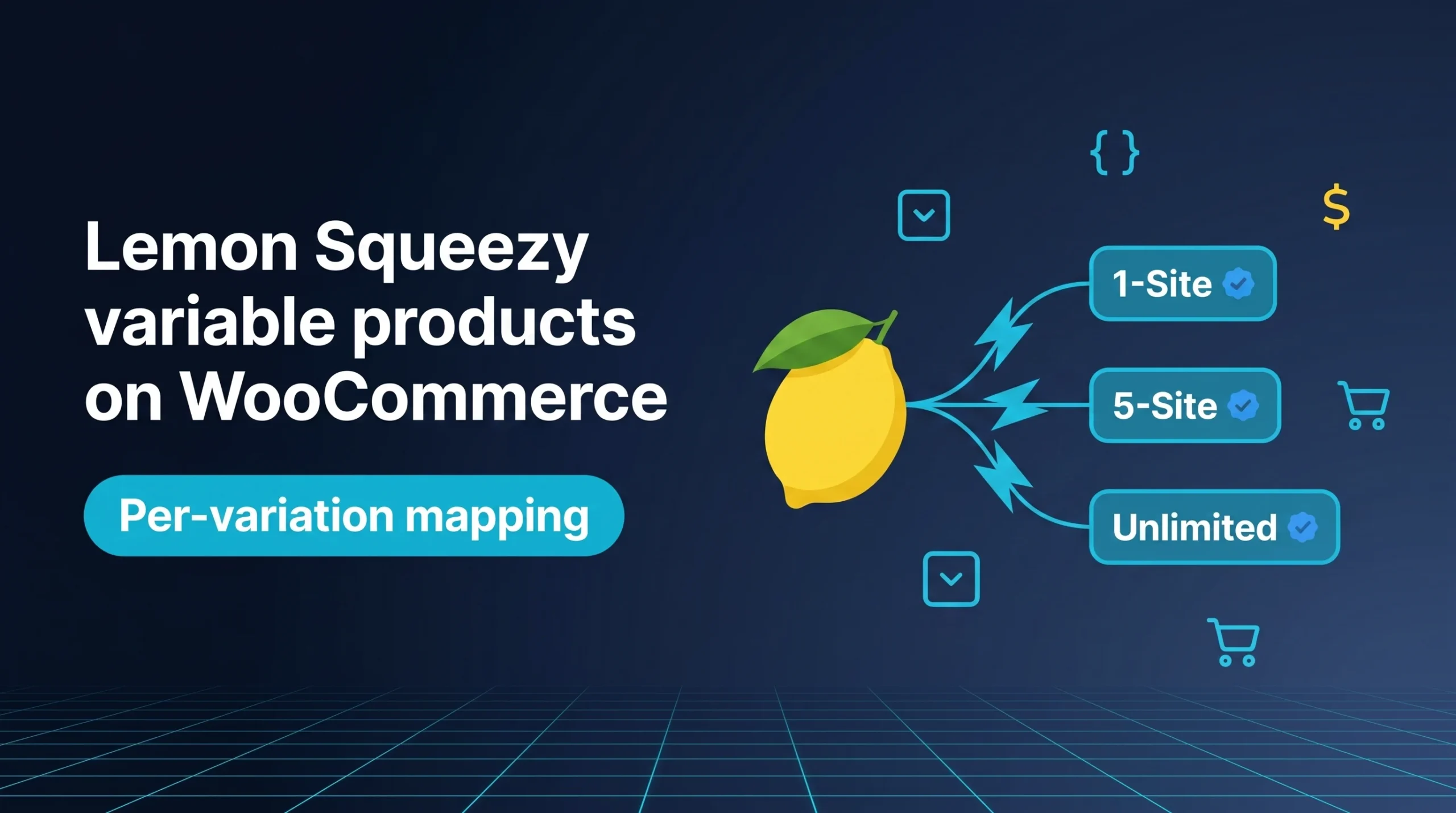
I want to sell my WordPress plugin in three tiers: 1-site at $39, 5-site at $99, unlimited at $199. Lemon Squeezy handles all three nicely as variants of one product. WooCommerce handles all three nicely as variations of one product. The problem? Most Lemon Squeezy plugins refuse to let those two worlds talk to each other.
The default fix everybody tells you is ugly: create three separate WooCommerce products, link each one to a different Lemon Squeezy variant. Suddenly your shop page has three near-duplicate listings of the same plugin. Your customer has to figure out which one to buy. Your SEO splits across three pages. You lose the natural variation dropdown that WooCommerce was built around.
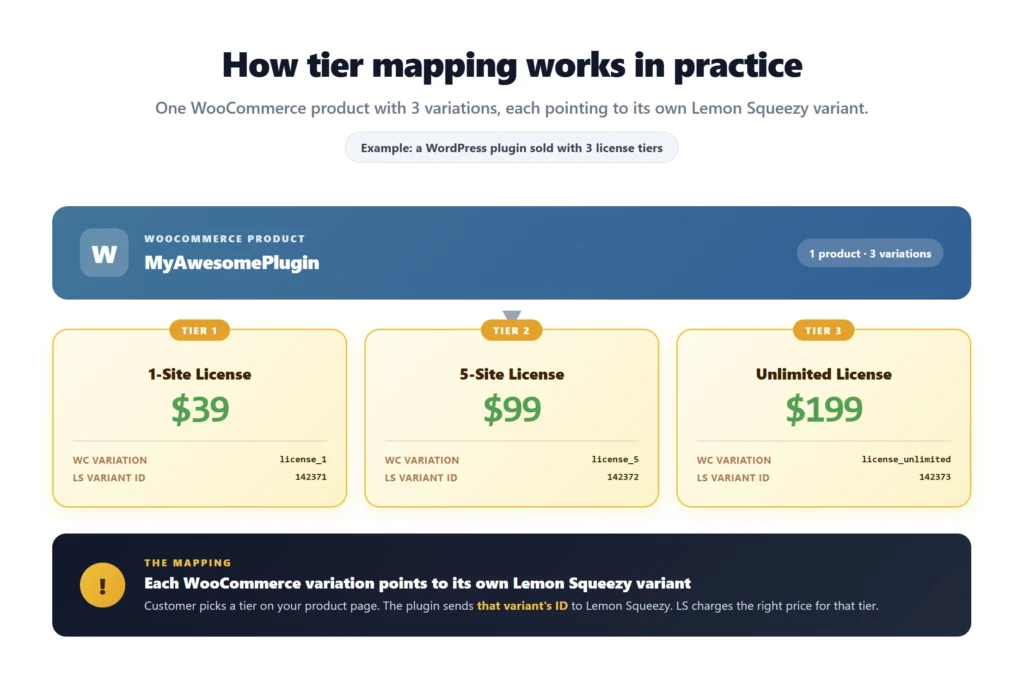
I hit this exact problem when I started selling my own plugins. So when I built the Lemon Squeezy for WooCommerce plugin, I made sure each WC variation could point to its own LS variant. This article walks through how to set that up, with real examples for license tiers, course bundles, theme packs, and more.
What variable products are in WooCommerce, quickly
A variable product is one product with multiple options. Customer picks an option, the price and SKU update. The classic example is a t-shirt with Size and Color attributes. For digital sellers it might be:
- License Type with values 1-site, 5-site, unlimited
- Bundle with values Basic, Pro, Premium
- Format with values Personal, Commercial, Extended
WooCommerce calls each option a “variation”. You get one product page, one shop listing, one set of reviews, and a dropdown for the customer to pick. Way cleaner than separate products.
The problem with most Lemon Squeezy plugins
Every other Lemon Squeezy plugin I tested has the same limitation: one WC product can only link to one LS variant.
That means if you have three license tiers in Lemon Squeezy, you have to create three separate WooCommerce products. You end up with:
- A shop page cluttered with near-identical listings
- Duplicate descriptions hurting your SEO (Google sees three pages for the same plugin)
- Customer confusion picking between three similar products
- No real upsell path inside the product page
- Three sets of product reviews split instead of one strong set
For a digital seller, this is a real cost. Bigger sellers get around it with custom code. Solo founders end up either accepting the clutter or skipping variations entirely and selling only one tier. Both are bad outcomes.
How the DevTonic plugin handles variations
The plugin adds a Lemon Squeezy variant ID field in two places:
Parent product level. A field labeled “Lemon Squeezy Variant ID” on the product edit page. Use this if all variations should bill the same way through LS, or as a default fallback.
Per-variation level. A field labeled “LS Variant ID” inside each variation’s settings. Use this when each variation should map to a different LS variant. This is the one that matters for tiered pricing.
The plugin reads the variation’s ID first at checkout. If that variation has no ID set, it falls back to the parent product’s ID. If neither has one, the checkout fails with a clear missing_variant_id error so you catch the problem fast instead of having silent payment failures.
There’s also a wcls_default_variant_id filter hook if you want to do something fancy in code, like load variant IDs from a database or external API. Most people will never need it. It’s there if you do.
Setting up your first variable product, end to end
Concrete steps. I’ll use a software license example because that’s the most common case.
Step 1: Set up the product and variants in Lemon Squeezy
- Log in to your Lemon Squeezy dashboard
- Click Products, then New Product
- Name your product (example: “MyAwesomePlugin”)
- In the variants section, add three variants:
- Name: “1-Site License”, price: $39
- Name: “5-Site License”, price: $99
- Name: “Unlimited License”, price: $199
- Save the product
- Note each variant’s ID. You can find it in the variant’s URL inside the LS dashboard or via the LS API. It will be a number like 142371.
Step 2: Create the variable product in WooCommerce
- In WP Admin, go to Products, then Add New
- Title the product the same way (or differently, your choice). Example: “MyAwesomePlugin”
- Write your description, set the image, etc.
- In the Product Data dropdown (right side of the editor), select Variable product
- Open the Attributes tab
- Add a new attribute called “License Type”
- Add the values: “1-Site | 5-Site | Unlimited” (separated by pipes)
- Check “Used for variations” and save the attribute
Step 3: Add the variations
- Open the Variations tab
- Click “Generate variations” or add them one at a time
- WooCommerce creates a variation for each License Type value
- Expand each variation
Step 4: Set the LS Variant ID per variation
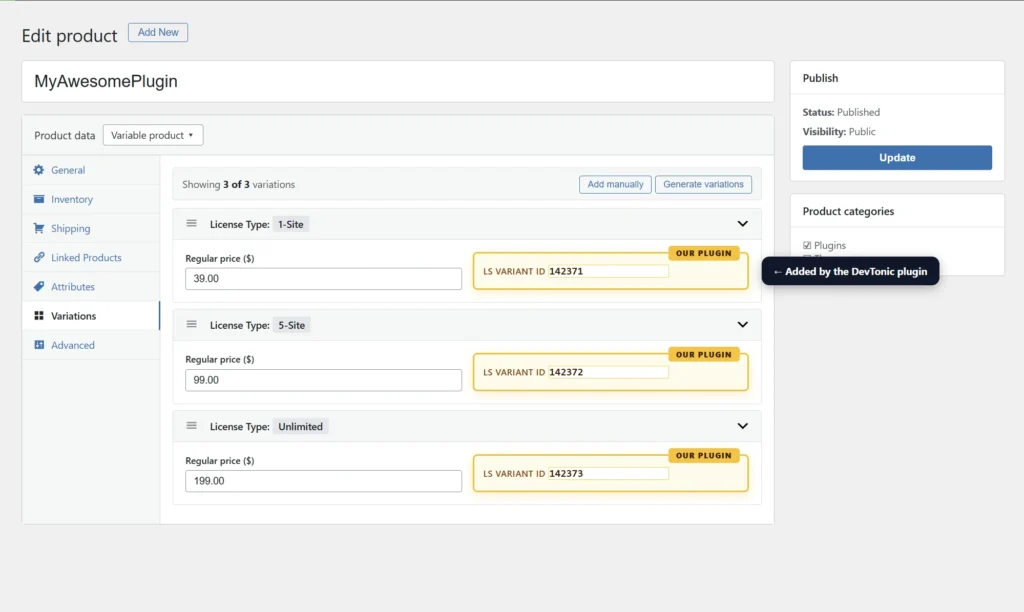
This is where the DevTonic plugin shows up.
- Inside the expanded variation, find the field labeled LS Variant ID
- Paste the matching variant ID from Lemon Squeezy
- 1-Site variation gets the 1-site variant ID from LS
- 5-Site variation gets the 5-site variant ID
- Unlimited variation gets the unlimited variant ID
- Set the variation’s regular price too (this is shown to customers, LS charges what its variant is set to)
- Save the variation
Repeat for each variation. Save the product when done.
Step 5: Test the front-end flow
- Visit your product page on the front-end
- Try switching between variations in the dropdown
- Add a variation to cart
- Go to checkout
- Pick Lemon Squeezy as the payment method
- Confirm the LS checkout that opens charges the correct price for the variation you picked
If anything’s off, the article’s error section below covers the most common fixes.
The smart parent fallback
The plugin’s two-level field setup gives you a fallback. If a variation has no LS Variant ID, the plugin checks the parent product’s Lemon Squeezy Variant ID and uses that instead.
When the fallback is useful:
- You want all variations to bill the same way through LS, with the only difference being how WooCommerce displays them
- You have a “default” variant in LS and only override a few WC variations
- You’re migrating from another plugin and don’t want to fill in every variation at once
When you need per-variation IDs:
- Different prices per tier (the typical case)
- Different downloadable files or license keys per tier
- Different subscription terms per tier (monthly vs yearly vs lifetime)
Most sellers use per-variation IDs from day one. The fallback is mostly there to prevent broken checkouts during setup or migration.
Four real examples that work today
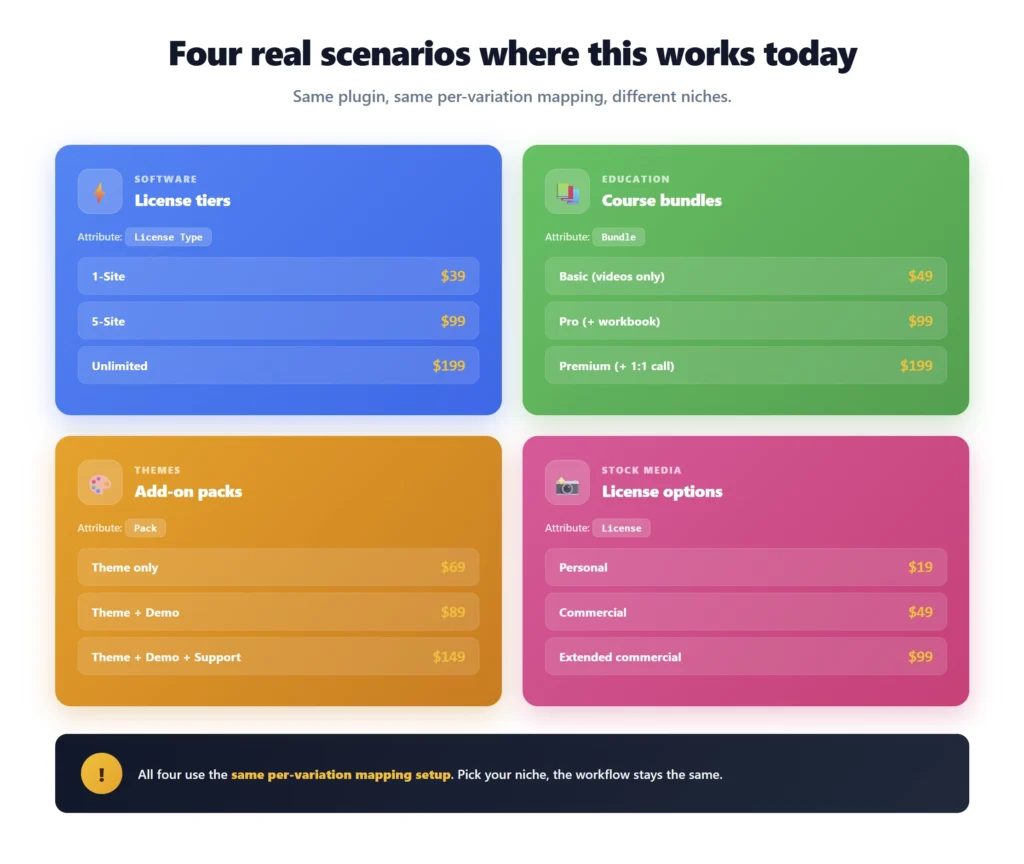
Software license tiers
WC product: “FilterKit Pro” with attribute “License Type” Variations: 1-Site ($49), 5-Site ($149), Unlimited ($349) LS side: three variants of one product with those prices
This is the cleanest use of variable products. One WC product page, one description, one set of reviews. Customer picks their tier, LS charges accordingly. Subscription or lifetime, your call.
Course bundles
WC product: “WordPress Mastery Course” with attribute “Bundle” Variations: Basic ($49), Pro ($99 includes workbook), Premium ($199 includes 1:1 call) LS side: three variants, each tied to different deliverables
The course content might be the same. The bundle determines what extras the customer gets. License key webhook fires per variant so you can grant access to the right tier in your LMS or membership plugin.
Theme add-on packs
WC product: “Pro Theme” with attribute “Add-on Pack” Variations: Theme only ($69), Theme + Demo ($89), Theme + Demo + Support ($149) LS side: three variants priced accordingly
Buyers love the upsell because they see all three options on one page. Cheaper themes still get the simple buy flow. Higher tiers get the premium positioning.
Stock photo licensing
WC product: “Stock Photo Pack” with attribute “License” Variations: Personal ($19), Commercial ($49), Extended ($99) LS side: three variants with different license terms baked into the product description
Each LS variant can have its own description, so the receipt and email auto-include the correct license terms for the tier the customer bought.
Subscription variations: each tier can be recurring
Tiers don’t have to be one-time payments. Set the LS variant as a subscription in the LS dashboard and the DevTonic plugin handles it the same way as a one-time variant. Customer picks the variation, LS bills them on the schedule you set in LS.
Real example: “Pro Membership” with attribute “Billing”
- Variation: Monthly ($9/mo), maps to LS monthly variant
- Variation: Yearly ($89/yr), maps to LS yearly variant
- Variation: Lifetime ($249 once), maps to LS lifetime variant
All 10 subscription webhook events fire per variant. Dunning recovery, payment failures, cancellations, all handled per variation. For how the webhooks behind this work, see the Lemon Squeezy webhooks guide.
Common errors and how to fix them
“Payment could not be processed: missing_variant_id”
The variation you tried to buy has no LS Variant ID, and the parent product doesn’t have one either as a fallback. Edit the variation in WooCommerce, fill in the LS Variant ID, save. Or set the parent product’s Lemon Squeezy Variant ID field as a backup.
LS checkout shows wrong price
You probably copied the wrong variant ID. Cross-check the variant ID in your LS dashboard against what you pasted in the WC variation field. Easy to mix up when you have three or four similar variants.
Variant ID won’t save
The plugin only accepts numeric variant IDs (LS variants are always numbers). If you accidentally pasted extra characters or text, the plugin rejects the save and logs a warning. Strip everything except the digits and try again.
Variations work but the parent product page is broken
This is a WooCommerce thing, not the plugin. Open the variations panel, set “Default Form Values” so the page knows which variation to load by default. Save.
Subscription variation doesn’t trigger recurring billing
The LS variant itself wasn’t set up as a subscription in the Lemon Squeezy dashboard. The plugin just reads what LS sends back. Configure the variant as recurring in LS first.
What the plugin handles vs what’s still on you
The plugin handles:
- Adding the “LS Variant ID” field to every variation automatically
- Adding the parent-level “Lemon Squeezy Variant ID” field on the product
- Smart fallback from variation to parent
- Numeric validation so bad input doesn’t break things
- CSRF nonce protection, capability checks, autosave protection on every save
- Sending the correct variant ID to Lemon Squeezy at checkout
- Handling all 14 webhook events per variant, including subscriptions and license keys
You still handle:
- Creating products and variants inside Lemon Squeezy
- Setting up WooCommerce attributes and variations
- Mapping each WC variation to the right LS variant ID
- Testing the front-end flow
Questions people actually ask me
Can I use both simple products and variable products with the plugin?
Yes. Use the parent product’s “Lemon Squeezy Variant ID” field for simple products. Use the per-variation “LS Variant ID” field for variable products. Both fields are added by the plugin and both work alongside each other.
What if I change a variant’s price in Lemon Squeezy later?
You don’t have to update WordPress. LS is the source of truth for what gets charged. The price you see in WooCommerce is just for display. LS always uses its own variant price at checkout. Update the WC variation price if you want the display to match, but it’s not required for the payment to work.
Can a variable product have a free variation and a paid variation together?
Yes. Set the free variation’s LS variant to a $0 price in LS, and the paid variations to their respective prices. Customer flow stays the same.
Does this plugin work with the official WooCommerce Subscriptions plugin?
Yes. If you already run WooCommerce Subscriptions, Lemon Squeezy bills each renewal and the plugin records it there as a paid renewal order, so its hooks fire and license or membership plugins keep working. But you don’t need it: with Lemon Squeezy variants for recurring billing, LS handles the subscription on its end. Saves you $279 a year compared to running WooCommerce Subscriptions. See the subscriptions documentation for the full breakdown.
What about non-variable LS variants (single LS product, single price)?
For a simple product with no variations, set the LS Variant ID at the parent product level. Skip the variations stuff. Plugin handles it the same way.
Can different variations have different shipping?
LS is a merchant of record for digital products. Shipping doesn’t apply. If you’re selling physical goods, you’re probably better off with Stripe or a different setup. See LS vs Stripe for that comparison.
How do I find the LS variant ID?
In your LS dashboard, open the product, click into a specific variant. The variant ID appears in the URL (something like /products/123/variants/456789 where 456789 is what you want). You can also pull it from the LS API.
Will my existing variable products break if I install the DevTonic plugin?
No. The plugin only reads the new fields it adds. Existing products that don’t have LS Variant IDs set keep working as they did. You add the IDs when you’re ready to start selling them through Lemon Squeezy.
Putting it all together
Variable products are how WooCommerce was built to handle tiered offerings. Variants are how Lemon Squeezy was built to handle the same thing. The two should talk to each other through one clean field per variation. That’s what the DevTonic plugin does.
Once it’s set up, your customer picks their tier from a dropdown, gets the right price at LS checkout, receives the right license key, and your shop page stays clean with one listing per product instead of three.
If you’re ready to sell tiered plugins, themes, courses, or anything else through one WooCommerce product, the Lemon Squeezy plugin handles all of it. The setup guide covers credentials, products, and webhooks from scratch. The full plugin documentation has the technical reference. Or buy directly from the product page for $39/year or $79 lifetime.
Related resources on devtonicstudios.com
Plugin pages:
- Lemon Squeezy for WooCommerce plugin page, overview, features, pricing
- Plugin product page, buy the plugin ($39/year or $79 lifetime)
- Full plugin documentation, technical reference
Related blog guides:
- Lemon Squeezy WordPress plugin setup guide, full step-by-step setup
- Lemon Squeezy webhooks in WordPress, manual vs one-click setup
- Software License Management for WordPress, sell software with license keys
- How to Sell Digital Products on WordPress, the complete digital seller stack
- Merchant of Record for WordPress, why MOR matters
- Lemon Squeezy vs Stripe on WordPress, honest comparison
- Lemon Squeezy fees explained, what you really pay
- Is Lemon Squeezy Still Safe After Stripe Acquisition, current status
Sources used to verify everything in this article: