Each WooCommerce product must be linked to a Lemon Squeezy product variant. This tells the plugin which Lemon Squeezy product to charge for each item.
Option A: One-Click Product Sync (Recommended)
The fastest way to connect your products – the plugin pulls everything from Lemon Squeezy automatically.
Sync Products From Lemon Squeezy
- Go to WooCommerce → Lemon Squeezy in the admin menu
- Find the “Quick Actions” section
- Click “Sync Now” next to Sync Products
- The plugin pulls all your products and variants from Lemon Squeezy
- You’ll see a success message like: “6 products and 8 variants synced successfully”
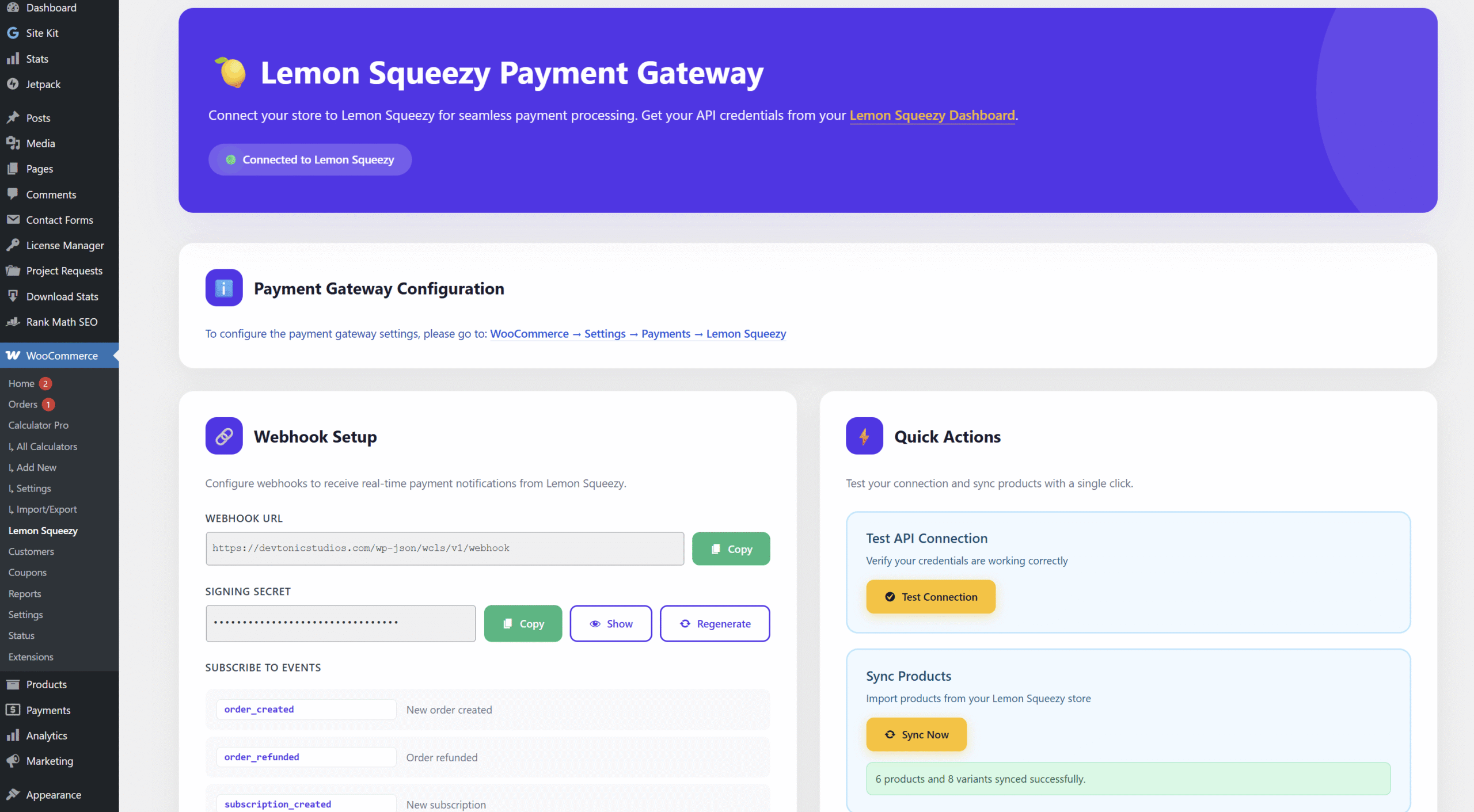
Screenshot: Click “Sync Now” to pull all products from Lemon Squeezy
Map to WooCommerce Products
After syncing, the plugin replaces the manual Variant ID text field with a dropdown on every product.
For Simple Products:
- Go to Products → All Products
- Click to edit any product
- Scroll down to Product Data → General tab
- You’ll see a “Lemon Squeezy Variant” dropdown
- The dropdown lists all your LS products and variants with names and prices – e.g., “Lemon Squeezy for WooCommerce: Yearly – $39.00 (ID: 48291)”
- Select the matching variant and click “Update”
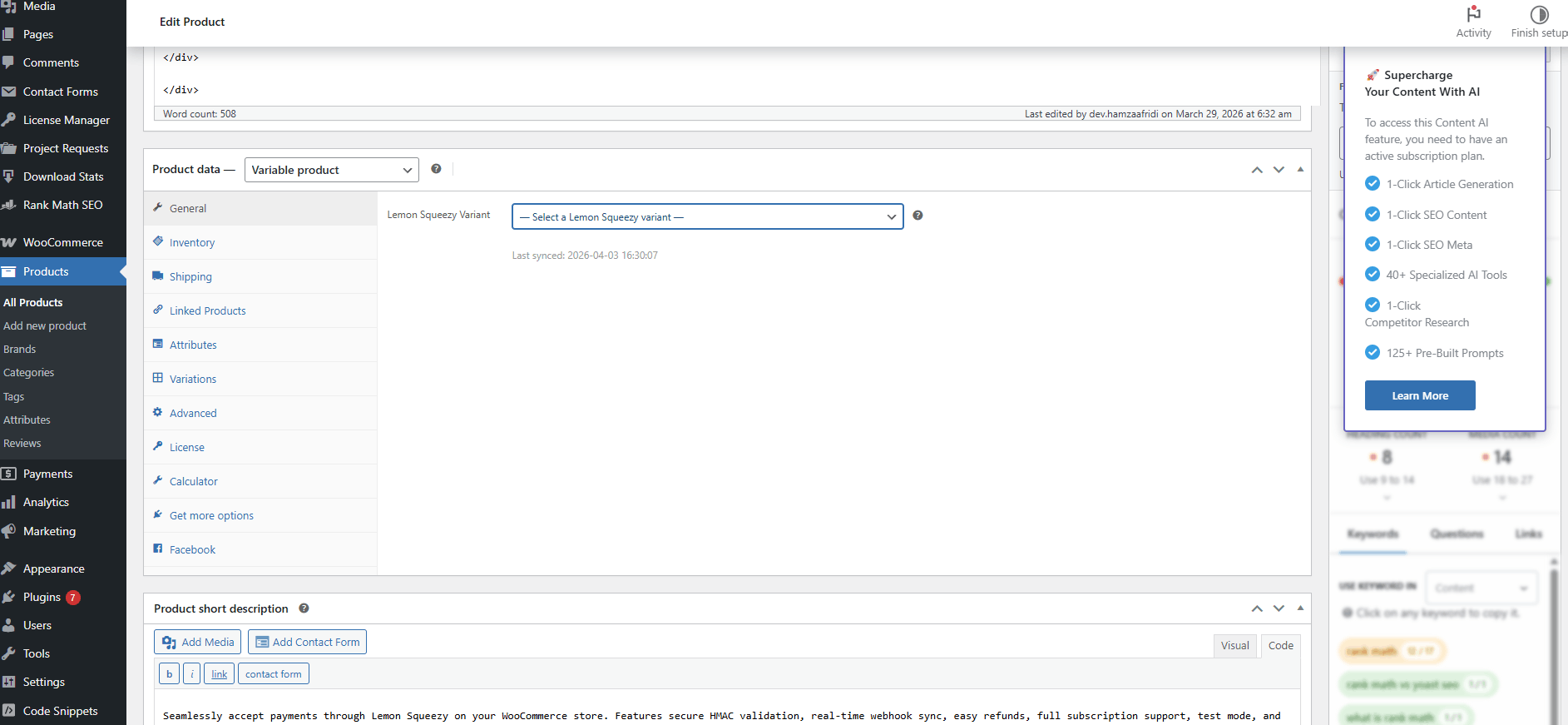
Screenshot: Select your Lemon Squeezy variant from the dropdown on the General tab
For Variable Products:
- Edit the variable product
- Go to Product Data → Variations
- Expand any variation
- You’ll see an “LS Variant” dropdown on each variation
- Select the matching Lemon Squeezy variant for each variation
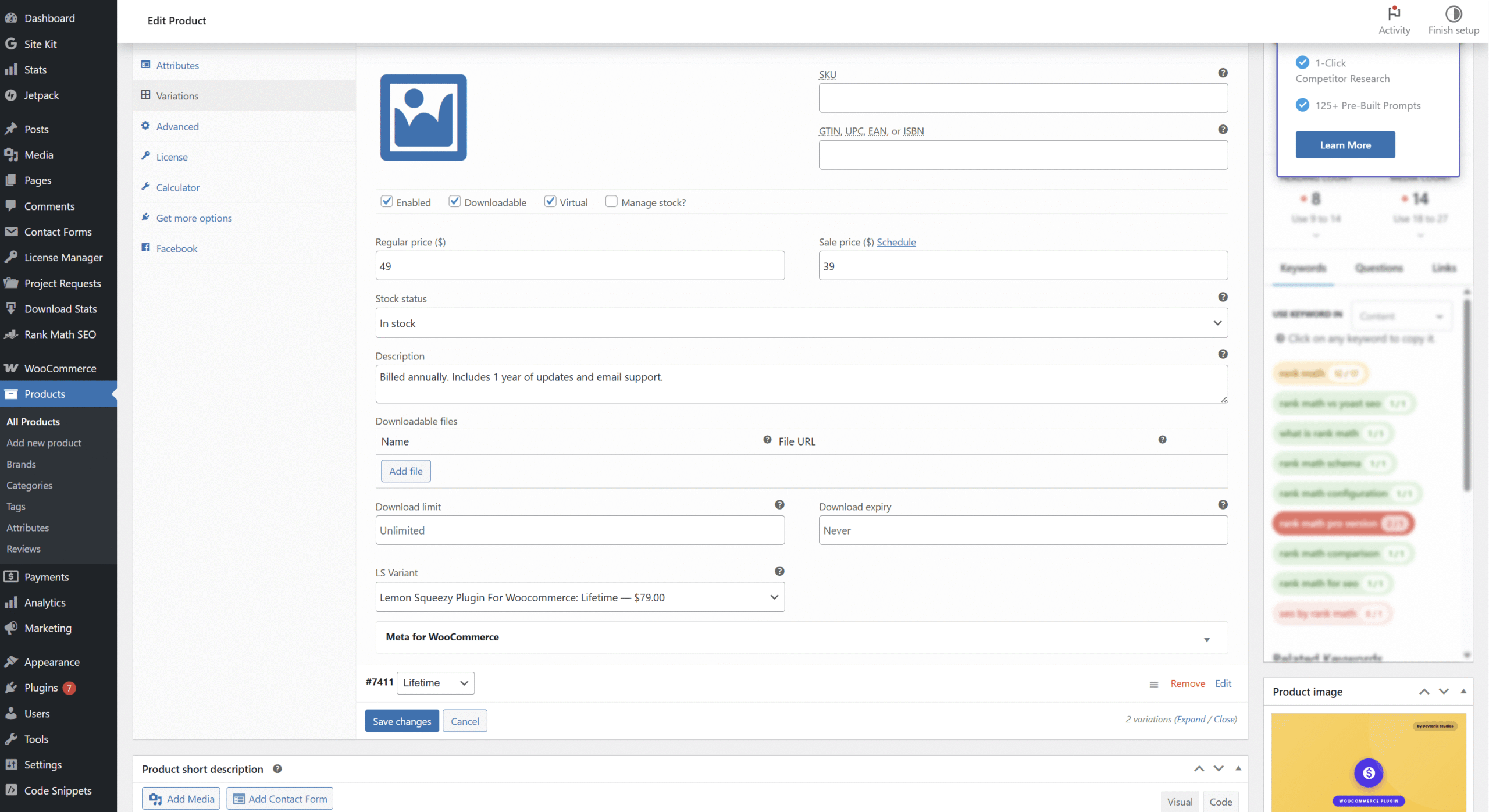
Screenshot: Each variation has its own “LS Variant” dropdown
No dropdown? Sync your products first. Go to WooCommerce → Lemon Squeezy and click Sync Now.
Fallback logic: If a variation doesn’t have its own variant set, the plugin uses the parent product’s variant from the General tab.
Which price is charged? The buyer pays the WooCommerce order total, with coupons and fees. The Lemon Squeezy variant tells Lemon Squeezy which product it is, so its price there does not have to match.
Option B: Manual Product Mapping
If you prefer to map products manually, follow these steps.
Get Variant ID From Lemon Squeezy
- Log in to Lemon Squeezy dashboard
- Go to Products
- Click the 3 dots menu on your product variant
- Select “Copy variant ID”
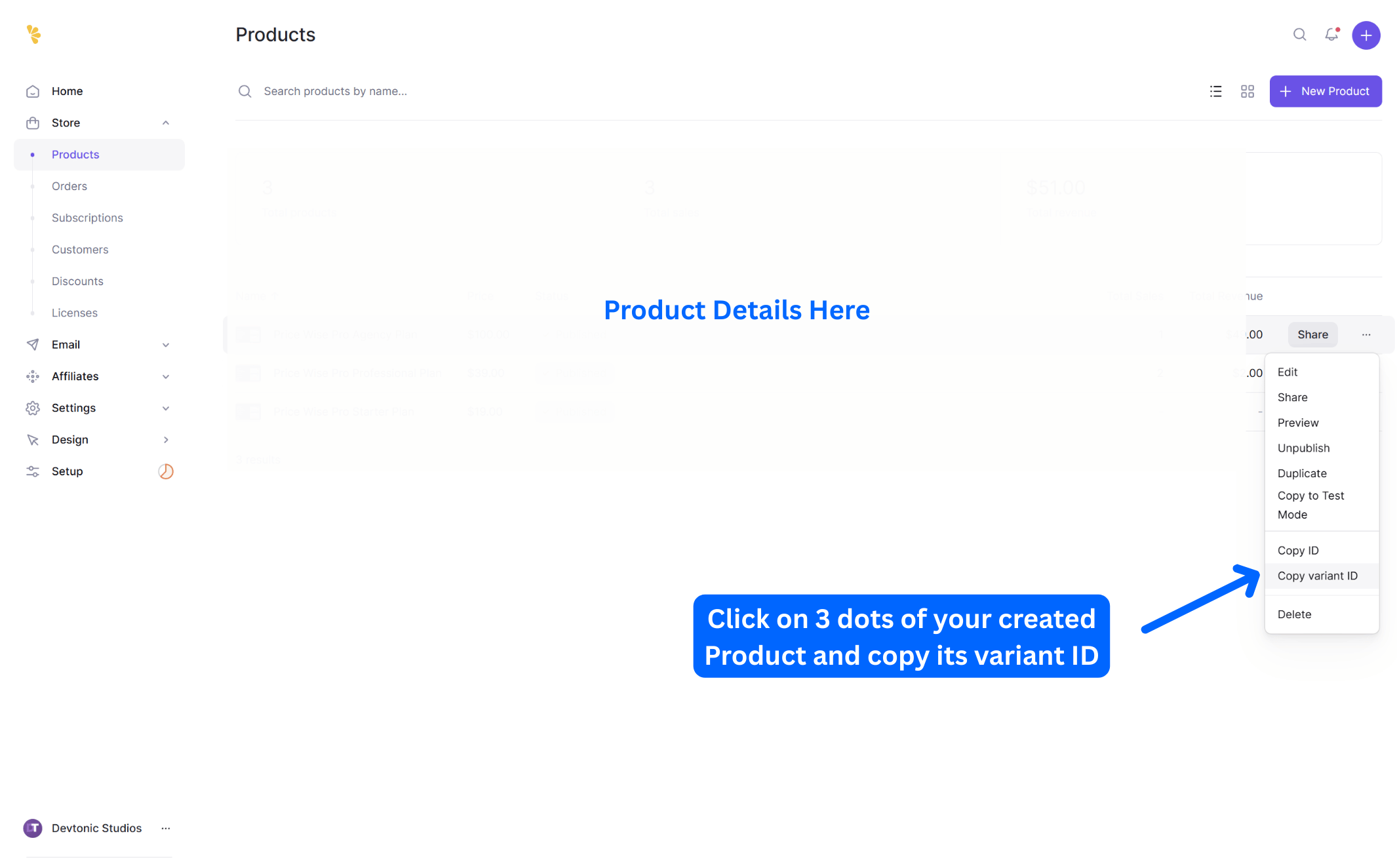
Screenshot: Lemon Squeezy Product Creation and Product Variant ID
Paste Variant ID in WooCommerce
- In WordPress, go to Products → All Products
- Click to edit a product
- Scroll down to the “Product Data” section
- Look for the “Lemon Squeezy Variant ID” field
- Paste your Variant ID in this field
- Click “Update” to save
- Repeat for all products
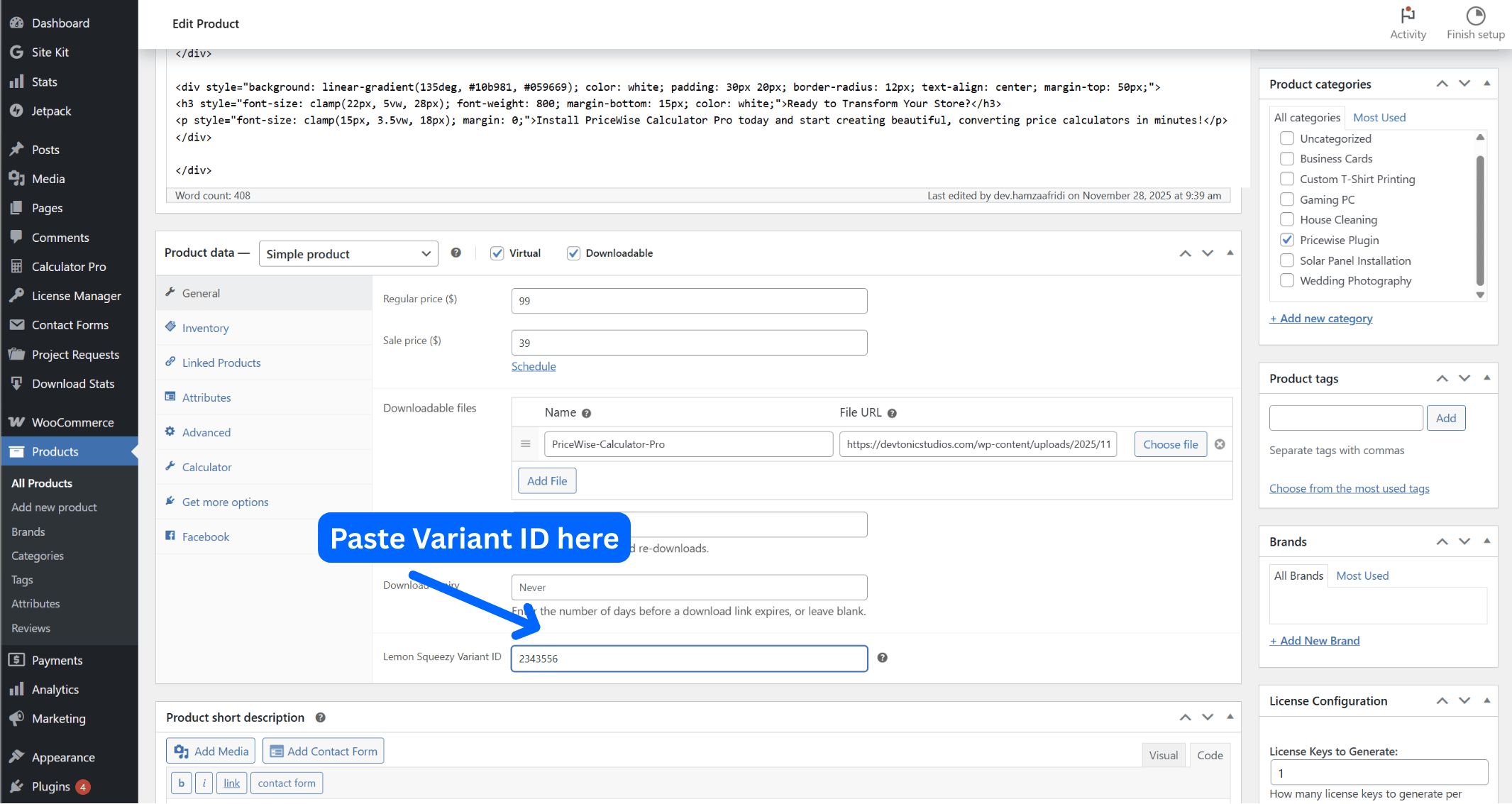
Screenshot: Paste Your Variant ID in the Product Data Section
Variable products? Each variation has its own Variant ID field. Edit variations individually and paste the matching ID. If a variation has no ID, the plugin falls back to the parent product’s ID.
Was this page helpful?
Thanks for telling us.
Sorry it did not help. Tell us what you were looking for and we will add it.