Access Payment Settings
- Go to WooCommerce → Settings
- Click the “Payments” tab
- Find “Lemon Squeezy” in the list
- Click “Manage” (or toggle to enable)
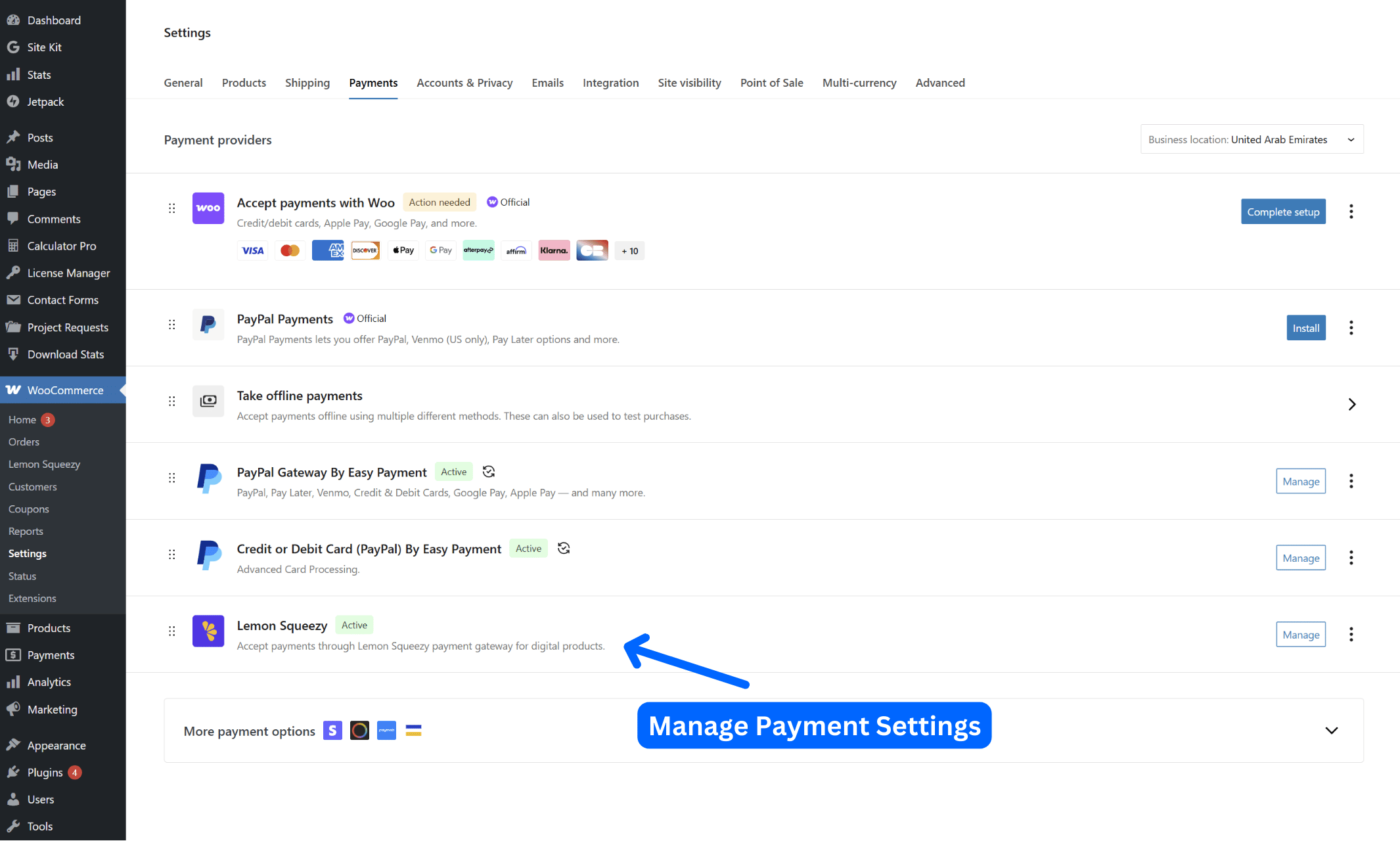
Screenshot: WooCommerce Payments Tab
Basic Settings
Configure these essential fields:
| Setting | What to Enter | Example |
|---|---|---|
| Enable/Disable | Check to enable | ✓ Enabled |
| Title | Name shown to customers | “Credit / Debit Card, PayPal & More” (the default) |
| Description | Checkout description | “Secure payment processing” |
| API Key | From Prerequisites Step 2 | eyJ0eXAiOiJKV1Qi… |
| Store ID | From Prerequisites Step 1 | 12345 |
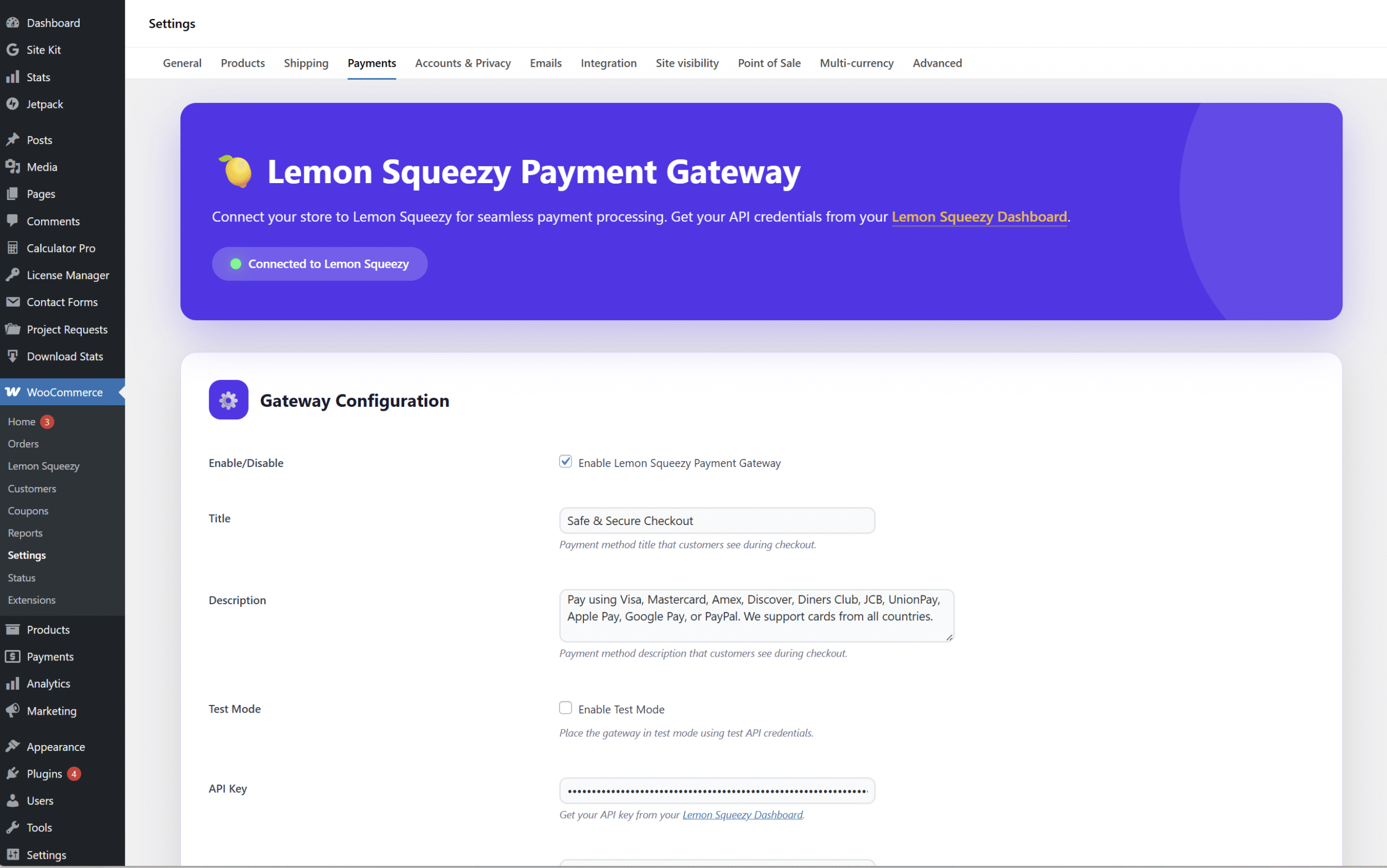
Screenshot: Basic Settings Configuration
Enable Test Mode
For safe testing without real transactions:
- Scroll to “Test Mode” section
- Check “Enable Test Mode”
- Use an API key you created while your Lemon Squeezy dashboard was in Test mode
- A test mode warning shows on the settings screen and on the block checkout
Lemon Squeezy knows test from live by the API key. With a live API key, checkouts are real even when this box is ticked.
Never skip test mode. Test with Lemon Squeezy’s test card numbers before processing real payments.
Save, Then Test the Connection
Click “Save Changes” first: the test uses the saved API key and Store ID.
- Go to WooCommerce → Lemon Squeezy in the admin menu
- Look for the “Quick Actions” section
- Click “Test Connection” button
- Wait for response (may take a few seconds)
- You should see a success message with your store’s name
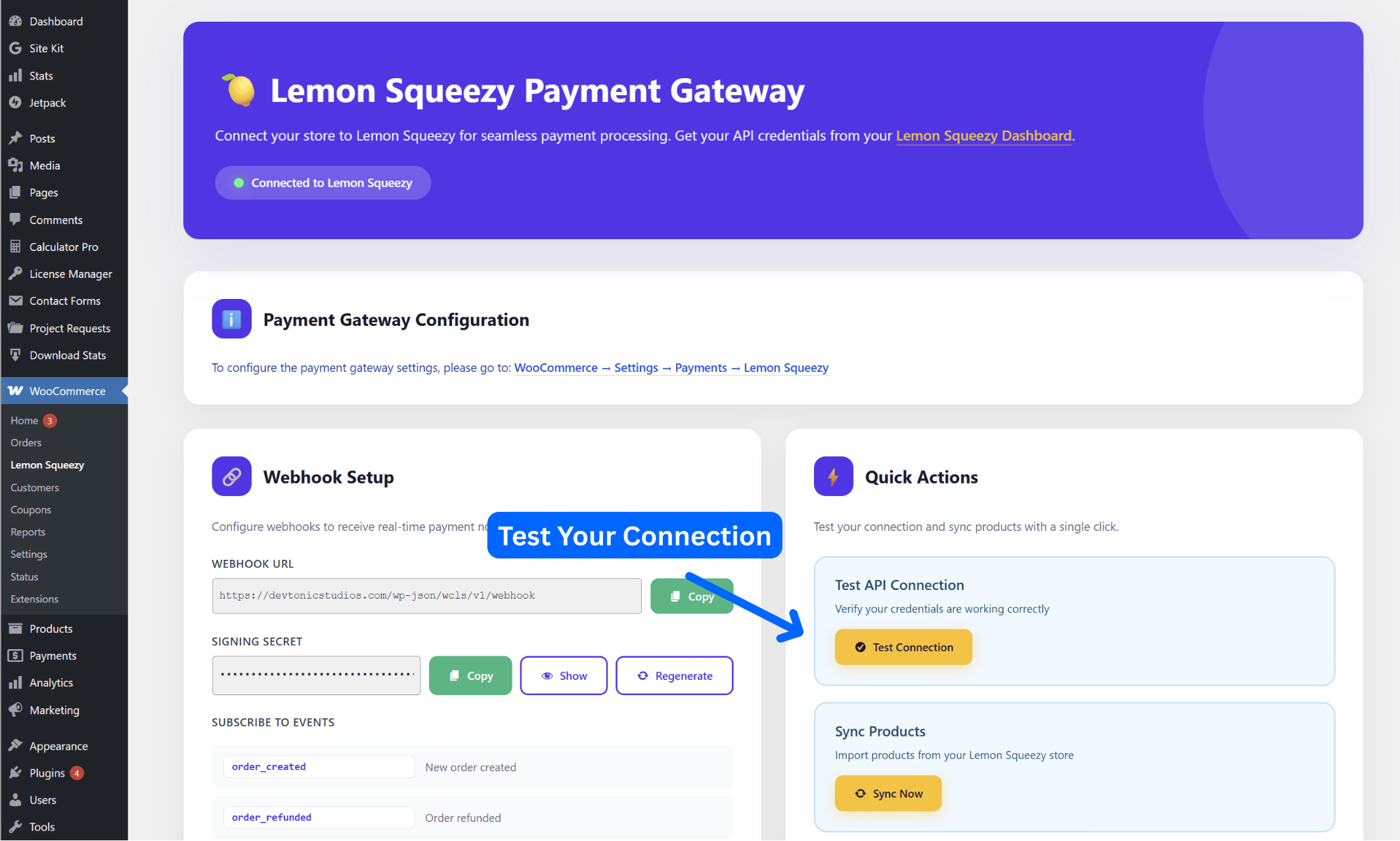
Screenshot: WooCommerce → Lemon Squeezy – Quick Actions Section
Connection successful!Store: Your Store Name
Double-check your API Key and Store ID for typos. Ensure no extra spaces. Verify SSL certificate is valid.
The Other Settings
All on the same screen. Each has its own page in these docs.
| Setting | What It Does | Default |
|---|---|---|
| Webhook Secret | Made by the plugin and filled in by itself. It cannot be typed in. See Webhook Setup | Filled in |
| Debug Log | Writes events to WooCommerce → Status → Logs (wc-lemon-squeezy) | Off |
| Checkout Mode | Redirect to Lemon Squeezy, or the overlay on your site | Redirect |
| Skip the Checkout Page | Buyers go from the cart straight to Lemon Squeezy (carts that ship keep the checkout page) | Off |
| Checkout Language | Forces the Lemon Squeezy checkout to one language | Auto |
| Default Discount Code | One Lemon Squeezy code put on every checkout | Empty |
| WooCommerce Coupons on Subscriptions | A coupon comes off the first payment only, or every payment | First payment only |
| Dark Mode Checkout, Show Store Logo, Show Product Image, Image for Several Products | How the Lemon Squeezy checkout looks. See Checkout Customization | Off, On, On, main product |
| Product for Several Products | Your own Lemon Squeezy product that an order of different products is sold as, so Lemon Squeezy’s email, order page and invoice show it. See Checkout Customization | One of the order’s products |
Was this page helpful?
Thanks for telling us.
Sorry it did not help. Tell us what you were looking for and we will add it.