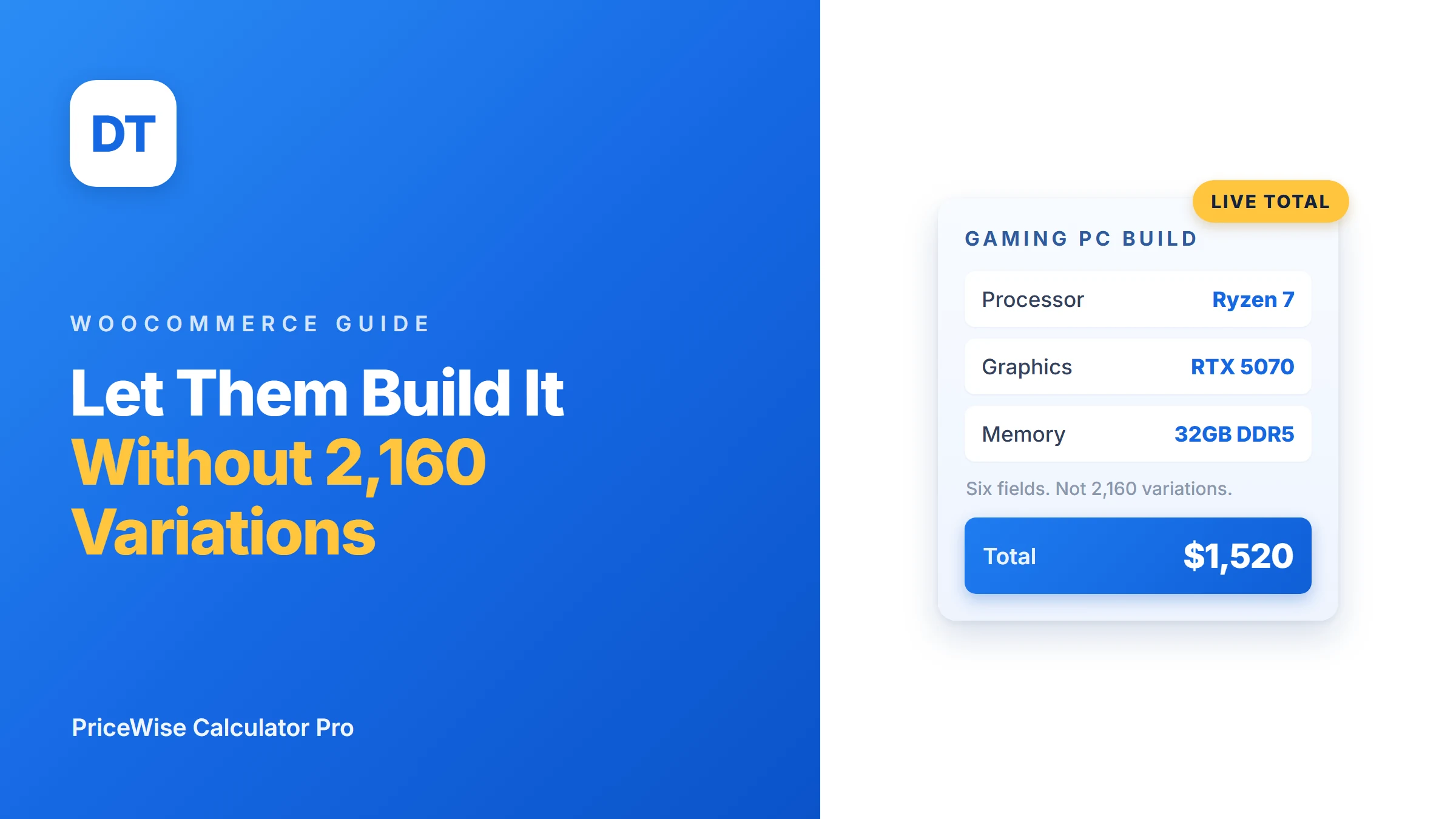
A customer wants a gaming PC. Not any gaming PC. Theirs: a Ryzen 7, an RTX 5070, 32GB, a 1TB drive, the glass case with the lights, Windows on it, and the three year warranty because they have been burned before.
In a normal WooCommerce store you cannot sell that. There is one price box. Their machine and the one next to it share nothing except the word “PC”. So you list a few fixed builds, they email you about a different one, and the ones who do not email just leave.
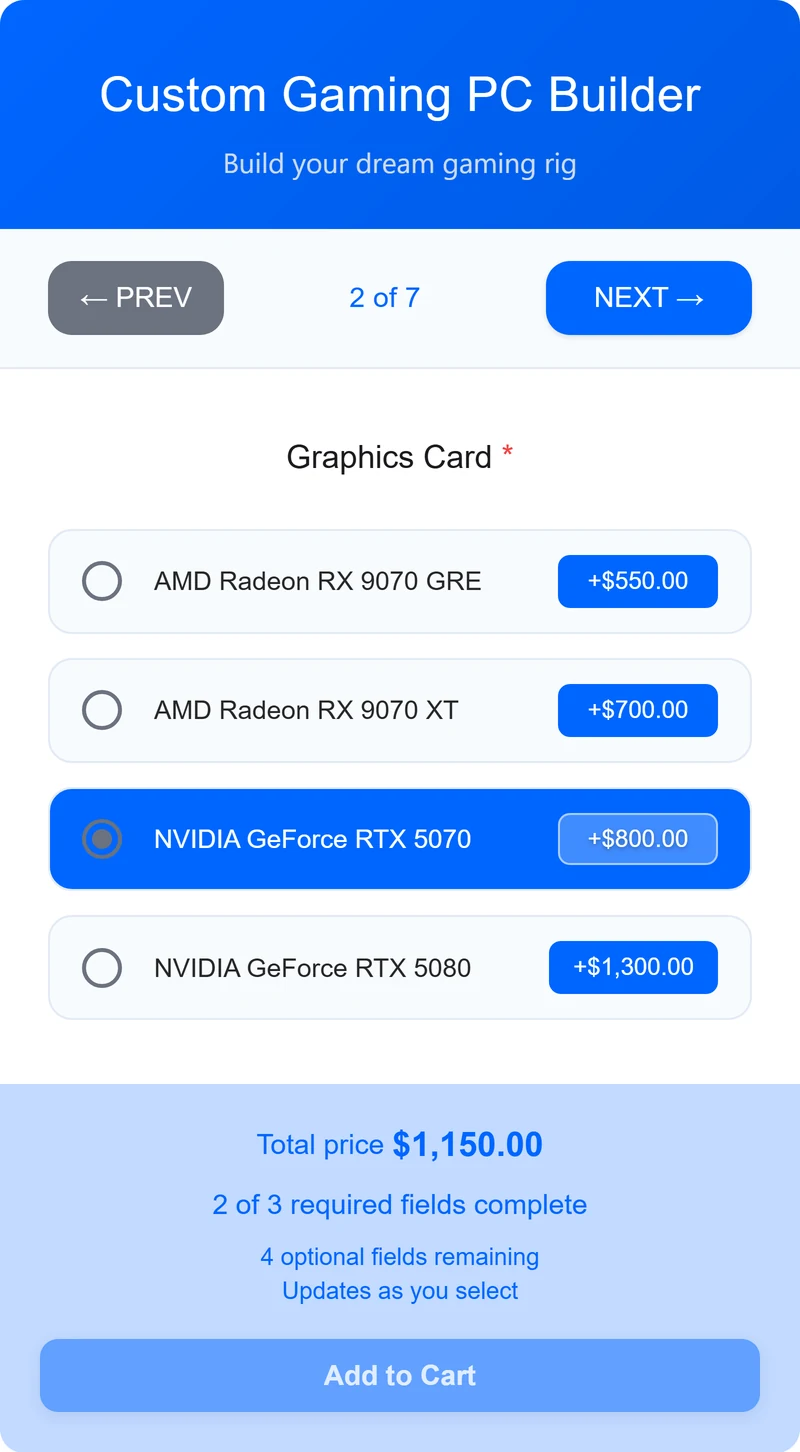
The graphics card alone swings that order by $750. That is the whole problem in one line, and it is why a product customizer exists.
Quick answer: a WooCommerce product customizer is a set of option fields on the product page where every choice carries its own price, and the total updates as the customer builds. No formula to write, no variation for every combination. This guide builds one, using a real machine you can click through yourself.
Customizer, personalizer, configurator: they are not the same job
Store owners use all three words and mean different things by them, and buying the wrong kind of plugin is an expensive mistake. So, plainly:
A personalizer adds a detail to a fixed item. A name on a bottle, initials on a wallet, a monogram on a towel. The product does not change. It gains a mark. The price is usually the item plus a small fee. If that is your job, I wrote up letting customers personalize products separately.
A customizer changes the item itself. Different processor, different card, different colour, different warranty. Every combination is a genuinely different machine with a genuinely different cost. That is this guide.
A design studio lets them draw. They drag text and artwork onto a live mockup and you get a print-ready file. That is real, separate software, and if your customer must see their design before they pay, no calculator will do it. Fancy Product Designer and Customily are the known names there.
Most people who ask me for a design studio actually need a customizer. They do not want the customer drawing anything. They want the customer choosing, and the price to be right.
Why variations run out of road
The first thing everyone tries is WooCommerce variations, and for a t-shirt in three sizes and four colours they are the right answer. Twelve variations, done.
Now count the PC. Five processors, four graphics cards, three memory options, four drives, three warranties, three cases. That is 5 x 4 x 3 x 4 x 3 x 3 = 2,160 variations, and you have not added the build services yet.
Nobody is creating 2,160 variations by hand, and WooCommerce would not enjoy it if you did. Add one more processor next month and it becomes 2,592. That is the wall, and it arrives faster than people expect. I went into it properly in where variable products stop.
A customizer does not multiply. Six fields stay six fields whether you have four graphics cards or forty.
What the customer actually sees
This is the Gaming PC builder demo on my own store. Open it in another tab and click along, it will make more sense than reading about it.
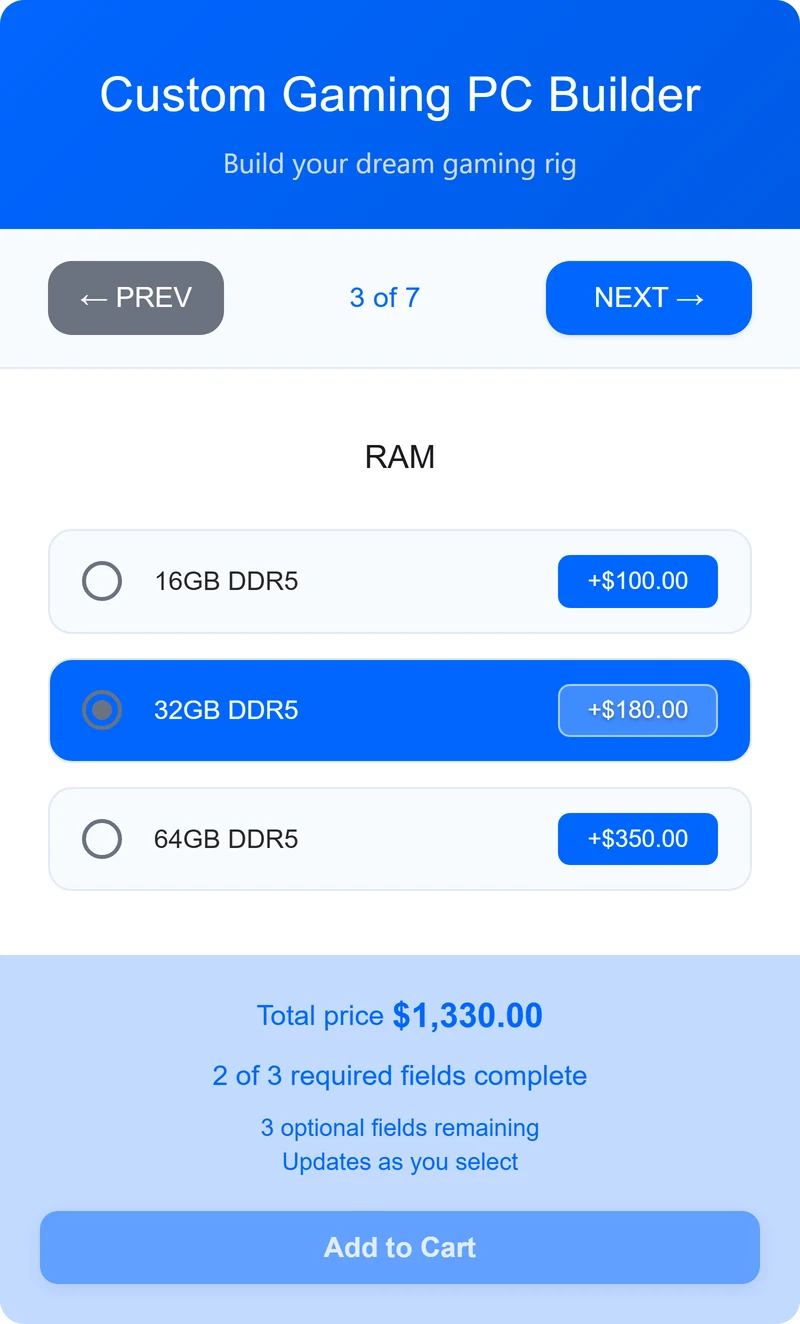
Six choices, each carrying its own price, and the total moves the moment anything is touched:
Processor       Intel i5-13400F        +$200
                AMD Ryzen 5 7600X      +$250
                AMD Ryzen 7 7700X      +$350
                Intel i7-13700K        +$400
                AMD Ryzen 9 7900X      +$500

Graphics Card   AMD Radeon RX 9070 GRE   +$550
                AMD Radeon RX 9070 XT    +$700
                NVIDIA GeForce RTX 5070  +$800
                NVIDIA GeForce RTX 5080  +$1,300

RAM             16GB DDR5              +$100
                32GB DDR5              +$180
                64GB DDR5              +$350

Storage         500GB NVMe SSD         +$60
                1TB NVMe SSD           +$100
                1TB NVMe + 2TB HDD     +$150
                2TB NVMe SSD           +$180

Warranty        1 Year Standard          $0
                2 Year Extended        +$50
                3 Year Premium         +$100

Case Colour     Stealth Black            $0
                Arctic White             $0
                RGB Tempered Glass     +$40
Pick the Ryzen 7 and the RTX 5070 and you are at $1,150 before you have chosen memory. Pick the entry processor and the cheapest card instead and the same page is at $750. Same product, same page, and a $400 gap opened up from two clicks. That is the number a fixed price can never show.
The case colour field uses real colour swatches rather than a dropdown of words, because “RGB Tempered Glass” means nothing until you see it. Black and white cost nothing, the glass one adds $40.
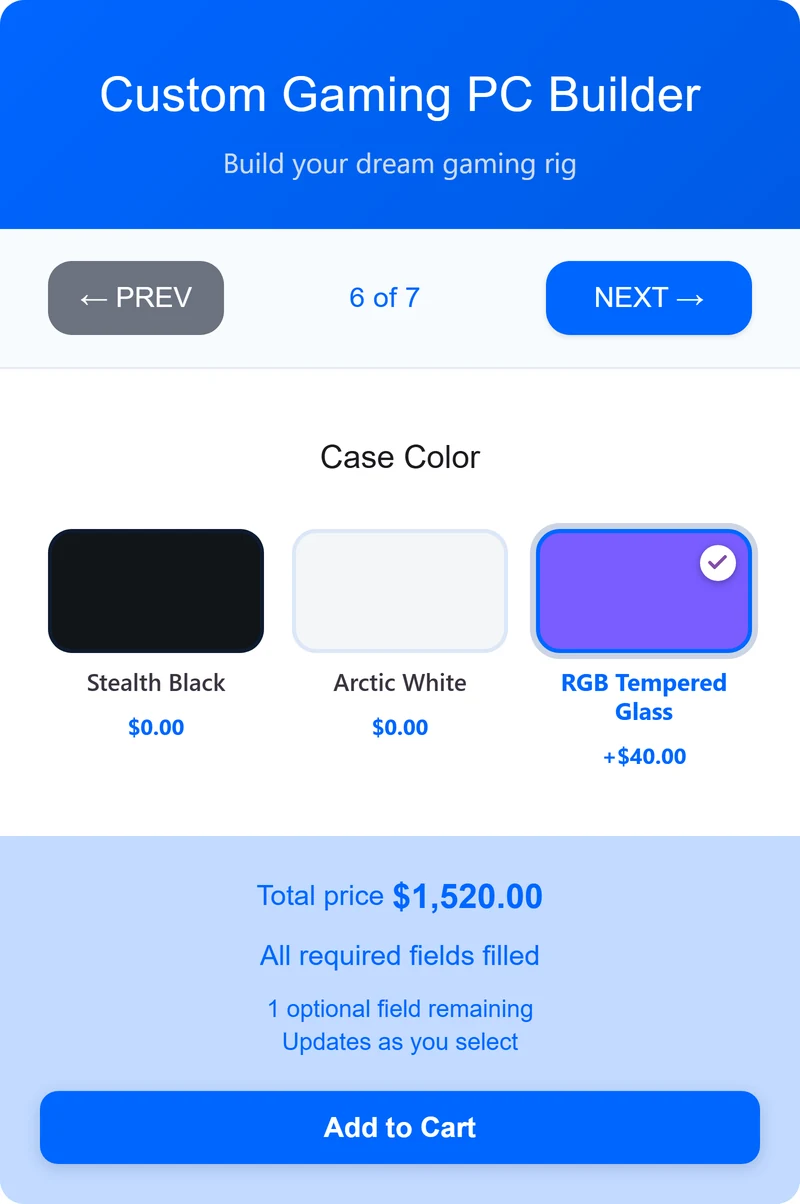
Every choice is saved to the order, so when it lands you know exactly which parts to pull off the shelf. And the price is worked out again on the server at add to cart, so nobody can edit it in the browser and buy a $2,000 machine for $12.
Building it, step by step
Step 1. Make the calculator. Calculator Pro > Add New. Name it after the product, not after the plugin. “Gaming PC Builder” beats “Calculator 3” when you have nine of them.
Step 2. Add one field per decision. Not per part, per decision. The customer decides on a processor once, so that is one field with five options. Give each option its price in the value box: AMD Ryzen 7 7700X with a value of 350.
Use a dropdown when the list is long and a radio group when you want everything visible at once. The demo uses a dropdown for processors and radio groups for the rest. The processor list is the longest at five options, and the calculator sits in a narrow column next to the product photos, so five stacked rows made that one step a good bit taller than every other step. A dropdown keeps it in line with the rest.
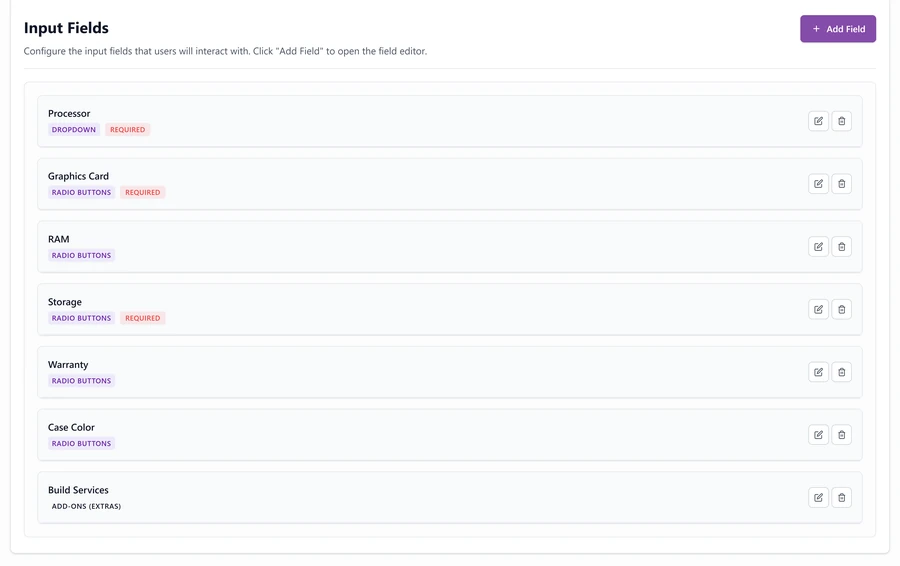
Step 3. Skip the formula. This is the part people do not expect. There is no formula on this calculator at all. The field box is empty. Each option carries its own rate and the total is the sum, so you never write a line of anything.
You only need a formula when choices have to multiply against each other, like nights times a nightly rate, or width times length. A build sheet just adds up, so it does not need one.
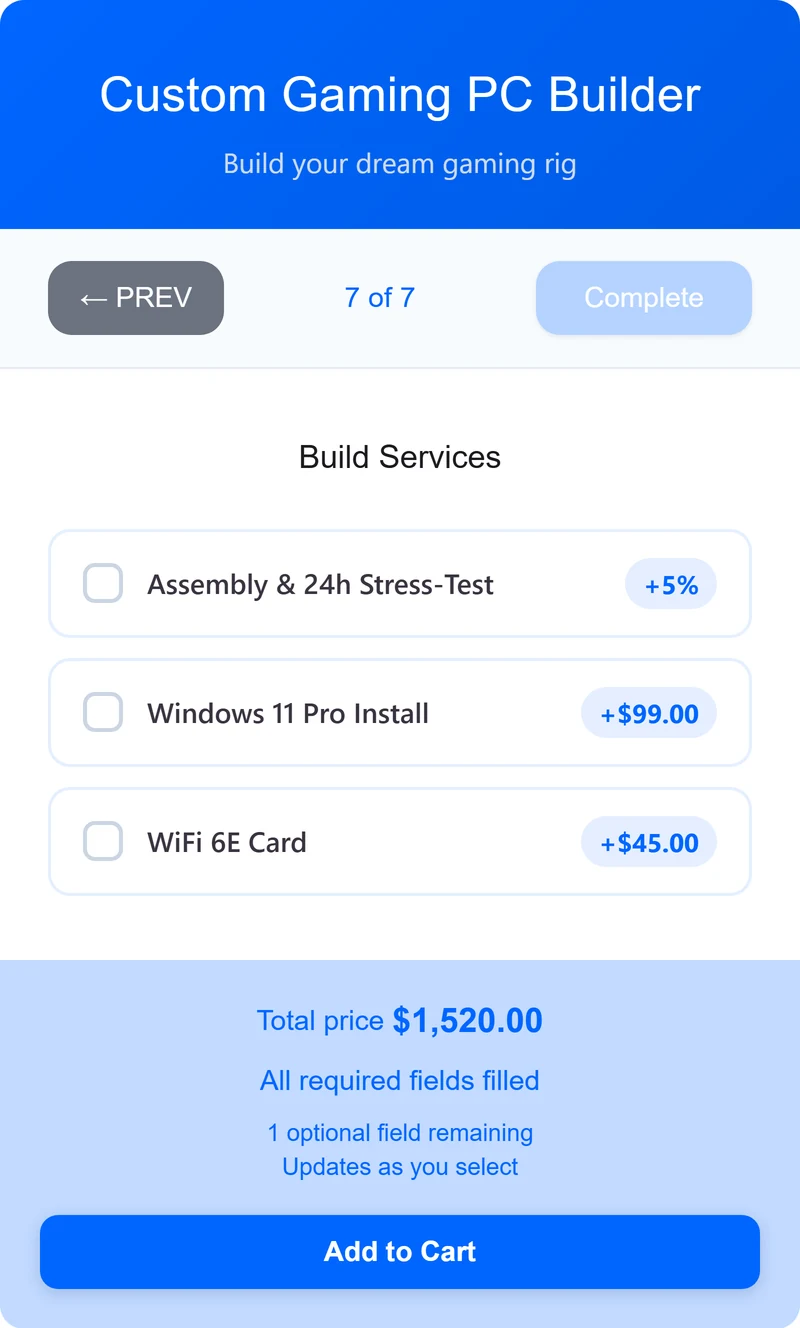
Step 4. Add the services as add-ons. These behave differently from the parts, and this is where most options plugins give up.
Assembly & 24h Stress-Test    5%    of the build
Windows 11 Pro Install        $99   flat
WiFi 6E Card                  $45   flat
Windows and the WiFi card are flat, because they cost you the same whatever machine they go in. Assembly is not. Building and stress testing a $2,400 machine takes longer and carries more risk than a $900 one, so it is charged as a percentage of the build and grows with it. One setting, no formula.
Step 5. Assign it and test it. Attach the calculator to the product, open the page, and click through a build. Watch the total. Then add to cart and check the choices carried through to the order, because that is the bit that matters when you are packing it.
The two things that catch people out
Percentage add-ons. Most options plugins only do flat fees. If your fitting, assembly, installation or delivery scales with the order value, a flat fee is either robbing you on big orders or scaring people off small ones. A percentage fixes it and there is nothing to maintain.
Free choices are still choices. Black and white cost nothing on this build. They still belong as fields, because the customer has to tell you which one to send, and the answer has to reach the order. A field with a value of zero is doing real work even though it changes no price.
Which tool for which job
Checked on their own pages on 11 August 2026. Prices change, so click through before you decide anything.
- Your customer must see their design on the product. Get a design studio. Fancy Product Designer or Customily. They do real artwork work and can charge for design elements. Heavier and pricier, and worth it if that is your business.
- You want paid options from the WooCommerce team. The official Product Add-Ons extension is $79 a year on its page today. It adds fields with prices and does percentage-of-total add-ons. What its page does not show is a live-updating formula or a measurement field.
- You are comparing with YITH or Advanced Product Fields. I wrote both up honestly, including where they win: YITH Product Add-Ons and Advanced Product Fields.
- Your options need to do maths, not just add up. Area, length, weight, nights, price tables, minimum charges. That is where a calculator earns its place over an options plugin, and it is covered in the price calculator guide.
Can you do it for free?
Partly, and here is the honest line. The free version of PriceWise gives you number fields, a formula, a live total and full cart integration. So it can price a build if the customer types numbers.
What is Pro is the customizer itself: the dropdowns, the radio groups, the colour swatches, the add-ons with percentages, the file upload. Those field types are the paid part. Pro is $49 a year or $99 once.
So free proves the pricing works on your own products before you pay anything. I compared what the free version covers in detail separately.
FAQ
Does this replace WooCommerce variations? No, it sits alongside them. Keep variations for the small, tidy sets like size and colour on a shirt. Use a customizer when the combinations run into the hundreds.
Will the choices show on the order? Yes. Every field the customer picked is saved on the cart line and the order, so your build sheet is the order.
Can a customer fake the price in their browser? No. The total is worked out again on the server when they add to cart. The browser number is for them to look at, not the one you get paid.
Can one option hide another? Yes, with conditional rules, so a case that has no window never offers the lighting upgrade.
Do I need to write a formula? Not for a build like this. Each option carries its own price and they add up. Formulas are for when things multiply, like size or duration.
Can customers upload a file? Yes, a file upload field sits with the other options and the file lands on the order.
Before you build
- Write down every decision the customer makes. One decision, one field.
- Put your real cost next to each option, including the ones that cost nothing.
- Mark which extras are flat and which should scale with the order.
- Build it, then order one yourself and check the order tells you what to make.
That last one catches more mistakes than anything else. A customizer that prices perfectly and sends you an order you cannot read is still a broken customizer.
That is what I built PriceWise Calculator Pro for: choices that set the price, without a variation for every combination and without writing formulas you do not need. Start on the Gaming PC demo or the free version. Your customer already knows the machine they want. Let the page tell them what it costs.


 ``` --- ## Image 3: Provider comparison chart **Filename:** `lemon-squeezy-fees-vs-stripe-paddle-gumroad-comparison.png` **Where in article:** Inside `## How Lemon Squeezy compares to Stripe and others` section, right BEFORE the comparison table **Alt text:** ``` Lemon Squeezy fee comparison versus Stripe, Stripe Tax, Paddle, Stripe Managed Payments, and Gumroad calculated for a 49 dollar sale to a European customer paying by card ``` **Markdown to paste in WP body:** ```  ``` --- ## Image 4: Revenue breakeven chart **Filename:** `lemon-squeezy-fees-by-revenue-breakeven-chart.png` **Where in article:** Inside `## When LS fees stop making sense` section, right BEFORE the bullet list of revenue thresholds **Alt text:** ``` Monthly Lemon Squeezy fees at different revenue levels showing the breakeven point around 50000 dollars per month where hiring a tax team becomes cheaper than paying LS fees ``` **Markdown to paste in WP body:** ```  ``` --- ## Visual map of where images go ``` [Featured Image 1 → sidebar only] Opening paragraph ## The base fee everyone sees (text) ## Every Lemon Squeezy fee in one table (intro sentence) [Image 2 here] (fee table) (payout fees table) ## Real cost for different scenarios (5 scenarios) ## Payout fees: the part most sellers miss (text) ## How Lemon Squeezy compares to Stripe and others (intro sentence) [Image 3 here] (comparison table) ## When LS fees stop making sense (intro sentence) [Image 4 here] (bullet list) ## Ways to actually pay less in LS fees ## Questions people keep asking me about LS fees ## Putting it all together ## Related resources ``` That's everything. When you've placed all 4 images and published, tell me and we move to Week 9.](https://devtonicstudios.com/wp-content/uploads/2026/05/lemon-squeezy-fees-explained-real-cost-300x167.webp)