Some products do not have one price. A floor costs whatever the room measures. A banner costs whatever size you print it. A hire costs whatever the customer keeps it. WooCommerce, out of the box, only understands one fixed price per product, so stores that sell this way end up writing “contact us for a quote” and losing the customers who will not wait.
A WooCommerce price calculator fixes that. The customer enters their details, sees the price work itself out live, and buys. This is the complete guide to doing it: every way to price a custom product, how to build each one, and how to pick the best WooCommerce price calculator plugin for the job. I build these plugins on my own, so every link below goes to a real, worked example, and the demos are live products on my own store.
The one-paragraph answer: A price calculator adds fields to a WooCommerce product and works the total out from a formula or a measurement, live, as the customer types. You can price by area, length, weight, volume, quantity, options, or dates. The WooCommerce price calculator plugin I build, PriceWise, does all of these; there is a free version to start with, and Pro is $49 a year or $99 once.
What a WooCommerce price calculator actually is
It is a set of input fields on the product page plus a rule that turns those inputs into a price. The customer picks or types their values, the total updates on screen, and at add-to-cart the maths is re-checked on your server so nobody can fiddle it in the browser. Every choice is saved on the order, so you know exactly what to make or ship.
You need one whenever the price depends on something the customer decides: a size, a weight, a quantity, a set of options, a number of nights. If your products all have one fixed price, you do not need this. If even one product makes you reach for a calculator or an email, you do.
The ways to price a custom product (with a guide for each)
Here is the whole map. Find the row that matches your product, and follow the link to the full step-by-step guide.
By area (width times length)
Flooring, tiles, carpet, wallpaper, turf, glass, worktops. The customer gives a width and a length, and you charge per square metre, usually with a waste percentage and rounding up to whole boxes. Start here: how to sell by the square meter, and if you want to do it without paying, the free measurement calculator route.
By length, cut to size
Fabric, rope, cable, timber, trim, and anything sold by the metre or cut to a size the customer names. Glass and worktops cut to a shape belong here too. Guide: how to sell cut-to-size products (glass, wood, acrylic, metal).
By weight or volume
Topsoil, gravel, mulch, sand, firewood, coffee, loose goods. The customer gives an amount, or a length by width by depth, and you charge per tonne or per cubic metre. Guide: how to sell topsoil, gravel, and mulch by volume.
By made-to-measure size
Curtains, blinds, and furniture, where the price follows a made-to-order size, often in bands rather than a flat rate. Guide: how to sell made-to-measure products.
By options and personalization
Custom t-shirts, engraving, print jobs, configured products, where each choice (quality, print type, colours, extras) changes the price. Guides: how to create multiple options for one product, and how to let customers personalize products with live pricing.
By the night or day (hire)
Party gear, tools, equipment, anything rented for a stretch of time. The customer picks From and To dates, and you bill per night. Guide: WordPress rental plugins compared, and the lighter per-day option.
By a print or signage job
Signs, banners, and large-format printing, where size, material, and finish all feed the price, and often artwork is uploaded. Guides: how to sell custom signs and banners, and how to sell custom picture framing.
By quantity, with price breaks
Buying one and buying fifty should not cost the same per unit. Quantity breaks live on the calculator as a price table, so the rate steps down at the tiers you set and the customer watches it happen instead of emailing to ask. Full guide: quantity discounts in WooCommerce.
By quote, when a formula cannot do it
Some jobs will not price themselves. They need a drawing, a site visit, or a conversation first. A calculator is the wrong tool for those, and pretending otherwise loses you the job. Full guide: letting customers request a quote.
How to build a price calculator, in short
Whichever row you are in, the shape is the same. In PriceWise it is three steps:
- Add your fields. Numbers for measurements, a measurement field for area or volume, options for choices, a date range for hire. Give priced options a value.
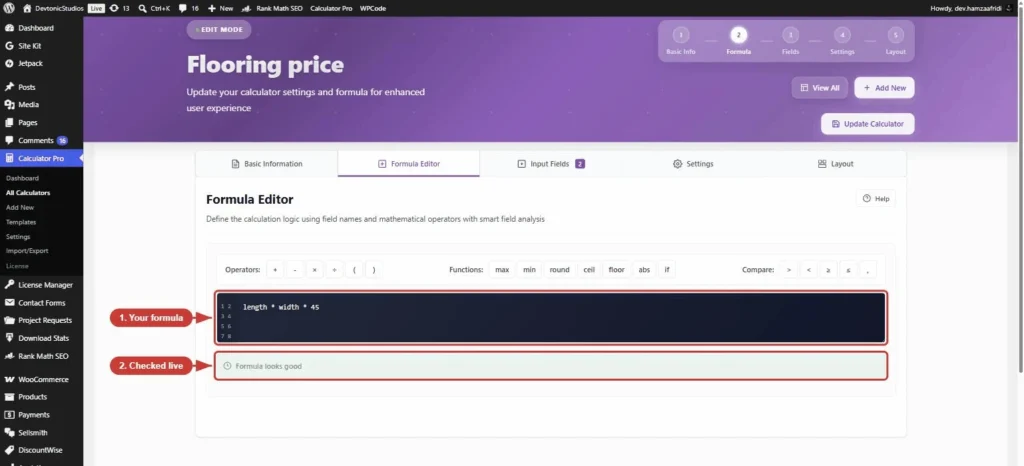
- Set the rule. Either a plain rate on a measurement field (like $45 per m², with waste and box rounding as settings), or a formula such as
length * width * 45with functions like round, min, and max when you need them. - Assign it and test. Attach the calculator to the product (which needs a regular price set), open the page, and watch the total move.
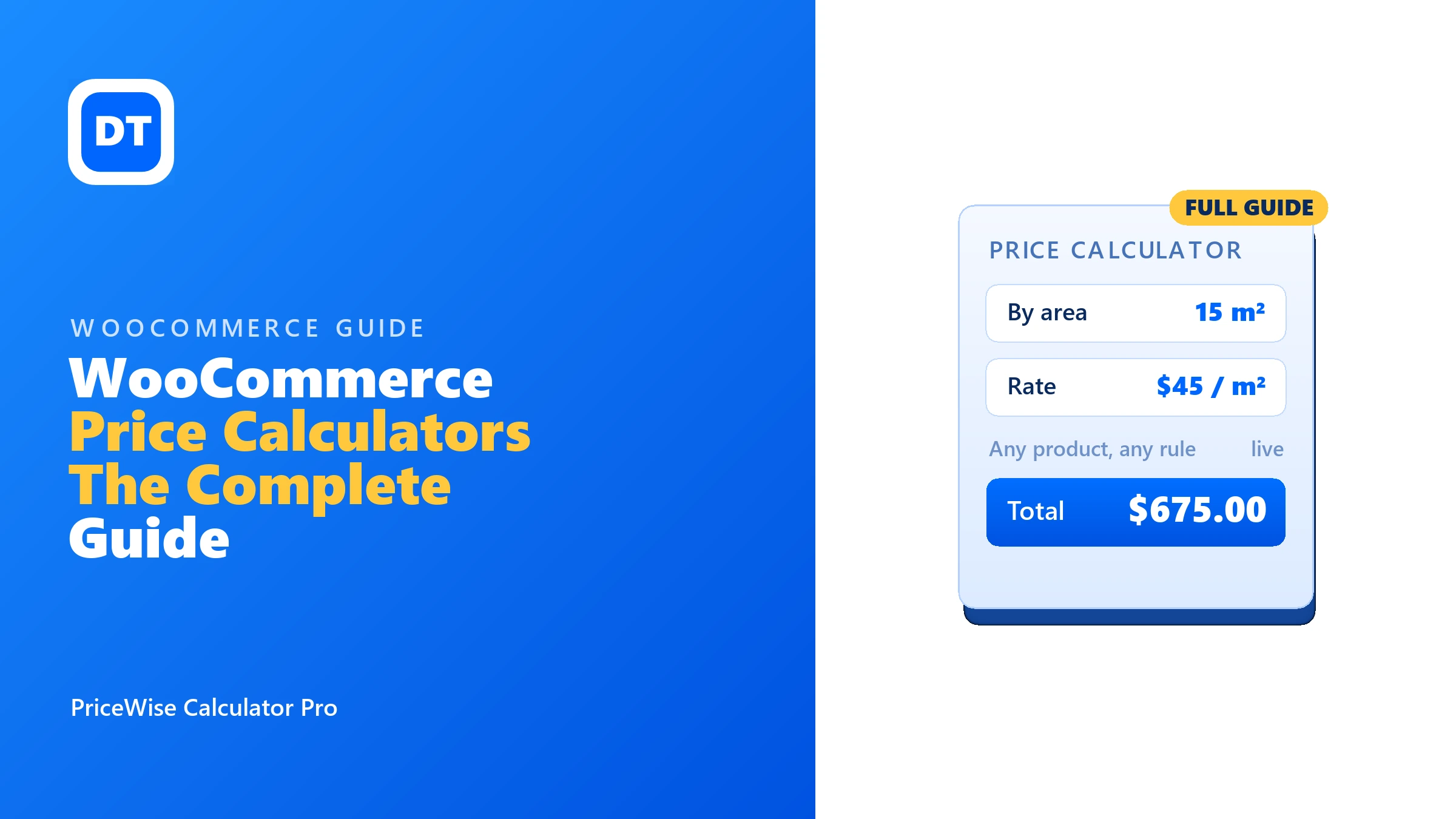
Here is a finished one: a flooring product priced by the room size, live, with waste and whole-box rounding handled for you.

Every kind above is a real page you can click: the live demos run on my own store, on the same plugin you would install. Type a couple of values and see what the total does.
Choosing the best WooCommerce price calculator plugin
There are two families of plugin here, and telling them apart saves you money.
Product add-ons plugins are options-first. You add fields, and each option can add a set cost. They are great for configurable products with priced extras. The well-known ones are YITH Product Add-Ons, Advanced Product Fields, and Product Add-Ons Ultimate. I wrote side-by-side looks at each, with their real prices and where they beat me: the YITH alternative, the Advanced Product Fields alternative, and the Product Add-Ons Ultimate alternative. Some people also bolt on Gravity Forms; before you do, check the two-license math.
Price calculators are calculation-first. The whole total is worked out from a formula or a measurement, and the trade problems (waste, box rounding, minimum charges, price tables, hire nights, PDF quotes) come built in as settings. That is what PriceWise is, and it is the reason to reach for it over an add-ons plugin: when the price is maths, not a stack of surcharges.
Rule of thumb: if you are adding fixed-cost extras to a normal product, an add-ons plugin is fine and its free version may be all you need. If the price itself is the calculation, use a price calculator. If you need both, PriceWise Pro covers both sides.
Free or paid?
Start free. The free version of PriceWise is the formula calculator with number fields, so you can price by area, length, weight, volume, or quantity on your real products before spending a penny. Pro ($49 a year, or $99 once) adds the dedicated measurement field with waste and box rounding, price tables, hire dates, option fields with swatches and uploads, the step-by-step layout, and PDF quotes. Buy it when the free formula stops being enough, not before.
FAQ
Will a calculator slow my site down? No. It does the maths in the browser as the customer types, and only loads on the products you assign it to.
Can the customer fake the price in the browser? No. The live total is for showing. At add-to-cart, your server runs the rule again with their values and uses that result.
Do I need to write code or formulas? Not for the common cases. A measurement field is just a rate, a waste percentage, and a box size, all settings. Formulas are there when you want them, using plain field names.
Does it work with variable products and my theme? It uses the standard WooCommerce product hooks, and there is an inline layout that blends into your theme. It sits alongside your existing product setup rather than replacing it.
Which guide should I start with? The one that matches your product in the map above. If you are not sure, the free measurement calculator guide is the best first read.
Where to go next
Pick your product type from the map, follow that guide, and you will have a working calculator on a product page in an afternoon. Everything here runs on PriceWise Calculator Pro ($49 a year, or $99 once), and you can prove it on your own store first with the free version or the live demos. The documentation has the rest. Stop pricing custom products by email.