Go to WooCommerce, FilterKit Analytics to see your data. Analytics start collecting automatically when the plugin is activated. Give it 24 to 48 hours of real customer traffic to build up useful numbers.
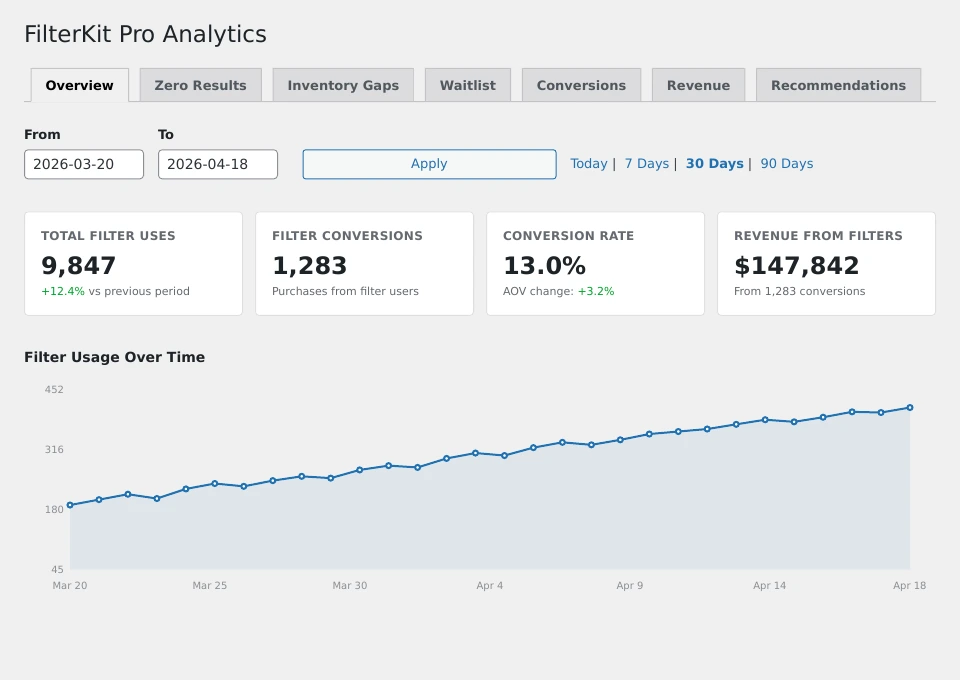
The Overview tab. Your headline numbers at a glance.
The dashboard has 7 tabs:
Three key numbers: how many times filters were used, what percentage of filter users ended up buying something, and how much revenue came from filter users. Below that, a usage trend chart and a list of your most popular filters.
Every search and filter combination that returned zero products, sorted by frequency. This shows you what customers want that you do not have. Example: “23 people searched for ‘wireless earbuds under $30’, 0 results.”
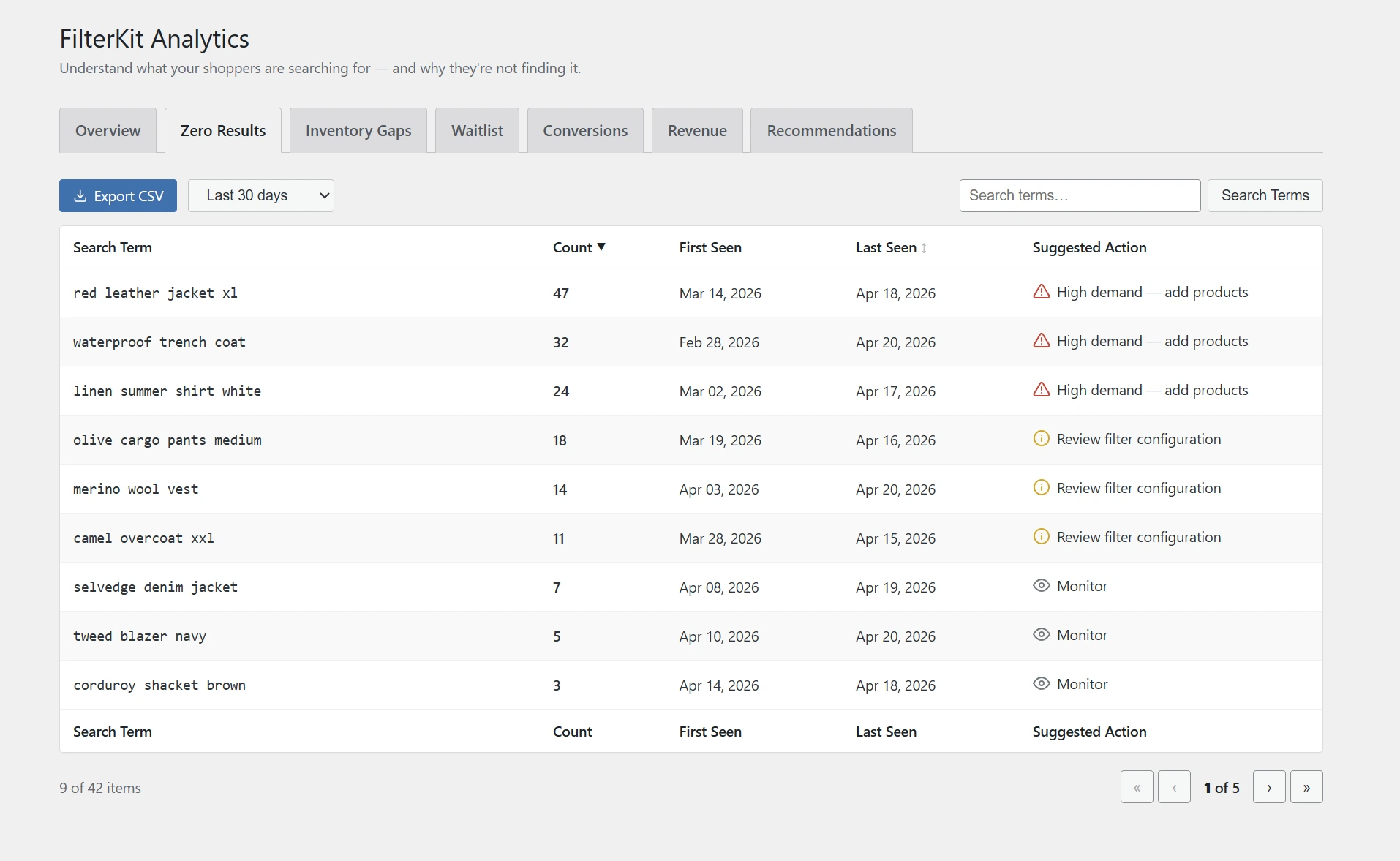
See exactly what your customers are looking for but can’t find.
Similar to Zero Results, but focused on filter combinations. If 15 people tried “Red + XL + Jacket” and got nothing, this tab surfaces that. It groups similar searches together, shows week-over-week trends, and suggests similar products you already stock. You can create a draft product from any gap with one click, or export the full table as a CSV file.
Every customer who left their email on a zero-results page. Shows their email, what they wanted, when they signed up, and whether they’ve been notified.
The full journey: filter clicked , product viewed , added to cart , purchase completed. See which filter paths lead to sales and which are dead ends.

Track the full journey from filter click to purchase.
How much money each filter helped generate. If Color brought in $2,840 and Size brought in $1,920, you know Color is more valuable and deserves a more prominent position.
Plain English suggestions based on your data. Things like: “Move the Brand filter up, it is your 3rd highest earner.” Or: “43 customers searched for ‘Organic’, consider adding it as an attribute.” Or: “14 people waiting for Red XL Jackets, consider restocking.”

Real recommendations based on your store data, not generic advice.
Every tab has an Export CSV button. Click it and the download starts immediately. Useful for sharing with your team or analyzing in a spreadsheet.
Fine-tune how analytics work in WooCommerce, Settings, FilterKit Pro, Features:
- Data Retention: Choose how many days of data to keep (7 to 365 days). Older data is automatically deleted. Important for privacy compliance.
- Exclude Admin Sessions: Turn this on so your own browsing doesn’t appear in analytics. Recommended.
- Track Guests / Track Users: Choose whether to track non-logged-in visitors, logged-in customers, or both.
Was this page helpful?
Thanks for telling us.
Sorry it did not help. Tell us what you were looking for and we will add it.