Sometimes a WooCommerce product does not have one price. It has a price that depends on a number the customer gives you: how many metres, how big, how many. You do not want a hundred variations for every size. You want a custom price field, one box the customer fills in, and a price that follows it.
This is a short, exact guide to adding a WooCommerce custom price field that sets the product price from user input. I build the plugin I use for it, and the basic version is free, so you can try this today without spending anything.
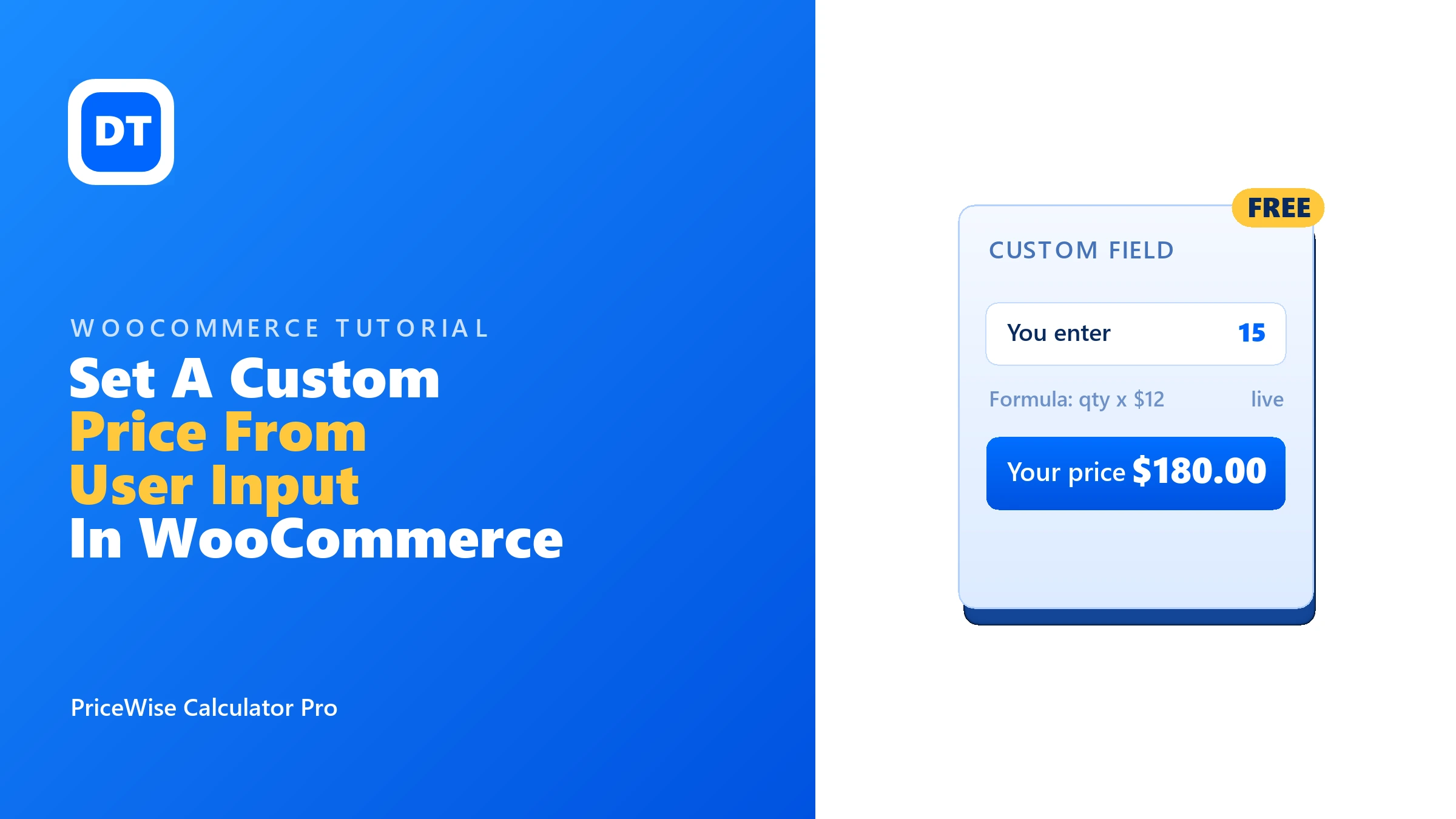
Quick answer: Add a price calculator with a number field and a one-line formula. The customer types a value (say 15), your formula turns it into the price (
qty * 12becomes $180), and the total updates live. The price is re-checked on your server at add-to-cart, and it is saved on the order. Free version of PriceWise does exactly this.
Two things “custom price field” can mean
Worth clearing up before you install anything, because the two are different jobs:
- Price calculated from input (this guide). The customer enters a measurement or a quantity, and your rule works out the price. They do not choose the price; the maths does.
- Name your price (a different feature). The customer literally types the amount they want to pay, like a donation or pay-what-you-want. If that is what you need, look for a “name your price” plugin instead; that is not what a calculator does.
Nearly every request I get for a custom price field means the first one: a price that follows what the customer enters. So that is what you will build.
How to add a custom price field, step by step
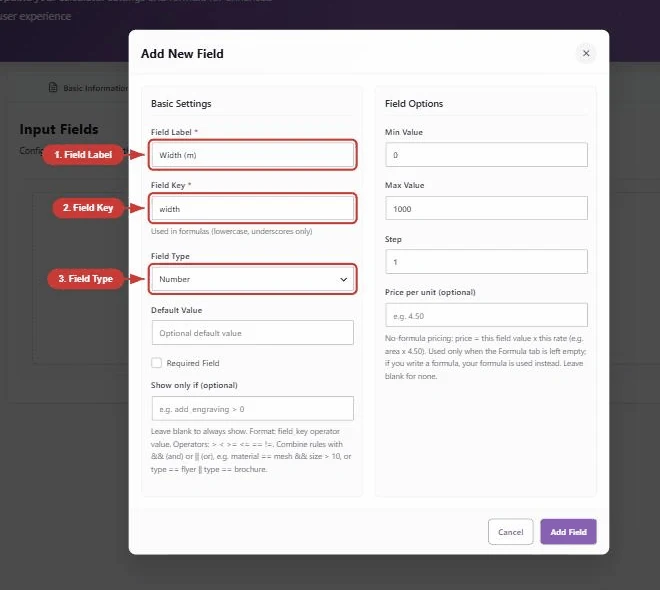
Step 1: Add a number field. In Calculator Pro > Add New, on the Fields tab, add a Number field. Give it a label the customer understands (“Length in metres”, “How many?”) and a short field name you will use in the formula, like qty.
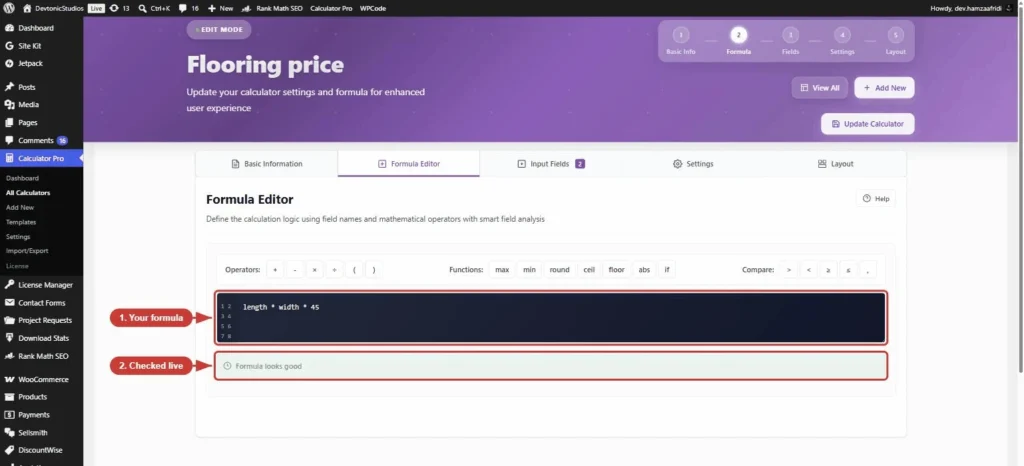
Step 2: Write the price rule. On the Formula tab, type how the price is worked out. For $12 per unit:
qty * 12
Step 3: Assign it and test. Attach the calculator to your product (it needs a regular price set), open the page, and type a number in the field. The price updates live. Type 15, and you get $180.
That is the whole thing. One field, one line, a custom price per customer.
A worked example: rope by the metre
The idea lands better with real numbers, so picture a shop selling rope. It is $4.50 a metre. They will not cut anything shorter than two metres. And every cut costs a few minutes on the saw, so there is a flat $3 cutting charge on top.
Three rules. One line:
max(length * 4.5, 9) + 3
Read it left to right. Multiply the metres by 4.50. If that lands under $9, charge $9 anyway, which is the two-metre minimum doing its job quietly. Then add the $3 for the cut.
Someone who wants 7 metres types 7 and sees $34.50 before they have finished reading the description. Someone who wants half a metre sees $12, not $5.25, and nobody has to send the awkward email explaining why there is a minimum.
The order lands in your dashboard saying 7 metres, so whoever cuts the rope knows exactly what to cut.
Useful variations on the rule
The formula is where custom price fields get powerful. A few that come up a lot:
- A minimum charge:
max(qty * 12, 40)charges per unit but never less than $40. - Two fields, priced by area: add
lengthandwidth, thenlength * width * 45. - Round up to whole units:
ceil(qty / 10) * 10 * 12bills in packs of ten. - A setup fee on top:
(qty * 12) + 15adds a flat $15.
The field names are yours, and the functions round, ceil, floor, min, max, abs, and if are all available. If you sell by area, weight, or the metre, the complete price calculator guide maps the common setups.
See it working first: the live demos are things I sell, priced by the plugin itself. Type a value and watch the price move.
The same field type handles hire as well as sale: swap the number box for a date range and you have a WordPress rental plugin without a booking system attached.
Where one number field stops being enough
A single field and a formula covers more than people expect. It does not cover everything, and the edges are worth knowing before you build:
- The price depends on choices, not numbers. Fabric type, finish, colour. A number box cannot ask that question, so you want option fields instead.
- You sell by the box, not the unit. Flooring comes in packs and needs waste added on top. You can bodge that with
ceil(), but the measurement field does waste and pack rounding as settings rather than arithmetic. - Your prices come in bands. Under a metre is one price, one to two metres another. That is a price table, not a formula.
- The number is really a date range. Hire and rental price by nights, which wants a date field, not a number box.
None of that makes the plain version useless. Start with one field and one formula. Move up only when your pricing genuinely asks you to.
Can I do this for free?
Yes. A number field plus a formula is the whole free version of PriceWise, so a custom price from user input costs nothing. Pro ($49 a year, or $99 once) adds the things you graduate into: a dedicated measurement field with waste and box rounding, price tables, option fields with swatches and file upload, and PDF quotes. For a plain custom price field, free is enough.
FAQ
Can the customer set any price they want? No, not with a calculator. They enter a value, and your rule decides the price. For customer-set prices (donations, pay what you want), use a name-your-price plugin instead.
Can they fake the price by editing the page? No. The live total is only for showing. At add-to-cart your server runs the formula again with their input and uses that.
Can I use more than one field? Yes. Add as many as you need and combine them in the formula, like length * width * rate.
Does the customer’s number show on the order? Yes. Their input and the calculated price are saved on the cart line and the order, so you know what they asked for.
That is it
A custom price field in WooCommerce is one number field and one formula. Add it, write the rule, test it, done. It runs on PriceWise, free to start, and the documentation covers the rest if your rule gets fancy.