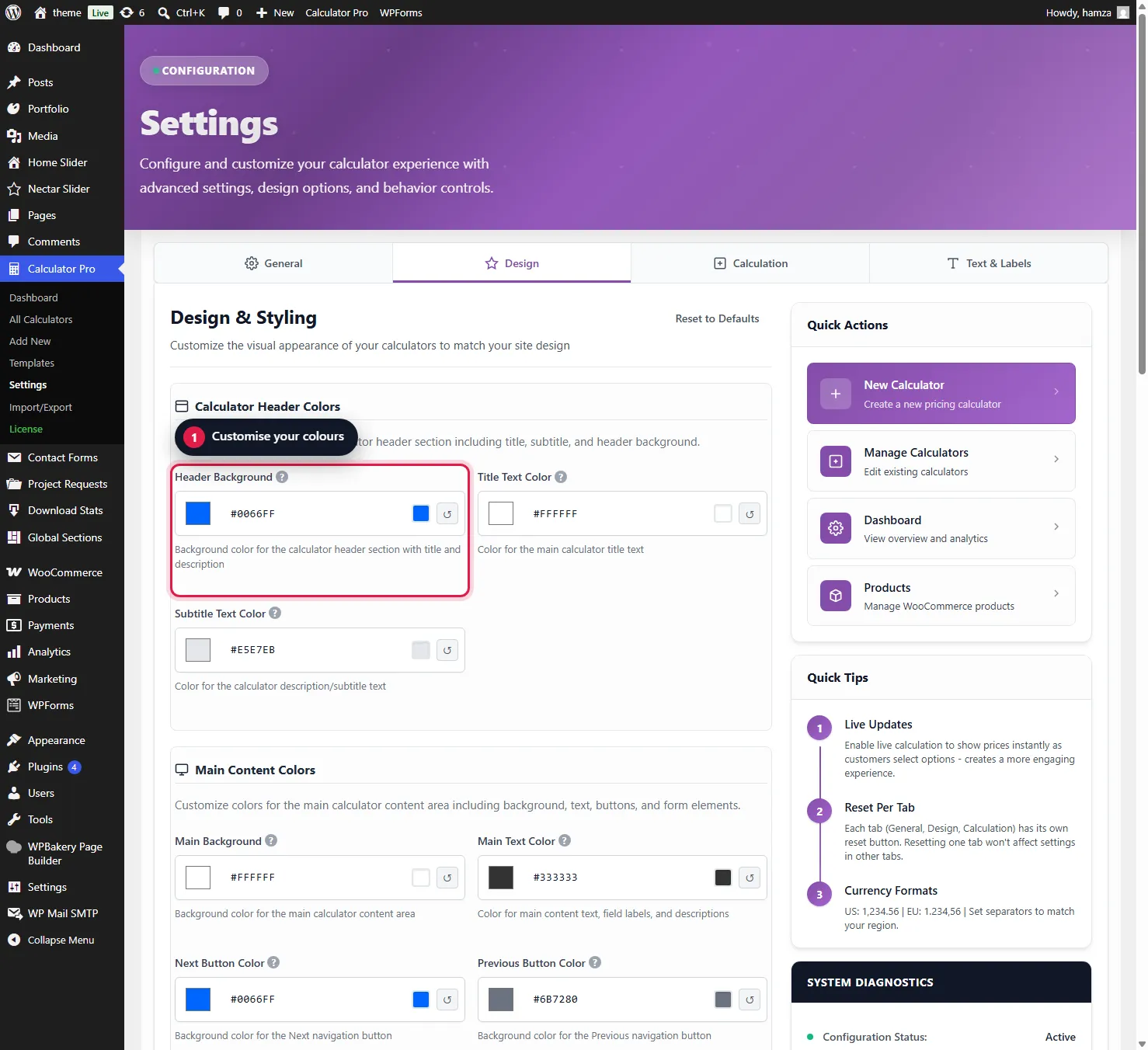
Here’s where things get really fun. Head to Calculators > Settings and click the Design tab.
The Enhanced Color Picker System
You’re going to see a LOT of color pickers. Don’t let that intimidate you! Each one controls a specific part of your calculator’s appearance.
Header Background
Title Text
Calculator Background
Button Colors
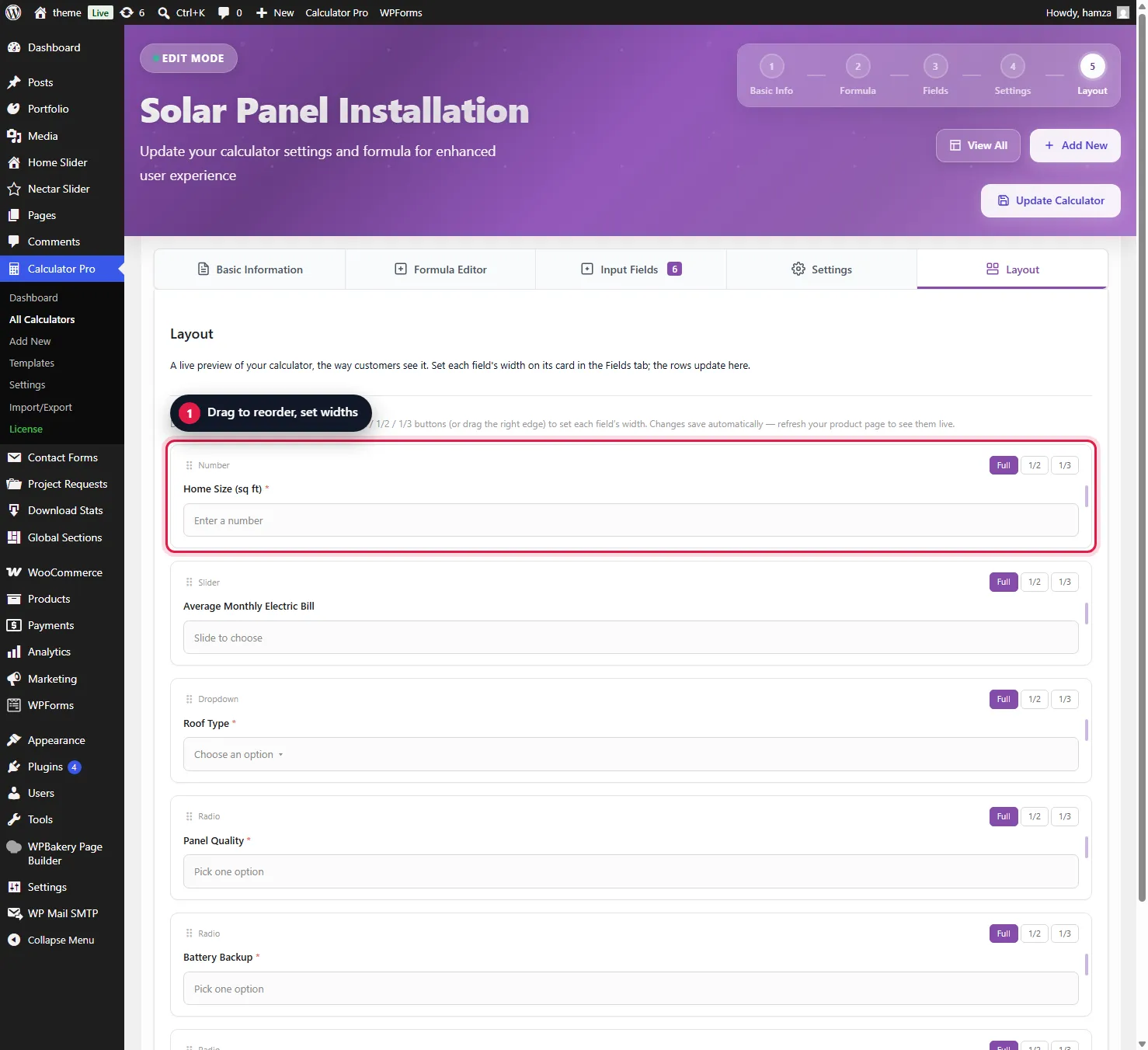
Choose How It Displays
In the calculator’s Display Style setting you pick one of three layouts. Same calculator, same fields, you just choose how it appears to customers:
- Step-by-step – One question at a time, with Prev / Next and a progress bar. Best for products with lots of options.
- All-in-one – Every field shown together in one card. Best for simpler products.
- Inline – No box of its own. The fields sit straight in your product page and use your theme’s styling.
You can also set each field’s width and drag fields into the order you want, so the layout fits your page.