The quickest start is a template: a finished configurator with example prices that you change to yours. This page takes the Custom banner template, sets your own prices, and puts it on a product. The running example is a 300 by 100 cm PVC banner with eyelets, which the template prices at 62.00.
- Start from the banner template
- Change the prices to yours
- Try it before customers do
- Go live and put it on a product
- Starting empty instead
Start from the banner template
Click New configurator
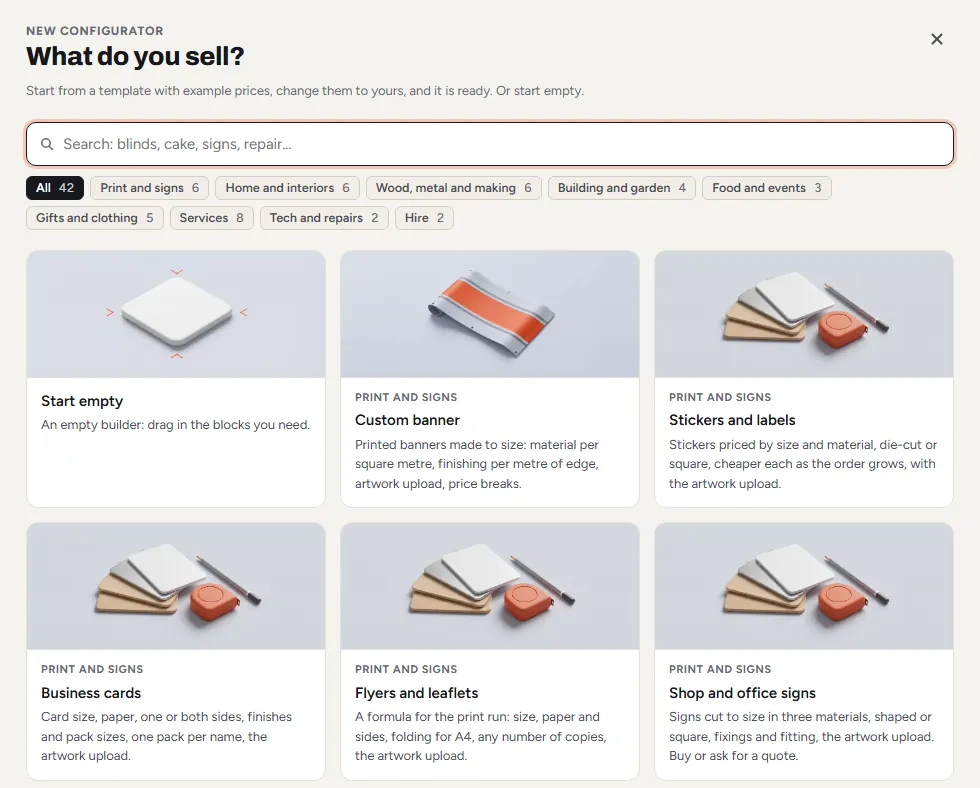
Go to ConfigKit, Configurators and click New configurator. “What do you sell?” opens with every way to start: Start empty, one of the 42 templates, or a file exported from another shop. Type in the search box (blinds, cake, signs, repair) or click a trade, such as Print and signs, to narrow the list.
Pick Custom banner
It opens in the builder as a draft. The blocks you can add are on the left, the configurator in the middle as customers will see it, and the settings of whatever you click on the right. A note at the top says it was made from a template and still has example prices.
Change the prices to yours
Click a block in the middle and its settings open on the right, on four tabs: Content, Price, Show when and Advanced. An option’s price sits on its own row on the Content tab: click the price to change it, or to add a photo. In the banner template:
- Material: PVC 14.00, mesh 18.00 and fabric 24.00 per square metre. Each is priced “Adds an amount per …” with Per set to “Banner size: area in m2”, so it is multiplied by the square metres the customer typed.
- Finishing: eyelets 2.50 per metre of edge (Per “Banner size: edge all round in m”), pole pockets 6.00 per metre of width. Cut to size costs nothing.
- Extras: rope 4.00 and cable ties 3.00, each a flat amount.
- Quantity: price breaks of 5% off each from 5 banners and 10% off each from 10.
So 300 by 100 cm in PVC with eyelets is 3 square metres at 14.00 (42.00) plus 8 metres of edge at 2.50 (20.00): 62.00. Change each amount to your own price.
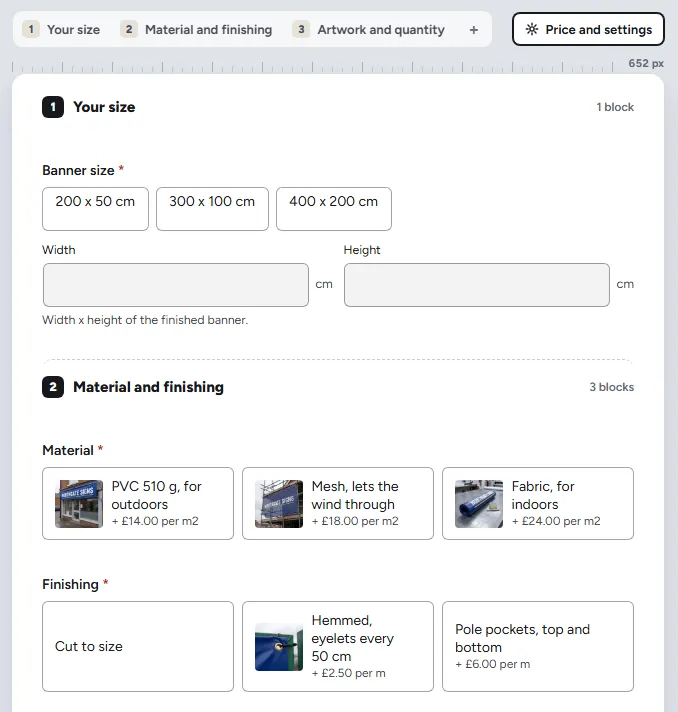
Then click Price and settings, the button above the configurator on the right. At the top of it a box says the prices are examples from a template. When every price is yours, switch on “These are my own prices”. Until then the configurator stays a draft and customers never see it, so a template cannot go on sale at its example prices by mistake.
Try it before customers do
Click Try it at the top of the builder. The configurator opens as a customer sees it, with the live price: type a size, pick the options, and check the price is what you would charge. The phone button next to it shows it at phone width. Build takes you back.
Anything that would stop a sale is marked in red on the block it belongs to, with the count at the bottom (“1 to fix before it can go live”). The round counter at the top, such as “2 of 4 done”, lists what is left before it can go live: Blocks added, Nothing to fix, Tried as a customer, and On your shop. Show me next to each one takes you there.
Go live and put it on a product
Save and go live
Click Save and go live. “Saved. It is live on the products that use it.” means it is ready. If it says “Saved, but not live yet”, fix the red marks first. Save draft keeps it hidden while you work.
Choose it on the product
Open the product (or make a simple product called Custom banner). Under Product data, General, there is a Configurator list. Pick Custom banner and click Update. The product does not need a price of its own: customers pay the price the configurator works out. To put it on whole categories instead, see Where it shows.
Buy one
Open the product page, build a 300 by 100 cm PVC banner with eyelets and add it to the basket. The basket line shows every choice and your price, and links back so the customer can change it. The order shows the same lines, so you know exactly what to make.

The price in the basket is worked out again on your server from the choices, never taken from the page, so nobody can change what they pay.
Later changes to a live configurator are safe to make on a busy shop. Save puts them live. Save for later keeps them aside while customers go on buying the live version, and so does a Save that finds a problem: nothing you do in the builder takes a product off the shop. To take a configurator off the shop, open the three dots on its card in ConfigKit, Configurators and click Move to the bin. Products using it go back to their normal Add to cart.
Starting empty instead
Choose Start empty, then drag blocks in from the left, or click one to add it to the step you are on. They are in four groups: Choices (Pick one, Dropdown, Colours, Pick several), Sizes and numbers (Size, Length, Number, Quantity, Price grid), From the customer (Text, Files, Date) and On the page (Summary, Information). Find a block, at the top, searches them. Give each block a label, and each option a price.
How customers move through it is the layout: Price and settings, Look, “Layout on the shop page”. Steps, one step at a time with Next and Back, is where an empty configurator starts; the others are described in The look. Add a step with the + next to the step names above the configurator, or with Add a step under Steps on the left.
Was this page helpful?
Thanks for telling us.
Sorry it did not help. Tell us what you were looking for and we will add it.