Every price in ConfigKit is worked out in the same order, on the page as the customer picks and again on your server for the basket. This page explains that order, the kinds of price an option or block can carry, formulas, values that belong to a product, prices the whole shop shares, quantity breaks, minimums and shipping weight. The running example is the Wooden crate template: 100 by 60 by 50 cm in pine is 72.80.
- The kinds of price
- A formula for the base price
- Values for this product
- Shared prices: one price for many products
- The order it is worked out in
- Quantity breaks, minimums and a setup fee
- A price grid
- Shipping weight
The kinds of price
An option’s price is on its own row, on the block’s Content tab: click the price to change it. A block’s own price is on its Price tab. Either way you choose how it is priced:
- No price: it adds nothing, like the nailed-down lid of a crate.
- Adds an amount: a flat amount, like 18.00 for skids under a crate.
- Adds an amount per …: an amount times something the customer entered, picked in the Per list. For a size that can be its area, its edge all round, its width or its height; for a text block the letters or words; for files how many; for a date the days from today; for anything else its number. The Per list also has the product’s own values and the shared prices it links, so 3.2 per Gold per gram adds 3.2 grams of gold at today’s price.
- Adds a percentage: a percentage of everything else added together, like 12% for heat treatment. Use a minus for a discount.
A formula for the base price
In Price and settings, on the Price tab, “How the price is made” is either “A starting price, plus every block’s and option’s price” or “A formula, plus every block’s and option’s price”. The crate uses a formula for the board area:
2 * (length * width + length * height + width * height) / 10000 * woodlength, width and height are the three Number blocks: each block has a Name in formulas, on its Advanced tab. wood is the Boards choice: under More settings, each option has a Number for formulas, 26 for pine, 32 for plywood, 21 for OSB. So 100 by 60 by 50 cm is 2 x (6000 + 5000 + 3000) / 10000 = 2.8 square metres, times 26: 72.80.
The builder shows every name you can use as chips under the formula box: click one to put it in. Formulas can use + - * /, brackets, if(test, yes, no), min, max, round, ceil, floor and comparisons. A name that does not exist counts as 0 and the builder says so under the box. Dividing by zero makes the price an error, never a free item.
Values for this product
Some numbers belong to the product, not to the customer: a ring’s weight, what one piece costs you to make, your markup, or the waste you allow when cutting boards. Keep them out of the formula as values, and you change a number without touching the formula.
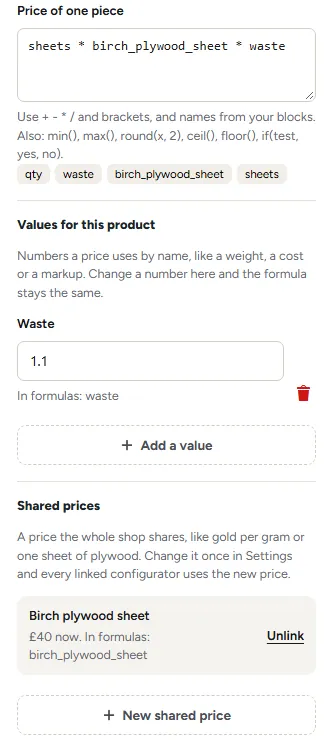
In Price and settings, on the Price tab, under Values for this product, click Add a value, type its name and its number, and click Add the value. The name you typed becomes the name the formula uses, shown under the value as In formulas: Waste becomes waste, Ring weight becomes ring_weight. It is a chip under the formula box from then on. Change the number in the same place at any time; the bin next to it removes it.
A crate maker who allows 10% for waste adds Waste as 1.1, and the crate’s formula ends * wood * waste: the 100 by 60 by 50 cm pine crate is then 2.8 x 26 x 1.1 = 80.08.
Shared prices: one price for many products
A shared price is one price the whole shop uses: gold per gram for every ring, one sheet of birch plywood for every board, pine per square metre for every crate, shelf and box. When your supplier changes the price, you change it once and every configurator linked to it follows.
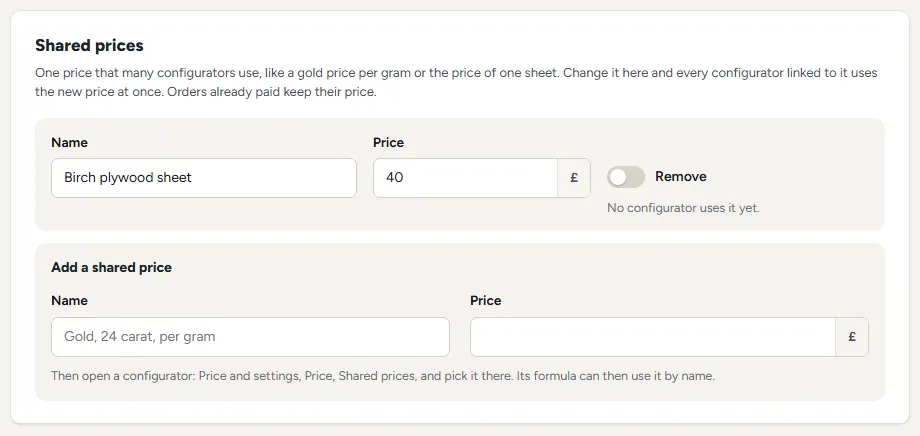
- Add one in ConfigKit, Settings, under Shared prices: type its name and its price under Add a shared price, then Save settings. Or add it while you build: Price and settings, Price, Shared prices, New shared price, then Add and link it.
- Link it in each configurator that uses it: Price and settings, Price, Shared prices, pick it in Use a shared price and click Link. It shows with its price today and the name formulas use, and it is a chip under the formula box. A crate maker puts
pine_per_square_metrein the crate’s formula in place of the 26 for pine. - Change it in Settings and save. The price customers see, and every basket already filled, use the new price at once. Orders already paid keep the price they were paid at.
- Unlink it in a configurator, with Unlink: its last price stays as one of that product’s own values, so the formula keeps working.
- Remove it in Settings with Remove, once no configurator links it. While one does, Settings says which ones use it and keeps it.
A configurator you export takes the shared prices it links with it. Imported in another shop, it adds any of them that shop does not have yet, and never changes a price that shop already has. If a linked shared price is ever missing, that configurator stops selling and says a shared price needs checking, rather than sell at an old price.
The order it is worked out in
- Base: the formula, or the starting price.
- Amounts: every “Adds an amount” and “Adds an amount per …” that applies, added on.
- Percentages: all of them added together, then applied to base plus amounts.
- Rounding: to whole cents, and up to the lowest price of one piece if you set one.
- Quantity break: taken off each piece.
- Order line: price of one piece times the quantity, up to the lowest order total, plus the setup fee.
Five crates of 100 by 60 by 50 cm, heat-treated, with a hinged lid and skids: 72.80 + 28.00 + 18.00 = 118.80, plus 12% is 133.06 a crate. Five or more take 5% off each: 126.41, times 5 is 632.05.
Only blocks that show and are filled in count. A block hidden by its Show when condition adds nothing, even if the customer filled it in before it was hidden.
Quantity breaks, minimums and a setup fee
- Price breaks sit on the Quantity block’s Price tab: from a number of pieces, a percentage or an amount off each. The highest one that applies is used. The crate takes 5% off from 5 and 12% off from 20. The customer sees the saving.
- Lowest price of one piece (Price and settings, Price, Minimums and fees): the crate’s is 45.00, so a small 20 by 20 by 10 cm OSB box costs 45.00, not the 3.36 its boards come to.
- Lowest order total: the whole line, all pieces together, is raised to this. The banner template’s is 25.00.
- Setup fee, once per order line: added once, however many pieces.
A price grid
For prices you keep in a table, like a width by drop chart, add a Price grid block. Name the rows and columns and type a price in each box. The customer picks a row and a column and the box price is added. Leave a box empty when that combination is not sold: a customer who picks it is told “That combination is not available.” and cannot add it to the basket. To use the box price only inside a formula, switch off “Add the box price to the total”.
Shipping weight
Also on the Price tab, Shipping weight takes a formula for the weight of one piece, in your shop’s weight unit. The banner template’s is size_area * 0.55, its square metres times 0.55. WooCommerce’s own shipping then prices each line by that weight, times the quantity. Leave it empty and the product’s own weight is used.
Was this page helpful?
Thanks for telling us.
Sorry it did not help. Tell us what you were looking for and we will add it.