ConfigKit is one plugin, bought on its own. You do not need PriceWise or any other plugin, only WooCommerce. This page takes you from the download in your order email to ConfigKit’s own screen in wp-admin, with updates switched on.
- Upload and activate
- Add your license key
- Moving to another site
- Already using Craftor?
- One extra line on nginx servers
Upload and activate
Upload the zip
In WordPress go to Plugins, Add New Plugin, then Upload Plugin at the top. Choose the ConfigKit zip from your download (configkit-current.zip) and click Install Now. Do not unzip it first.
Activate it
Click Activate Plugin. WooCommerce must be active: WordPress will not switch ConfigKit on without it.
Find it
ConfigKit has its own place in the wp-admin menu, called ConfigKit, with three screens: Configurators, Quote requests and Settings. Configurators is the home screen: every configurator you make shows there as a card, with what configurators sold in the last 30 days. Nothing changes on your shop until you put a live configurator on a product, a category or a page, so it is safe to install on a busy shop.
Add your license key
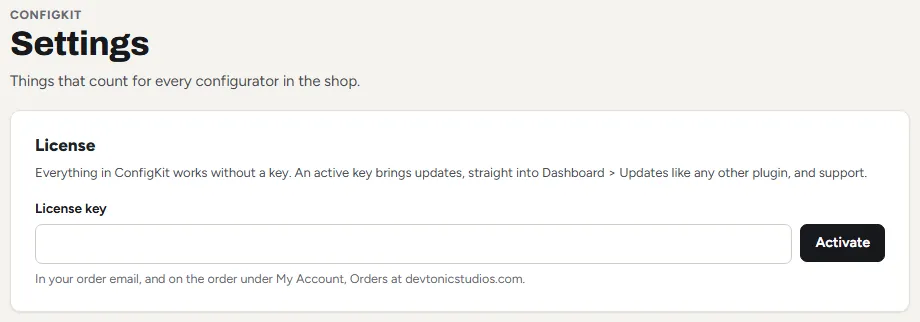
Everything in ConfigKit works without a key. An active key brings updates, straight into Dashboard, Updates like any other plugin, and support.
Open the License card
Go to ConfigKit, Settings: the License card is at the top. The License link next to Deactivate on the Plugins screen opens the same place.
Paste the key and click Activate
The key is in your order email, and on the order under My Account, Orders on devtonicstudios.com. The card then shows the key with its middle hidden, this site’s name and the date your updates run until (For life on a lifetime plan).
ConfigKit checks the key once a day, when someone opens wp-admin, and Check now on the card asks straight away. If the license server cannot be reached, nothing changes on your site and it asks again an hour later. When a new version is out, it shows on the Plugins screen like any other update. Without an active key you still see that a new version exists, with a link to the License card instead of Update Now.
Moving to another site
A key works on one site at a time. Before you move a shop, open ConfigKit, Settings on the old site and click Deactivate on this site. That frees the key, and you can activate it on the new site. If the old site is already gone, write to me and I will free it.
A shop at www.yourshop.com and one at yourshop.com count as the same site.
Already using Craftor?
Craftor comes with ConfigKit inside it, so there is nothing to upload: the ConfigKit menu is there as soon as Craftor is active. ConfigKit, Settings then says that ConfigKit came with Craftor and is updated together with it, so there is no separate key to enter. If the ConfigKit plugin is on the site as well, Craftor uses that one, with its own key.
One extra line on nginx servers
If customers will send you files, ConfigKit keeps them in wp-content/uploads/ckit-uploads and blocks direct visits to that folder. On Apache and LiteSpeed, which most hosts use, that works by itself. nginx ignores that block, so if your host runs nginx, ask them to add this line to the site’s server block and reload nginx:
location ^~ /wp-content/uploads/ckit-uploads/ { deny all; }The files have random names with no file ending, so nobody can guess one, but the line closes the folder completely. Shop managers still download every file from the order screen.
Was this page helpful?
Thanks for telling us.
Sorry it did not help. Tell us what you were looking for and we will add it.