Templates give you a working start, export and import move a configurator between shops, and the Look tab makes it match your shop. This page covers all three, and the Date and Summary blocks the templates use.
The 42 templates
New configurator, in ConfigKit, Configurators, shows every template with a line on what it does. Search them, or click a trade:
- Print and signs: Custom banner, Stickers and labels, Business cards, Flyers and leaflets, Shop and office signs, Canvas and photo prints.
- Home and interiors: Kitchen worktop, Roller blinds made to measure, Curtains made to measure, Wall mural printed to size, Rug or carpet cut to size, Foam cut to size.
- Wood, metal and making: Wooden crate, Table made to size, Floating shelf, Laser cutting, Metal gate or railing, 3D printing.
- Building and garden: Fence panels, Decking, Gravel, sand and topsoil, Garden shed or garden room.
- Food and events: Wedding cake, Party catering, Cupcake box.
- Gifts and clothing: Printed T-shirts and hoodies, Engraved ring or pendant, Gift hamper, Portrait from your photo, Flower bouquet.
- Services: Office cleaning plan, Painting and decorating, House removals, Garden maintenance plan, Photo session, Lessons and tutoring, Website package, Car valeting.
- Tech and repairs: Custom PC build, Phone and laptop repair.
- Hire: Tool and equipment hire, Party and event hire.
Each one shows a different way of pricing. The Wooden crate works its boards out with a formula, the Office cleaning plan is a monthly price with “a month” after it, the Custom PC build has parts that must match, the Wedding cake and the Website package take quote requests only, and several, such as Shop and office signs, let customers buy or ask for a quote. Nothing fits? Start empty, or take the closest one and change it: every block and price can be changed.
Every template opens as a draft with its own example prices, and cannot go live until you switch on “These are my own prices” in Price and settings. Change anything: they are yours once made. Build your first configurator walks through the banner.
Export and import
To copy a configurator to another shop, or keep a backup, open the three dots on its card in ConfigKit, Configurators and click Export as a file, or use Export (the download arrow) at the top of the builder. You get a small file, like configurator-wedding-cake.json.
On the other shop, click New configurator and, at the bottom of the window, under “Have a file from another shop?”, choose the file and click Import. It arrives as a draft, checked like anything saved in the builder, so look it over and save it live. Photos on options stay behind when the file comes from another site, because they live in that site’s media library: the builder says how many, and you add them again with Add a picture on each option. Where it shows (products, categories) is not carried over either, since the other shop has its own.
Duplicate, in the same three-dot menu, makes a copy on this shop, as a draft.
The look
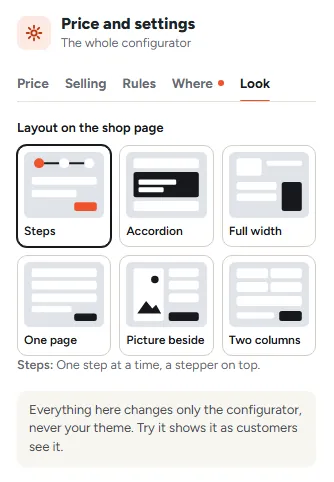
The configurator takes your theme’s fonts and buttons until you change them. Everything in Price and settings, Look changes only the configurator, never your theme, and every change shows on the canvas while you drag or pick. Try it shows it exactly as customers will see it.
Layout on the shop page. How customers move through the configurator, in one of six ways:
- Steps: one step at a time, numbered on top. A configurator you start empty starts on this one; each template comes with the layout that suits it.
- Accordion: steps that fold up and say what was picked.
- Full width: under the product photo, with a card that keeps the price and the buy button in view.
- One page: everything at once.
- Picture beside: under the photo, a big picture next to the options that changes to the picture of the option picked last, with the price and the buy button under the options. Give your options pictures: until one is picked, the product’s own photo shows.
- Two columns: under the photo, everything at once, two blocks side by side where there is room.
Ready-made looks. Eight looks, each shown as a small piece of a configurator: Your theme, Soft, Bold, Friendly, Floating cards, Boutique, Picture tiles and Dark. One click sets the whole look; then change any part. Your own colour, if you picked one, stays.
Then, in groups you open as you need them:
- Colours: picked options and buttons, text, the background behind the configurator, option boxes and fields, box outlines, and the price. Each can go back to the theme’s. Words on your colour are made white or dark, whichever reads, and words in your colour (an outline button) get a darker or lighter shade where your colour would be hard to read.
- Text: the font (your theme’s, or one of four already on your customers’ computers and phones, so nothing has to load), text size, and labels in small capitals.
- Option boxes: outlined, soft tints, pills side by side, or tiles with the picture on top; a picked option outlined or filled with your colour; how many side by side; corners, picture size, room inside a box, space between boxes, outline thickness and a shadow.
- Buttons: solid, outline, pill or soft, and “Your shop’s buy button matches”, which gives Add to basket (and Send my request) the same colour and style.
- Spacing and frame: space between blocks, room around the configurator, and a frame: a card with a shadow, or an outline.
- Steps and price: the steps on top as numbers, pills or a line; the price plain, in a band, on your colour, or big; whether the price stays on screen on phones (a bar at the bottom of the screen, just above any bar your theme fixes there); and words after the price, like “a month”, shown on the page and in the shop’s product lists (“From … a month”).
To use the same look on another configurator, click Copy this look, open the other one and click Paste a look.
Dates and closed days
A Date block asks for a delivery or start date. “Days ahead at least” is your lead time, “Days ahead at most” how far ahead you take bookings, and “Closed on” the weekdays you never deliver. The calendar starts at your lead time and ends at your last day, counted from today in your shop’s time zone. A closed day is turned away with a message saying so, and the server checks every date again. In a formula, a date block called start gives start_days (days from today) and start_weekday (1 Monday to 7 Sunday), so you can charge a rush fee for short notice.
A summary before buying
A Summary block lists every answer and the price, in the order of the configurator. Put it on the last step, so the customer checks everything before the buy button.
Was this page helpful?
Thanks for telling us.
Sorry it did not help. Tell us what you were looking for and we will add it.