A Files block lets customers send a logo, a photo or a print file while they configure. The file goes to your server the moment it is picked, can carry its own price, and ends up linked on the order line, so you never chase artwork by email.
- Add a Files block
- What the customer sees
- Where you find the files
- How long files are kept, and where
Add a Files block
Drag in Files
In the builder, drag Files (under From the customer, on the left) into the step where artwork belongs. Give it a label, like “Your artwork”, and switch on “Customers must fill this in” if you cannot make the item without a file.
Say what you take
File types: leave it empty for pictures, PDF and design files (jpg, png, gif, webp, heic, svg, pdf, ai, eps, psd, tif), or type your own list, like pdf, png. Most files: up to 20. Largest file in MB: empty means the size set in ConfigKit, Settings, 50 MB until you change it. Program files such as php or js are never taken, whatever the list says.
Price it, if you like
Leave it free, or give the block a price on its Price tab: “Adds an amount” for a flat artwork fee, or “Adds an amount per …” with “how many files” to charge for each file.
What the customer sees
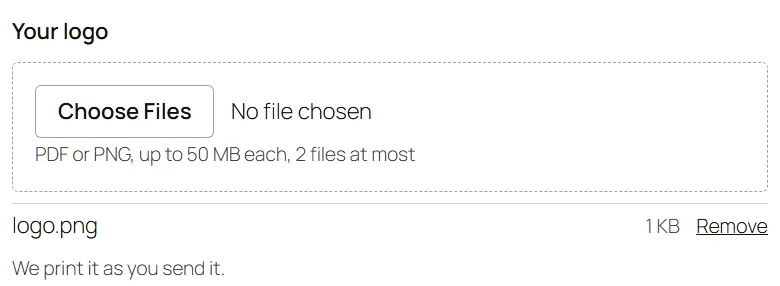
A box that says what it takes (“PDF or PNG, up to 50 MB each, 2 files at most”). A picked file is sent at once and listed by name and size, with Remove next to it, and the price changes if files are priced. A file of the wrong type or too big is turned away with the reason, on the page and again on your server, so nobody can slip one past the page. Your server’s own upload limit still counts: ConfigKit, Settings shows it under the largest file.
Where you find the files
- The order: under each line, “Customer files:” with each file name as a download link. Only people who can manage orders can download, and a file always downloads rather than opening in the browser.
- A quote request: the email to your shop links every file, and the request in ConfigKit, Quote requests lists them.
How long files are kept, and where
- Files on an order or a quote request are kept for good.
- Files sent by someone who then never ordered are removed after 7 days. Change that in ConfigKit, Settings, Customer files: “Remove files nobody ordered after”, from 1 to 365 days.
- Deleting an order for good (not just moving it to the bin) removes its files too.
Files sit in wp-content/uploads/ckit-uploads under random names with no file ending, in a folder that refuses direct visits. On nginx servers that refusal needs one line from your host: see Install ConfigKit.
So nobody can fill your disk, one visitor’s address can send 200 files or 2,000 MB an hour. A developer can change that with the ckit_upload_limits filter.
Was this page helpful?
Thanks for telling us.
Sorry it did not help. Tell us what you were looking for and we will add it.