WooCommerce Product Add-Ons is Woo’s own extension for the extras people add to a product: gift wrap, engraving, a personal message, a logo upload. It costs $79 a year, and for those jobs it works well.
Shop owners who go looking for something else usually hit one of three walls. They need a box that only appears after a choice, like the engraving text only when engraving is ticked. They need a price worked out from a size the customer types. Or they need to control what customers upload. Woo’s own documentation says Product Add-Ons has no conditional logic, and two of its reviewers gave it 3 stars because uploads cannot be limited by file type or size.
In this guide I show all three on one real product, the T-shirt demo on my own store, and I tell you when Product Add-Ons is still the better pick. I built PriceWise, so keep that in mind as you read.
In short: Product Add-Ons adds extras that cost a fixed amount, an amount per item, or a percentage of the price. PriceWise does that too, and adds three things: fields that show and hide by a rule, prices worked out from a size, and uploads you limit by type and size. If your extras are simple, Product Add-Ons is fine. If you need any of the three, that is the work PriceWise was built for.
What Product Add-Ons does well
It has nine kinds of fields: multiple choice (as a dropdown, radio buttons or pictures), checkboxes, short text, long text, file upload, a price the customer types, a quantity, a date and a heading. Each one can add a flat fee, a fee for every item ordered, or a percentage of the product price. It comes from Woo itself, it has 100,000+ active installs, and it was updated on 21 October 2026.
Its rating is 3.4 stars from 49 reviews. The three walls below are the gaps that come up again and again.
The three walls
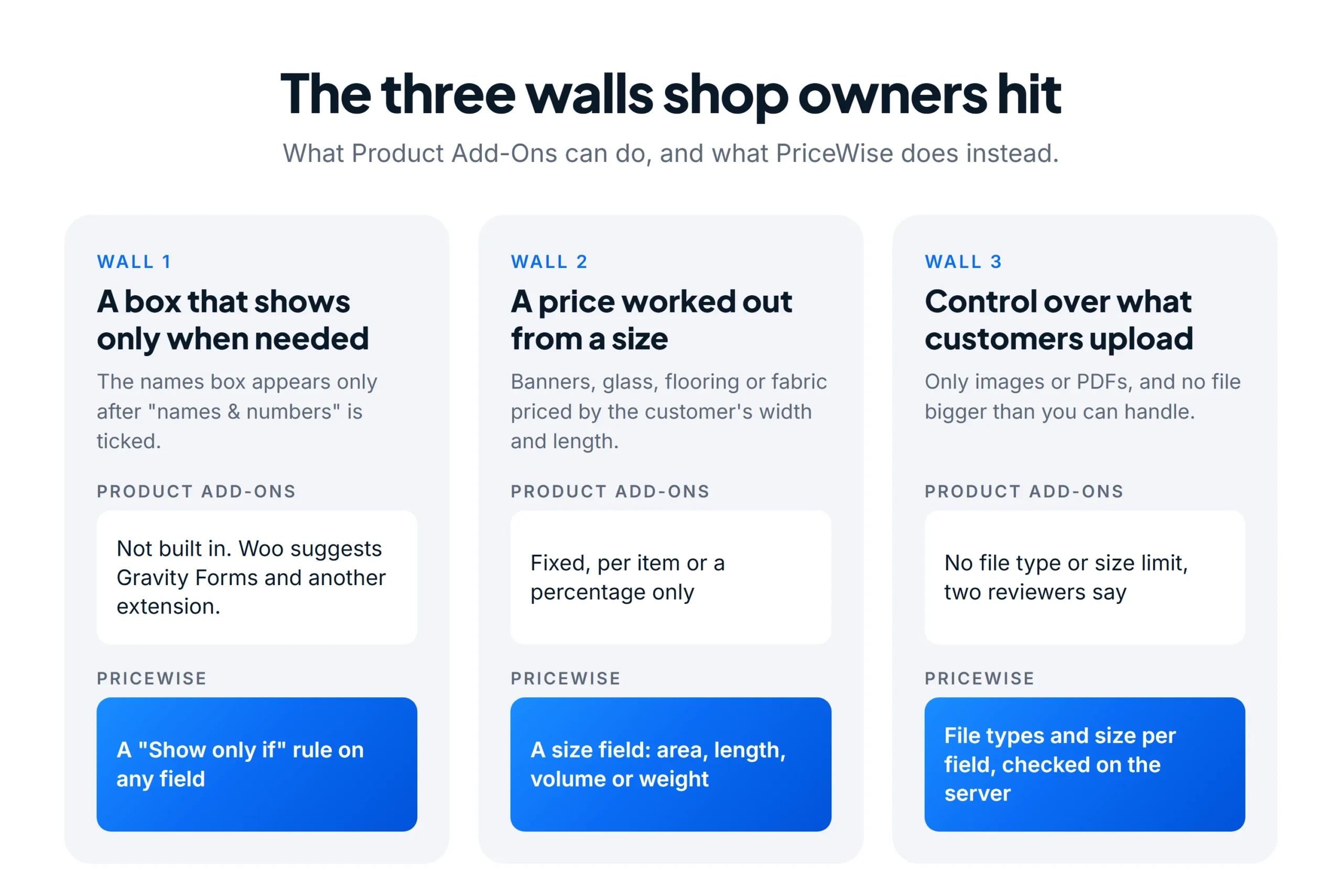
Each wall is a small thing on its own. Together they decide whether customers can order without emailing you first.
The example: a T-shirt product with a live price
Here is the product on my store: an ordinary WooCommerce product page with PriceWise on it. You can open the T-shirt demo and try it yourself, on a computer or on a phone.
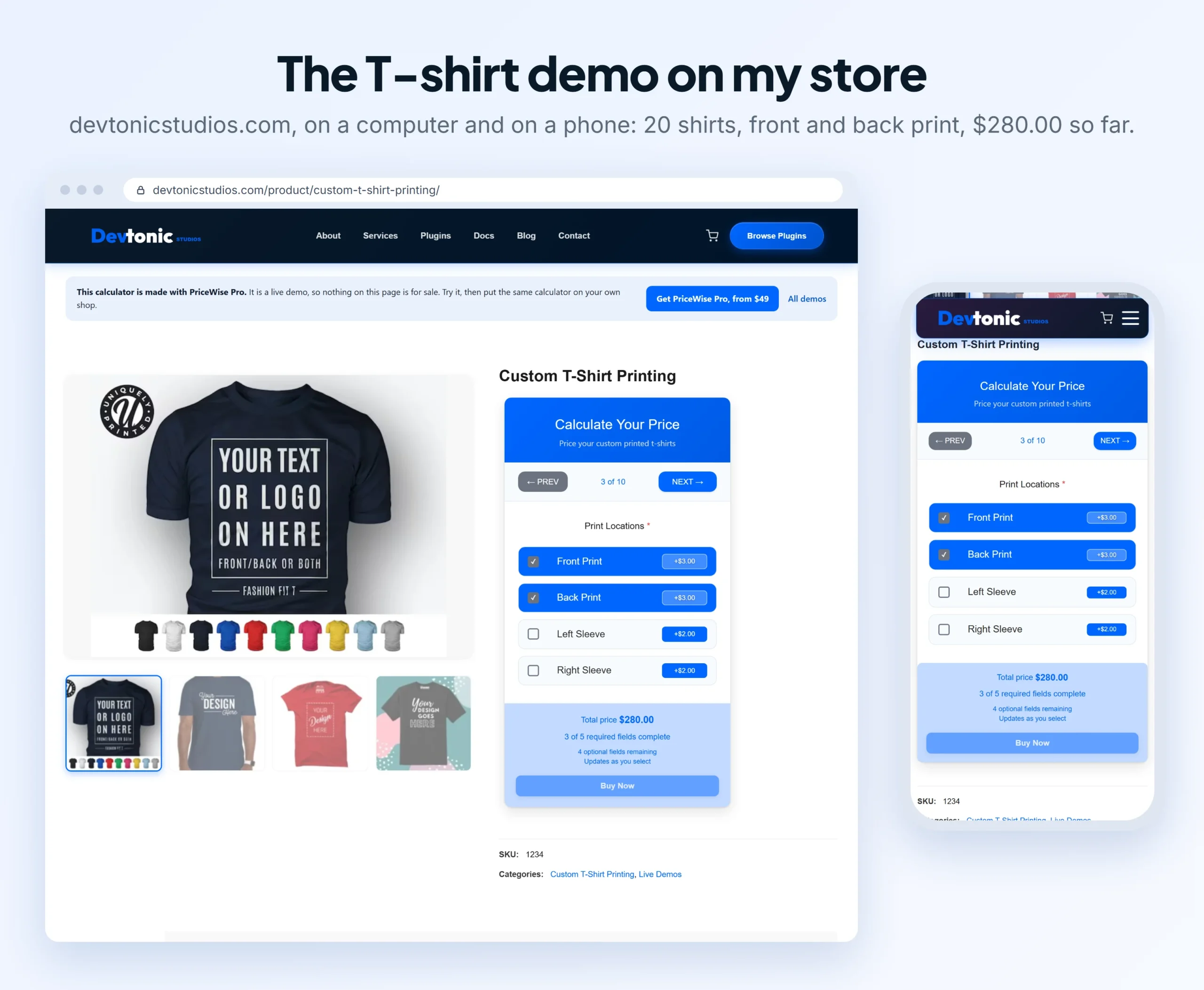
The customer types how many shirts, picks the shirt, ticks where to print and how, chooses the colours, and uploads the design. The total changes with every answer: twenty Bella Canvas shirts printed on the front and the back show $280.00 by the third question, and with two print colours the order comes to $300.00.
Wall 1: a box that only shows when it is needed
Say you also print a name and a number on the back of each shirt, for $2 a shirt. You need a tick box for it, and a box where the customer types the names. But the names box should only be there for customers who ticked the tick box. Everyone else should never see it.
Product Add-Ons can add both, but it cannot hide the names box, so every customer sees it, even the ones who want plain shirts. For hiding it, Woo’s documentation points you to Gravity Forms with its own Product Add-Ons extension: two more plugins to buy and set up.
In PriceWise it is one setting. Here is the same T-shirt calculator before and after the customer ticks the box:
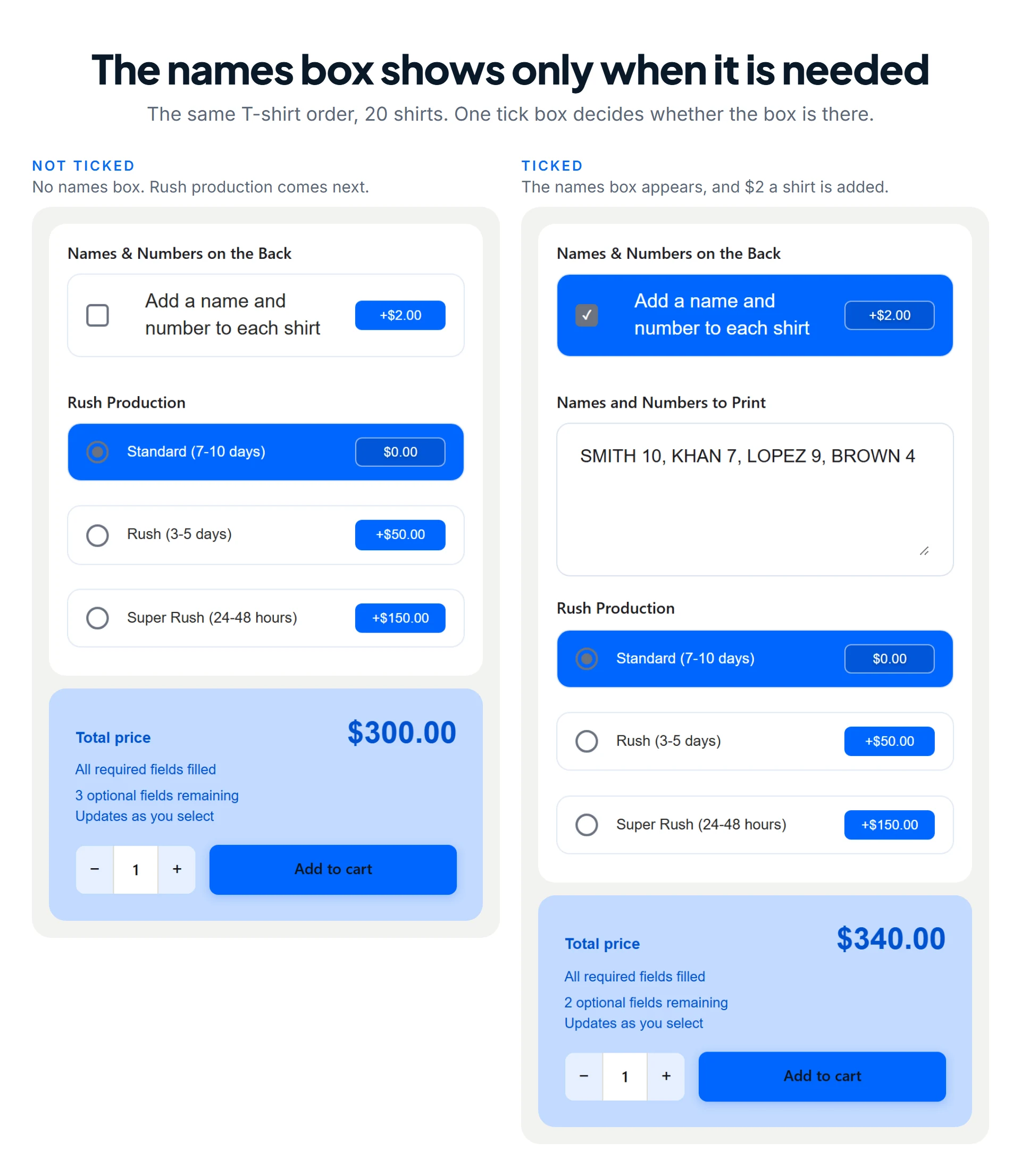
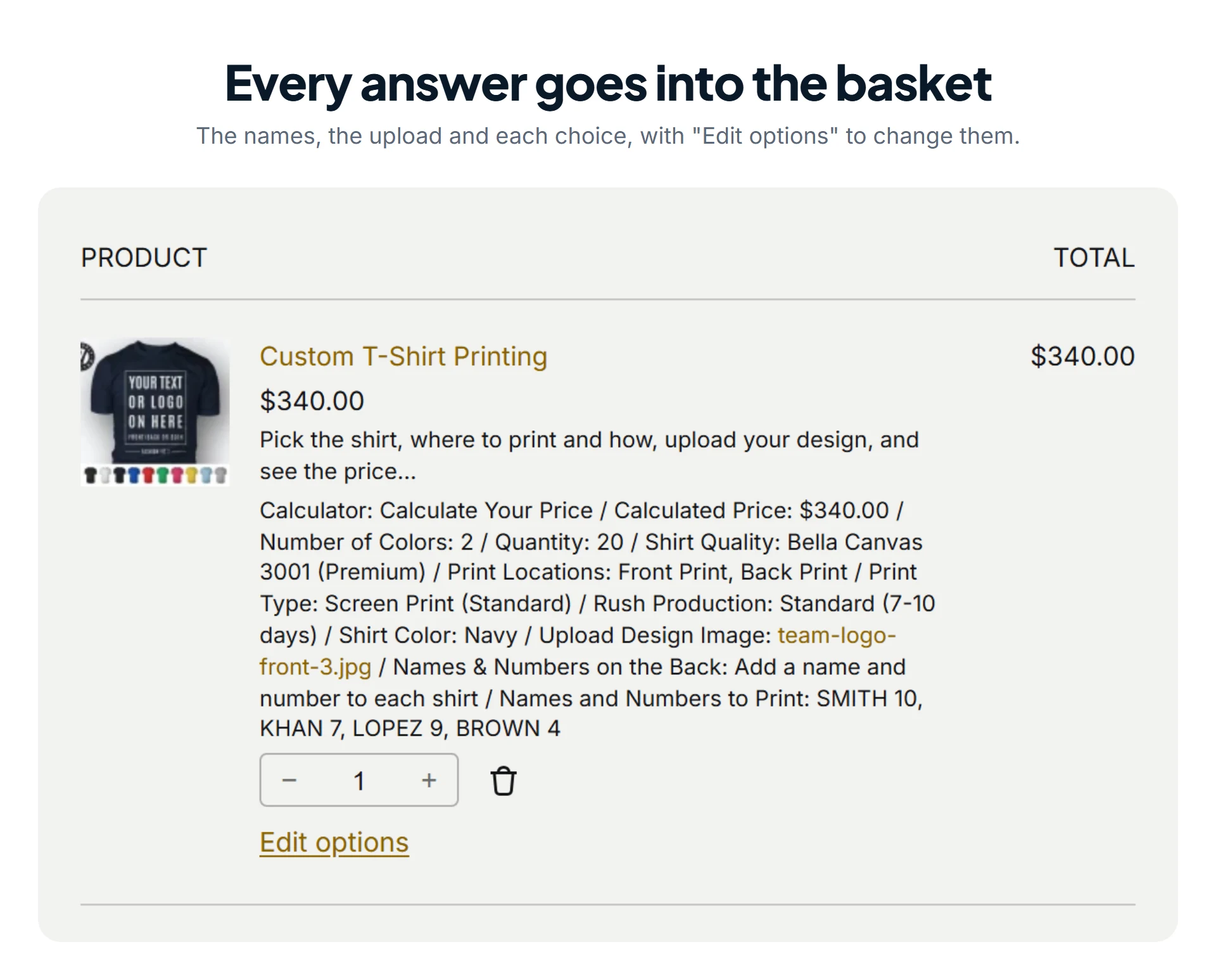
Untick it, and the names box goes away again and the $2 a shirt comes off the total. The names travel with the order, so you know exactly what to print, and the customer can still change their choices from the basket:
What you set up in PriceWise
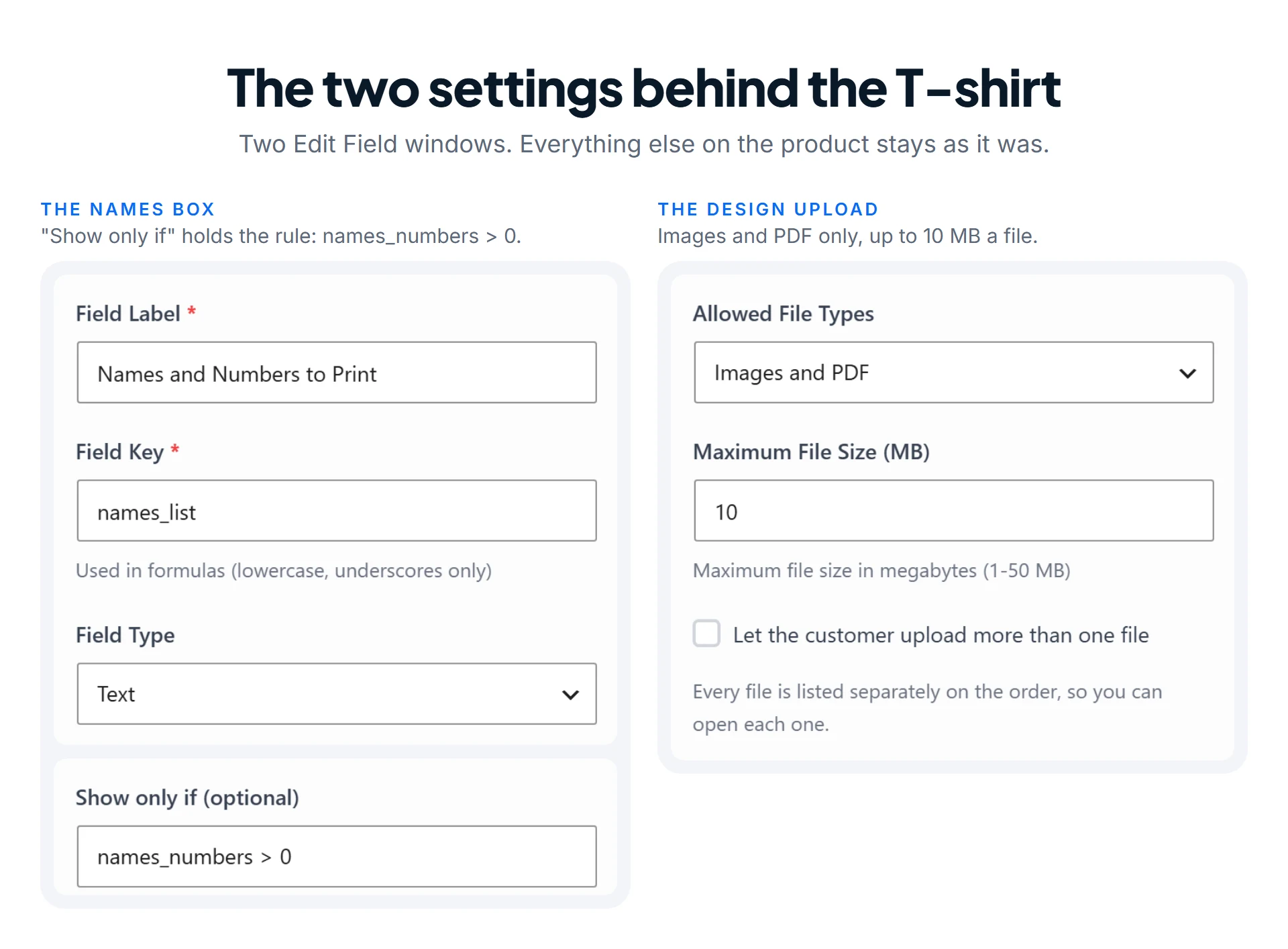
The rule is one short line. Every field in PriceWise has a box called “Show only if”. For the names box you type names_numbers > 0, which means: show this box when the names and numbers tick box is ticked. You can join two rules with “and” or “or”, and a hidden box never counts towards the price.
The upload limits are two settings. For the design upload you pick which files you accept, such as “Images and PDF”, and the biggest file in megabytes, from 1 to 50. You can also let customers send more than one file. PriceWise checks every file again on your server and only keeps pictures, PDFs and Word files, so nobody can upload a script or another risky file to your shop.
Wall 2: a price that depends on the size
Product Add-Ons can add a fixed amount, multiply an amount by the quantity, or take a percentage. It cannot work a price out from a size, so banners, glass, flooring or fabric sold by the metre need a workaround.
PriceWise has a size field of its own. The customer types the width and the length, PriceWise works out the area, adds your extra for cuts, rounds up to full units, and keeps your minimum charge. I showed that step by step on a flooring product in the Extra Product Options alternative guide, and you can try it on the cut-to-size glass demo.
Product Add-Ons vs PriceWise, side by side
| PriceWise | Product Add-Ons | |
|---|---|---|
| Price, one site | $49 a year, or $99 once | $79 a year |
| Free version | Yes, prices from a formula with a live total | No |
| Kinds of fields | 15 | 9 |
| How an extra is priced | Fixed, per item, percentage, per m², or a formula | Fixed, per item or percentage |
| Show and hide fields | Yes, a rule on any field | No, Woo suggests Gravity Forms |
| Price from a size | Yes: area, length, volume or weight | No |
| Upload limits | File type and size per field, checked on the server | No type or size limit, its reviewers say |
| Track record | 50+ stores, 5 stars from 12 reviews on the shop and WordPress.org | 100,000+ installs, 3.4 stars from 49 reviews |
Which one should you pick?
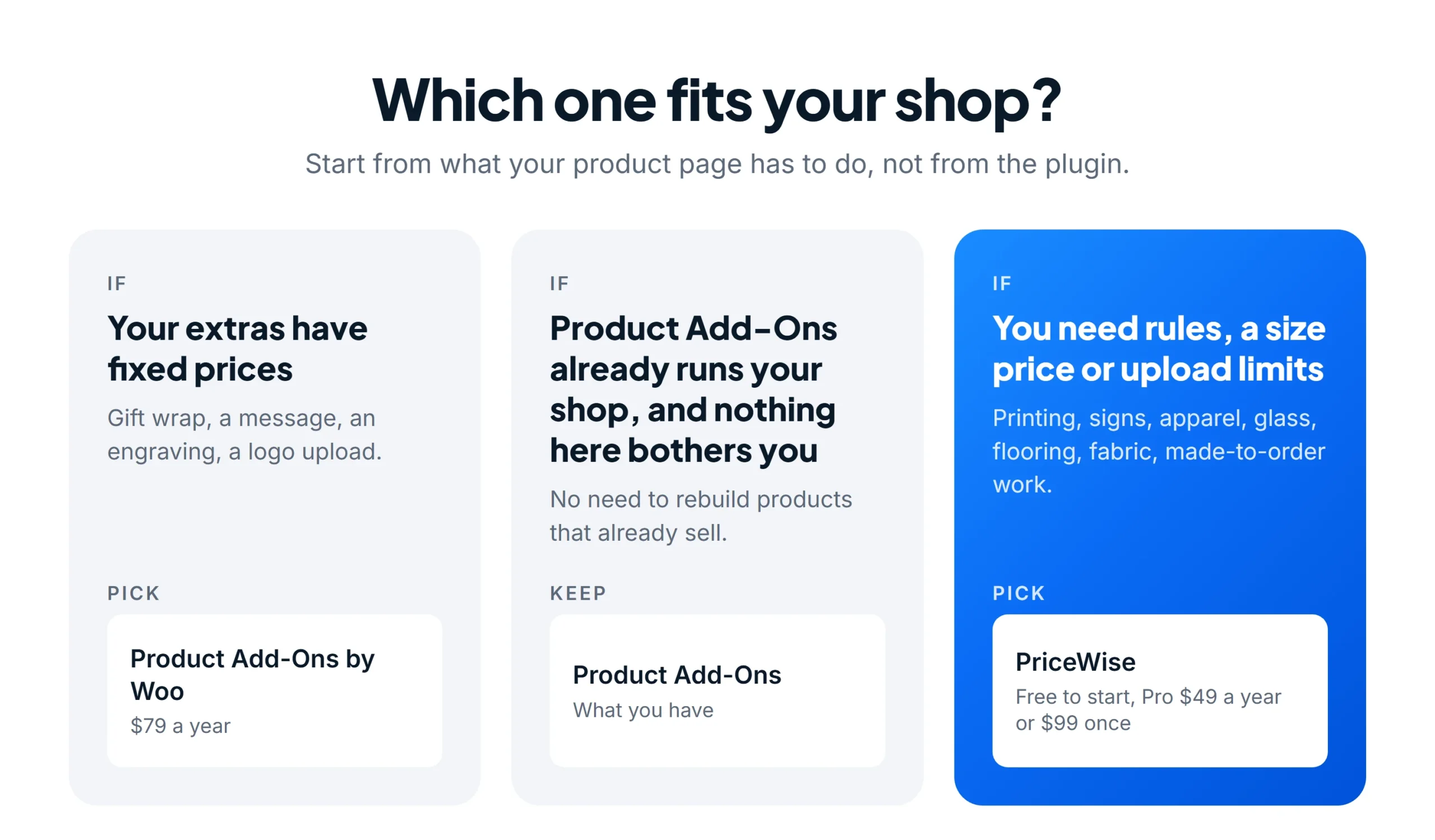
If your extras are gift wrap, a message or an engraving at a fixed price, Product Add-Ons does the job. If it already runs your shop and nothing on this page bothers you, there is no reason to change. If you need fields that appear only when they matter, a price from a size, or control over uploads, PriceWise turns each of those into a setting.
Questions shop owners ask
Do I need to write code for the rules? No. You type one short line in the “Show only if” box of the field, like names_numbers > 0. The field keys are the names you gave your fields.
Can I move my products over from Product Add-Ons? Yes. You set up each product’s options in PriceWise once, and the ready templates for apparel, print and signs, flooring and more give you a head start. Orders that are already placed keep their add-ons.
Can PriceWise do the simple extras too? Yes. Gift wrap as a tick box with a fixed price, a message as a text box, folding at a percentage of the price: all of it is there, in 15 kinds of fields.
Can my customers change their choices after adding to the basket? Yes. Each line in the basket has an “Edit options” link that takes them back to the product with their answers filled in.
Can I try it before I pay? Yes. The free version on WordPress.org prices from a formula with a live total. Pro adds the rules, the uploads, the size field and the rest, and comes with a 14-day refund.
My take
Product Add-Ons is a solid choice for simple extras, and it comes from Woo itself. But once you need a field that only shows after a choice, a price from a size, or a say in what customers upload, you are either buying more plugins or living with the gap.
That is the gap PriceWise Pro fills: $49 a year, or $99 once. Try the T-shirt demo and the other live demos first; they are ordinary products on my store, not mock-ups. I wrote the same kind of comparison for Product Add-Ons Ultimate and YITH Product Add-Ons, if those are on your list too.
Checked on 24 October 2026: price, rating, installs and reviews on the Product Add-Ons page, the field and price types and the conditional logic note in its documentation, version 8.4.5 in its changelog. The product pictures are my live T-shirt demo; the names rule, the basket and the setup screens come from a test shop running PriceWise Pro 2.5.9 with the same T-shirt calculator. Both plugins update often, so check before you buy.