Open a WooCommerce t-shirt and you probably see “$18.00 – $32.00” where the price should be. That is a variable product doing its job: one product, several versions, a price range until the shopper picks. Variable products are one of WooCommerce’s best free features, and also one of the most misunderstood. This guide covers what they are, how to tidy that price range, and the point where they stop being the right tool.
In short: A variable product is one product with pre-built versions (variations), each a fixed combination of attributes like size and colour, each with its own price and stock. It shows a price range until the shopper chooses. That is perfect for a fixed set of versions. It falls apart when the combinations run into the hundreds, or when the price depends on a measurement, and that is where a calculator takes over.
What a WooCommerce variable product actually is
It is built from two pieces:
- Attributes are the choices: Size (S, M, L), Colour (Black, Navy, Red). You add these on the product’s Attributes tab and tick “Used for variations”.
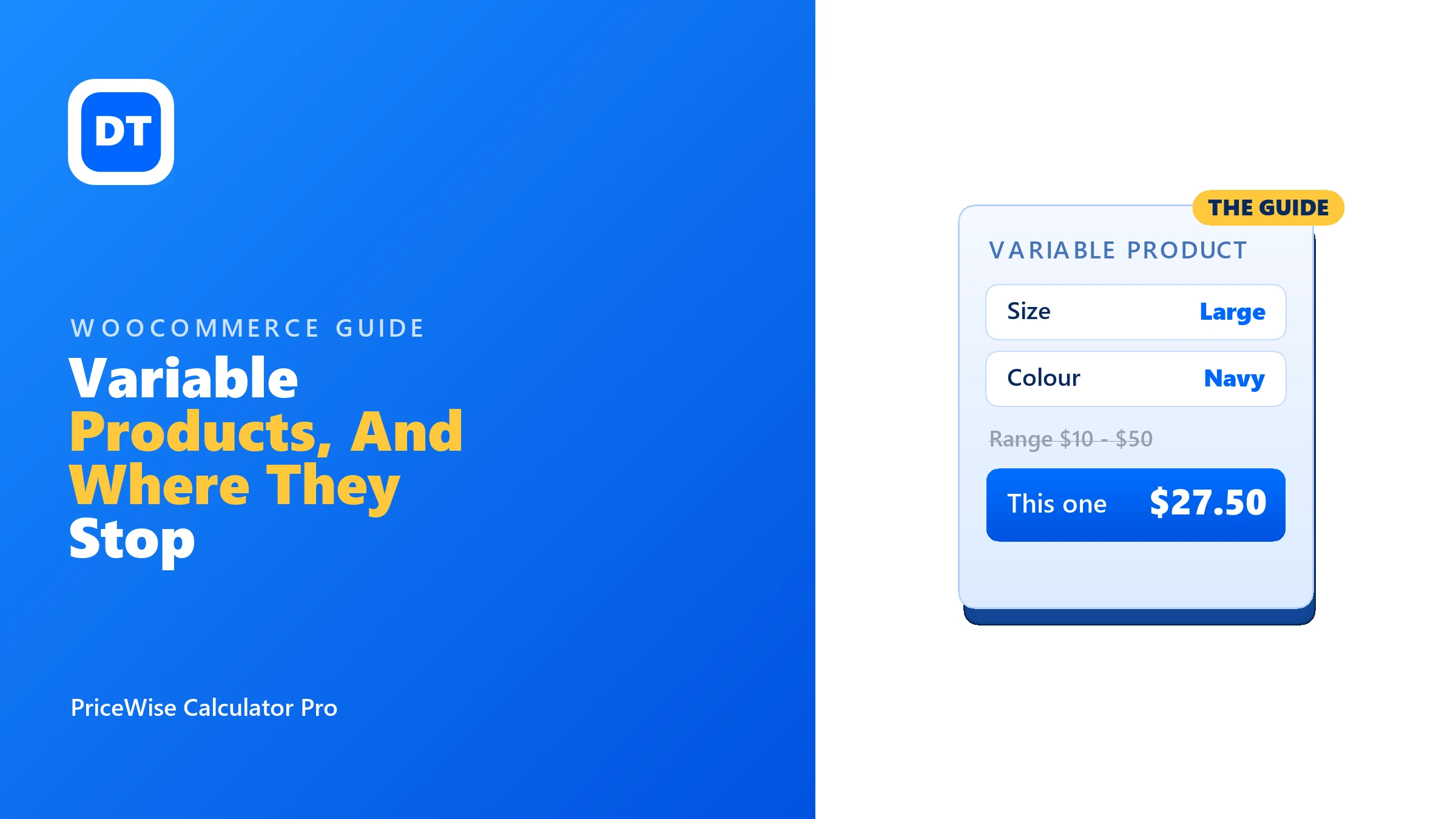
- Variations are the actual combinations: “Large / Navy” is one variation, with its own price, SKU, stock, and image. You create them on the Variations tab, one row per combination you sell.
On the front end, the shopper picks a value for each attribute, and WooCommerce shows the matching variation’s exact price and adds that specific version to the cart. Until they have chosen, it shows the price range across all variations. Nothing is calculated; every price was set by you in advance.
That is the whole model, and for a fixed set of versions it is excellent: real stock per variation, per-version images, and it is free and built in. If you sell shirts in 3 sizes and 3 colours, a variable product is exactly right.
Tidying the price range (“$18 – $32”)
The range display is the most common complaint about variable products. Shoppers can read it as “the cheapest is $18”, or find it confusing. You have three honest options.
Option 1: show a “from” price with a snippet. Replace the range with the lowest price and a “From”. Drop this in your child theme’s functions.php or a code-snippets plugin:
add_filter( 'woocommerce_variable_price_html', 'dt_variable_from_price', 10, 2 );
function dt_variable_from_price( $price, $product ) {
    $min = $product->get_variation_price( 'min', true );
    return sprintf( 'From %s', wc_price( $min ) );
}
Now the product reads “From $18.00”, and the exact price still appears the moment the shopper selects a variation. This is the cleanest free fix.
Option 2: hide the price until a variation is picked. Some themes and small free plugins let you blank the range and only show a price once a full combination is chosen. WooCommerce already reveals the exact variation price on selection, so this is really about hiding the range beforehand. Fine if your prices vary a lot and the range looks alarming.
Option 3: replace the range with a live, exact price. If what you really want is one clear number that updates as the shopper chooses, that is a price calculator’s job rather than a variation’s. The shopper picks, and a single exact total shows and updates, no range at all. More on when that is the right move below.
Variations also fall over on anything priced by duration. If you hire kit out, pricing per night or per day needs a field, not a variation for every possible length.
Where variable products stop
Variations are pre-built, and that is their limit. Two walls show up again and again.
Wall 1: the combinations explode. Variations are every combination, made by hand. Three attributes with 5, 6, and 4 options is already 120 variations. Add a fourth and you are into the hundreds, each needing a price. WooCommerce itself starts to strain, and so do you. Nobody maintains 400 variation rows happily.
Wall 2: the price is a measurement. A variation is a fixed choice from a list. It cannot handle “2.4 metres by 1.5 metres”, because you cannot pre-build a variation for every possible size. Flooring, fabric by the metre, cut-to-size glass, made-to-measure blinds: none of these fit the variation model, because the price is worked out, not picked.
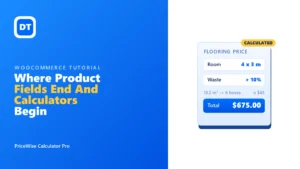
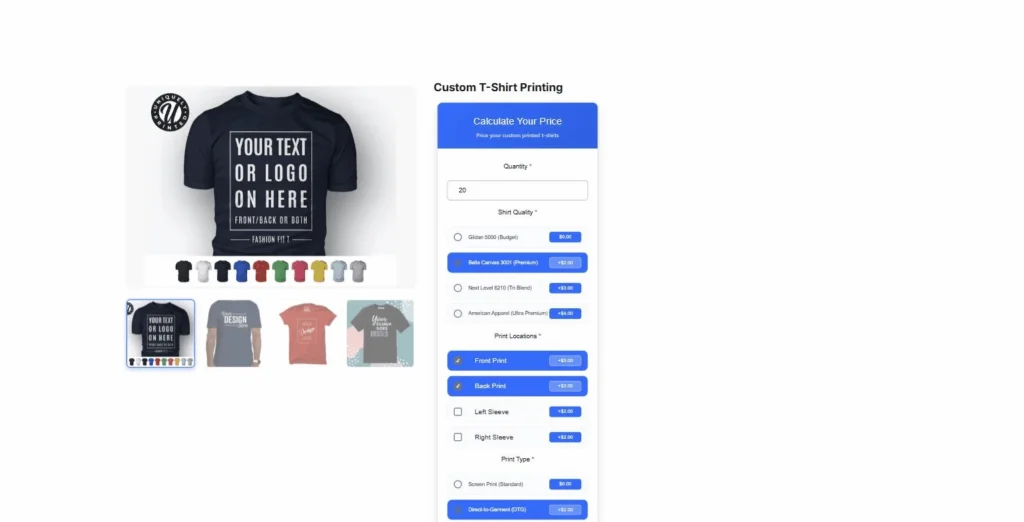
When you hit either wall, the answer is not more variations. It is a calculator: the shopper enters or picks their inputs, and one exact price is worked out live. Here is a flooring product doing exactly that, priced by the room size with no variations at all:

Variable product or calculator? A quick test
- A short, fixed list of versions (a few sizes and colours), each with its own stock and image: use a variable product. It is free and it is what WooCommerce built this for.
- Too many combinations to list, or a price that is calculated (by size, weight, length, options): use a price calculator. That is what PriceWise is for, and my complete price calculator guide maps every setup.
- A bit of both? They coexist. Keep simple stock as variable products, and put the made-to-order lines on a calculator. A calculator sits on the product page alongside your normal setup.
Want to feel the difference? The live demos run on my own shop, priced live, with no variation rows behind them at all.
FAQ
Are variable products free? Yes. They are core WooCommerce, no plugin needed. You only reach for something else when variations cannot express what you sell.
How do I stop the “$18 – $32” range showing? Use the “From” snippet above, hide it until a variation is picked, or replace it with a live calculated price. Pick the one that matches how your prices actually work.
How many variations is too many? There is no hard cap, but once you are hand-maintaining a few hundred rows, or the admin gets sluggish, you have outgrown the model. A calculator replaces all of them with a few inputs and a formula.
Can a calculator use my product’s stock and images like a variation does? A calculator prices made-to-order items where per-combination stock usually does not apply. If you need real stock per version, that is exactly the case variable products are built for; keep those as variations.
The takeaway
Variable products are the right tool for a fixed set of versions, and they are free, so use them there. Tidy the price range with the snippet above if it bothers you. And the day you find yourself building the four-hundredth variation, or trying to price a size that does not exist yet, switch to a calculator. That is what I built PriceWise Calculator Pro for, with a free version to start and the full guide to walk you through it.