Turn the button on, add something to the basket as a shopper would, and send it. The whole round trip takes a minute.
1
Turn the button on
Go to Quotes, then Settings, then General. Set Quote mode to On for ALL products and save.
2
Add a product to the quote basket
Open any product on your storefront. An Add to Quote button now sits next to Add to Cart. Click it.
3
Send the request
Go to the Quote Basket page. Set the quantity, fill in the form below the items, and submit.
4
Answer it
The quote lands under Quotes with the status Pending. Open it, read what they asked for, then set the status to Accepted or Declined. The customer gets an email either way.
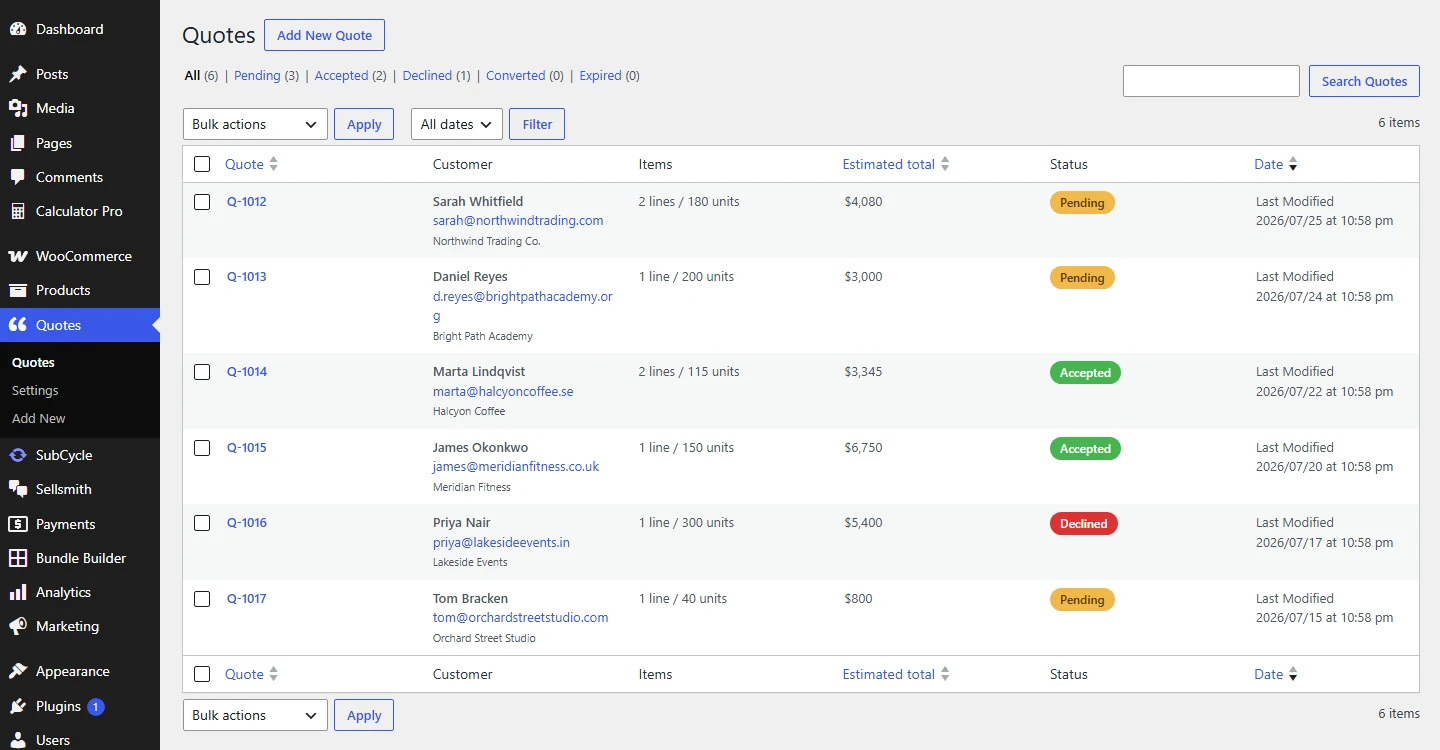
Every request lands here with the customer, what they asked for, the estimated total, and the status.
Two emails go out on every new request:
- You get New quote request, with a button straight to the quote.
- The customer gets Your quote request has been received, so they know it arrived.