You sell flooring. Or tile, carpet, turf, or wallpaper. The price depends on the room size. A small room costs less than a big one.
But WooCommerce wants one fixed price per product. So how do you charge by the square meter?
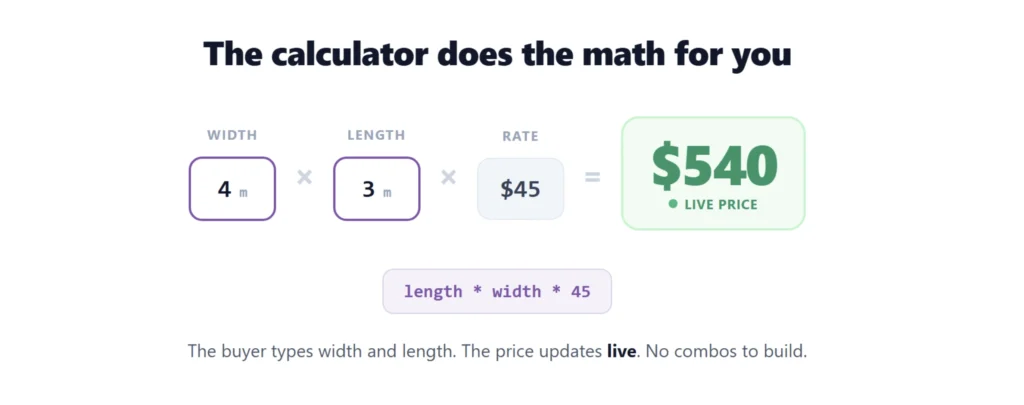
Here is how it is done. You’ll set up a product where the buyer types their width and length, and the price works itself out (area x your rate). I’ll use real steps, and I will not skip the tricky parts, like selling by the box and adding for waste.
Quick answer: Plain WooCommerce can’t price by area. Add a price calculator with a Measurement field set to area, and a rate per m². The price updates live as the buyer types their width and length, and you can add waste and round up to whole boxes automatically.
Who needs square-meter pricing
- Flooring: laminate, vinyl, hardwood
- Tiles
- Carpet and rugs
- Artificial turf and decking
- Wallpaper
- Anything sold by the m² (or the square foot)
If you sell by area, a fixed price just doesn’t work. Every order is a different size.
Why plain WooCommerce can’t do it
A normal WooCommerce product has one price. You set $X and that’s it.
“Use variations,” people say. But variations are pre-made combinations. You’d need one for every possible width and every possible length. 2.1m, 2.2m, 2.3m, times every length. That’s thousands of combinations. Nobody can build that by hand. (I wrote more about variations vs options in how to create multiple options for one product.)
What you actually need is math: the area times your rate per m². WooCommerce doesn’t do live math on its own.
The fix: a measurement field
A price calculator adds a Measurement field to your product page. The buyer types their width and length, the calculator works out the area, and the price updates live using the rate you set. The area is worked out on your server, so it can’t be fiddled with in the browser.
That maths is the whole reason PriceWise Calculator Pro exists. Here it is on a real flooring shop, and then I’ll show you the full setup.
How to set it up, step by step
There are two ways to build this. The fast way: on the Templates page, the guided setup asks what you sell and your rate, and builds a flooring calculator for you. The manual way is below, so you can see how the pieces fit.
Step 1: Open the builder. In your WordPress menu, go to Calculator Pro and click Add New.
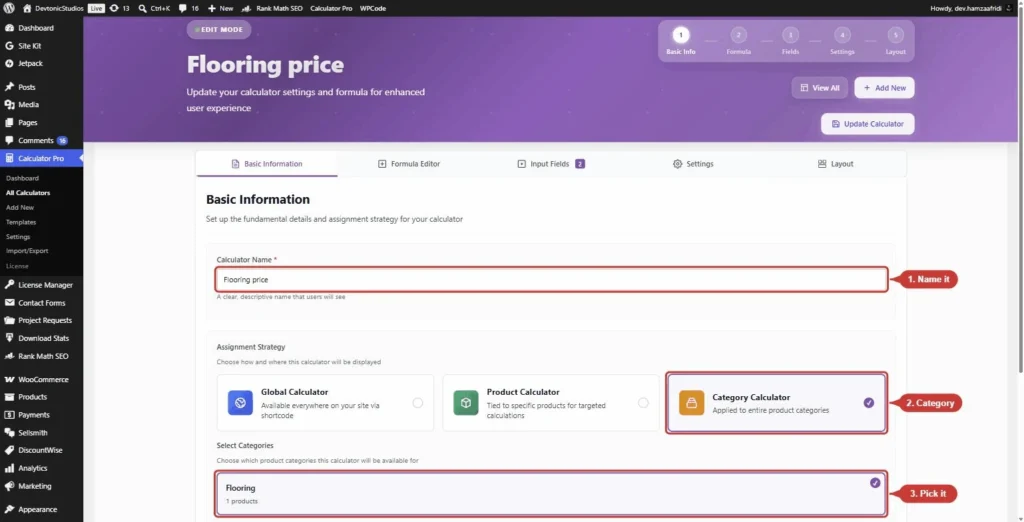
Step 2: Name it and assign it. On the Basic Information tab, set a Calculator Name (like “Flooring price”). Under Assignment Strategy, choose Category Calculator and pick your “Flooring” category.
Step 3: Save it first. Click Save Calculator. You have to save before you can add fields. This catches people.
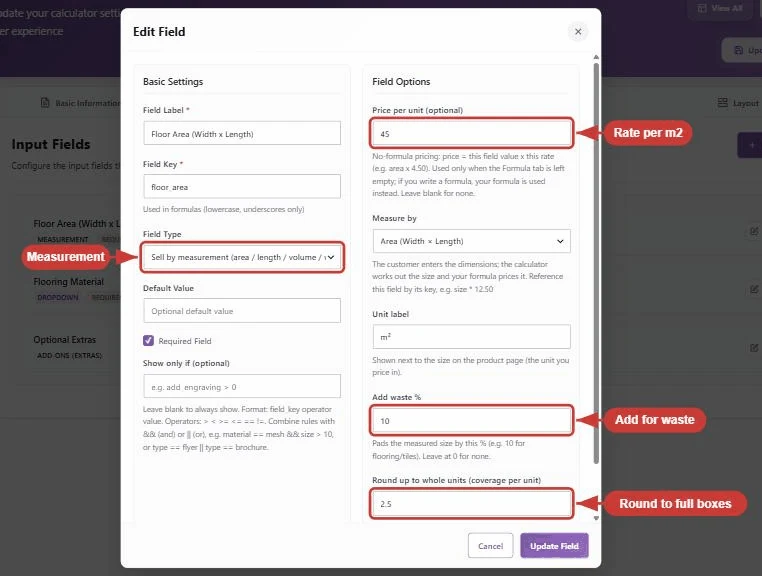
Step 4: Add a Measurement field. Go to the Fields tab, click Add Field, and set the Field Type to Measurement. Then:
- Set the mode to Area (width x length).
- Set the Price per unit to your rate, like 45 for $45 per m². No formula needed.
- Add a waste percentage (say 10%) so the price covers offcuts.
- Set round up to whole units to your box size (say 2.5) if you sell by the box.
That one field does the whole job: it asks for the size, works out the area, adds the waste, rounds up to full boxes, and prices it. This is the part the old way made you do by hand.
Step 5: Choose where it shows, then save. On the Settings tab, pick where the calculator appears on the product page. Click Save Calculator again.
Step 6: Check it on a product. Open a flooring product (make sure it has a regular price set). Type a width and a length. The price updates live.
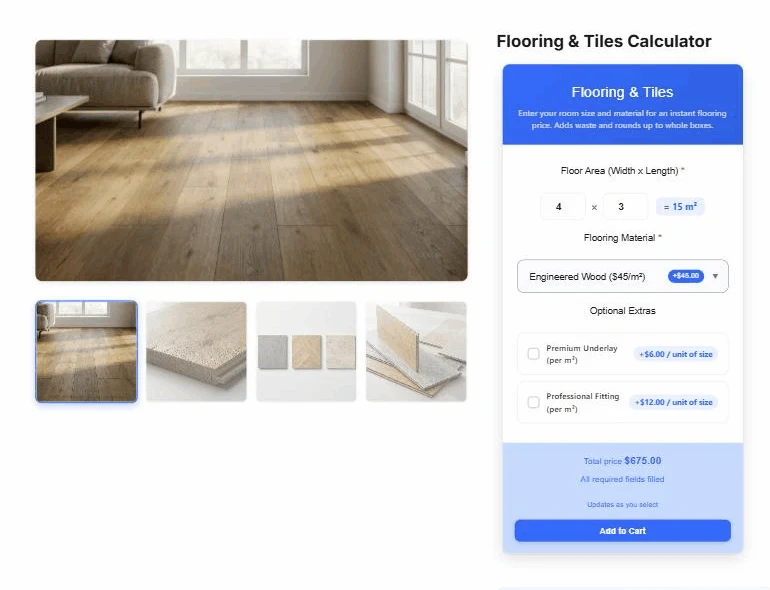
A buyer wants flooring for a 4m by 3m room. That’s 12 m². With 10% waste that’s 13.2 m², rounded up to the next full box. The price shows before they add to cart. No emails, no quotes, no back and forth.
Rather see it than read about it? The flooring demo takes a room size and prices it while you watch.
Warning: The calculator won’t show unless the calculator has at least one field AND the product has a regular price set. If it’s missing, check those two first.
The real-world bits (don’t skip these)
This is where most guides go quiet. Here’s the honest stuff.
Waste is built in. Fitters always order extra for cuts and mistakes, usually about 10%. Put that in the waste box on the field and it’s added to every order automatically. No formula tricks.
Selling by the box? A lot of flooring is sold by the box, and each box covers a set area (say 2.5 m²). Set round up to whole units to 2.5 on the Measurement field. Now a 12 m² room bills as 5 full boxes (12.5 m²), never a part box. A fraction of a box is never sold, and you’re never left short.
Charge delivery by the real weight or size. Flooring is heavy, and shipping should reflect that. In the calculator’s Settings you can set the cart line’s weight from the area (for example area times the weight per m²), so weight-based shipping charges correctly for a made-to-order order.
Square feet, not meters? Same setup. Just change the rate and the unit label to feet and your price per square foot.
FAQ
Can I do this for free? The free version of PriceWise prices by a formula with number fields, so you can charge by area with length * width * rate. The dedicated Measurement field, with waste and round-up to whole boxes built in, is in PriceWise Pro. I compared the free way and the paid plugins in a separate guide.
Does it round up to full boxes? Yes. Set “round up to whole units” on the Measurement field to your box size, and the area is rounded up to the next full box before it’s priced.
Does the buyer see the price before they buy? Yes. It updates live as they type, then they add to cart at that price. The area and price are checked again on your server at add-to-cart, so the price can’t be tampered with.
Can I price by length only, not area? Yes. Set the Measurement field to length mode instead of area. Good for things sold by the running meter, like trim, rope, or fencing.
Will it slow my site down? No. It does the math in the browser as the buyer types, and only loads on the products you assign it to.
Area is one version of this. Time is the other: the same formula approach prices hire by the night or the day instead of by the square metre.
Before you start
Quick checklist:
- Add a Measurement field set to area, with your rate per m².
- Add a waste percentage (about 10%) and, if you sell by the box, round up to your box size.
- Put a regular price on the product so the calculator shows.
- Set the shipping weight from the area if delivery cost matters.
This is one piece of the bigger picture; my complete guide to WooCommerce price calculators maps every product type. Flooring is where the difference shows up fastest. Someone types 4.2 by 3.6, sees a price with the waste and the whole boxes already counted, and buys. That part, the waste percentage and the round-up, is PriceWise Calculator Pro, from $49 a year. The demos are real flooring products, so put your own room size in. Plain length times width times rate works in the free version if you would rather begin there, and every setting is written up in the documentation. The other option is another month of measuring emails.