Craftor’s page builder makes every page from sections, one under the other: a hero, products, reviews, a quote form. Inside a section, rows and columns put things side by side, and every heading, text, picture and button is a block of its own. The editor shows the real page as your customers will see it, and most changes show on it at once.
- Open a page in the editor
- The editor at a glance
- The four steps to a live page
- Search for anything
- Add and Designs
- Pick, move and change anything
- Rows and columns
- Give anything its own look
- Desktop, tablet and phone
- Google and your SEO plugin
- Undo, drafts and publishing
- The Pages panel
- More tools
Open a page in the editor
In Pages, hover over a page and click Edit with Craftor (Build with Craftor for a page not built with it yet). On the page itself, the admin bar has Edit with Craftor (Build this page for one not built with it yet). The basket, the checkout and the account start with their own section, WooCommerce’s form with a heading, your promises and your phone; any other page that already has content starts with it in a Page content section, so building it never hides what was there.
The editor at a glance
Across the top: the page you are on (click it to open another page or a template), the three screens, computer, tablet and phone, with a Width box, then Search, Undo and Redo, whether your work is saved, Preview and Publish. Down the left: Add, Designs, Saved designs, Layers, Pages, Style and History, with More tools and New shop at the bottom. Above the page: where you are, the page’s name and how many sections it has, and the four steps to a live page.

The four steps to a live page
Above the page, four steps tick themselves as you go: Pick a design, Your words, Your logo and Publish. They show in the simple editor, on pages; with More tools on, and on a template, they step aside. Each one opens the place that does it: Pick a design opens Designs. Your words counts the sections that still have made-up words in them, such as the example people, numbers and years of a ready-made page, and goes to the first; change them or delete the section. Your logo is done once your own logo is in the header (a shop kit’s sample logo does not count). Once the page is published the last step says Live, and See it live opens the page.
Search for anything
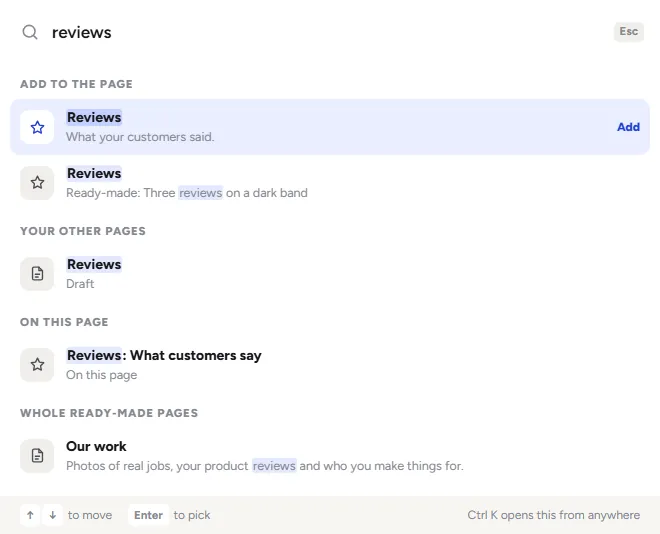
Search, at the top, or Ctrl K (Cmd K on a Mac), or the / key, opens one box that finds everything in the editor:
- a section on the page, by its name or by its own words (type a few words of a question and it finds your Questions);
- a section to add, by its name or the word you would use (testimonials finds Reviews);
- a ready-made page;
- a setting, such as the logo, the phone number, the colours or the cut-off time;
- your other pages and templates;
- things to do: publish, preview, see it on a phone, undo, build a whole shop, help.
The arrows move, Enter picks, Esc shuts it. A setting it finds opens with the box lit up, ready to type in.
Add and Designs
Add holds the plain blocks a page is built from, as small tiles, in groups:
- Basics: a heading, text, an image, a button, a photo beside text, a tick list, a video, space, Page content (the page’s own content from the WordPress editor), a contact form, your contact details, Columns, your logo and name, the menu and shop icons, and a linked section.
- Made for custom products: the configurator, a price table, a quote form, artwork upload, a delivery date and more.
- Shop (products, categories, reviews), Sections (a top banner, steps, questions, your story, your people and more), Blog and search, and the basket, checkout and account.
Designs holds the finished designs, with a picture of each: Whole pages, and Sections, ready-made sections in groups by what they are for (Top of the page, Products and prices, Reviews and trust, How it works, Contact and forms, About your shop). Designs are not templates: in Craftor a template is what draws every product page, the shop or the blog, under Pages. For whole pages, see Ready-made pages and About sections.
Drag a block or a design onto the page, or click it to add it under what you picked. The + under a picked block adds a heading, text, an image, a button or another block right there, and leads to all the blocks and to Designs. In a template, the template’s own parts come first in Add. The search at the top of each panel looks in that panel.
A section that still needs your words or photos shows grey shapes of what it will look like and says what it needs: a top banner with no photo shows where the photo goes, Reviews with none typed show three grey cards and the words Add your real reviews, Recent jobs shows a box to choose your photos. None of that ever shows on the live page. A new Price your job section starts with your first configurator already in.
Pick, move and change anything
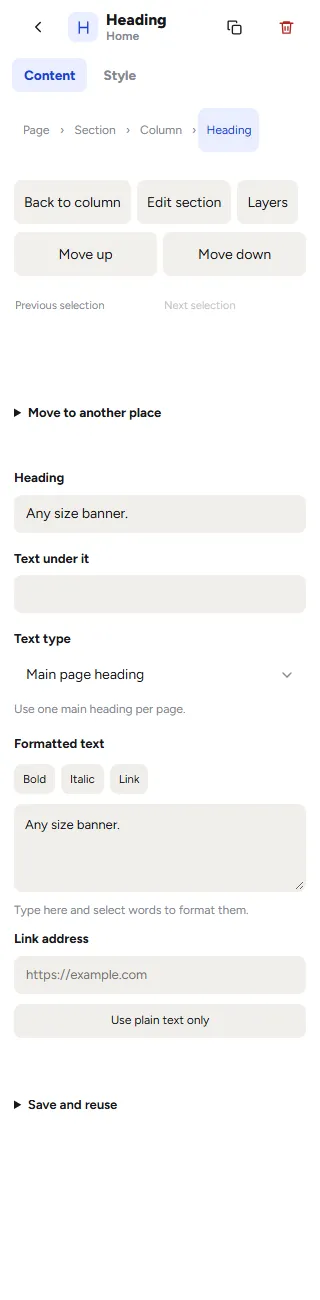
Click anything on the page: a heading, a picture, a button, a column or a whole section. The panel shows where it sits, such as Page, Section, Column, Heading, and each name in that line picks that part. Back to column and Edit section pick the part around it, Layers shows it in the list of everything on the page, and Previous selection and Next selection go back and forth between what you picked.
- Move it: the arrows on the page, or Move up and Move down in Content. Move to another place puts it in another section or column. The tools on the page also copy it or delete it.
- Its words: type straight on the page, or in Content. Formatted text has Bold, Italic and Link for the words you select, and a text block also Bullet list and Numbered list. Text type makes a heading the page’s main heading or a smaller one; use one main heading per page.
- Save and reuse, at the bottom of Content, keeps a copy in your library to use again; see Save, reuse and bring back your designs.
Rows and columns
Columns, under Basics in Add, puts a row of columns on the page; drag blocks into each column. Pick a column to see what it holds:
- Items in this column, each a click away, and Add an item here.
- Move before and Move after swap it with the column beside it.
- Width share, Inside padding, Phone padding, Space between blocks and Content position: top, centre or bottom.
Back to section picks the row the columns sit in:
- Columns in this section and Add column.
- Space between columns, with its own size for phones, and the space inside.
- Column layout: flexible widths, fit content, or equal cards.
- Stack columns on tablet and phone, or on phone only, so they sit one under the other on a small screen.
- Column alignment: top, centre, or full row height.

Give anything its own look
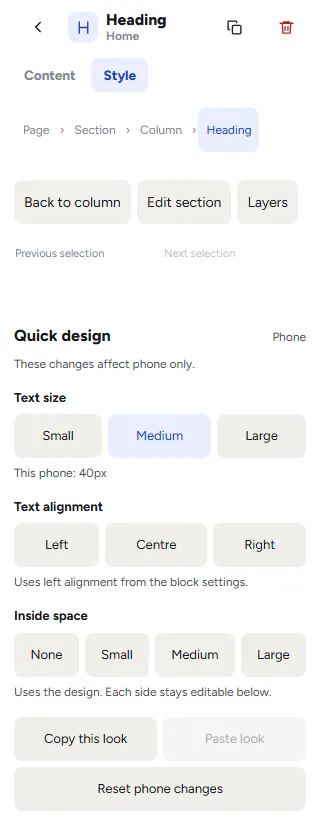
The Style tab changes what you picked only; the rest of the site keeps its look. It starts with Quick design: Text size (Small, Medium or Large, with the size it has on this screen now), Text alignment and Inside space, and for a picture how it fills its box. Copy this look and Paste look give another block the same look, even on another page, and Reset desktop changes puts it back.
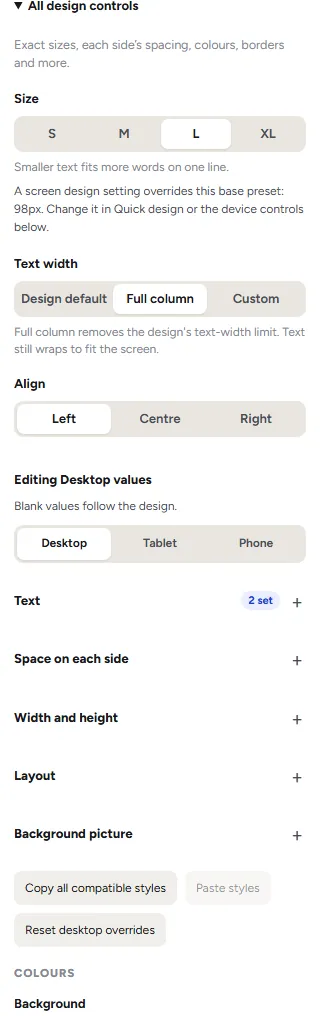
All design controls opens the rest:
- the size presets and the text width: the design’s own, the full column, or a width you type;
- the screen you are designing for, desktop, tablet or phone, and for it: Text (font, size, weight, line height, letter spacing, capital letters, alignment), Space on each side, Width and height, Layout and Background picture; a picture also has Image fit and Image focus, the part that stays in view; a button has Button style (filled, light or a text link) and Button itself: its width, height, border, corners and colours, also when it is pointed at;
- Copy all compatible styles and Paste styles;
- the colours: the background (one of your shop’s own, which follow your look if you change it later, or any colour you pick), the words, and the buttons and highlights; on a dark background the words turn light by themselves;
- the space above and below: None, Small, Medium or Large.
Blank values follow the design, and Back to the shop’s look undoes all of it. With More tools on there is more: the exact space inside and outside, a border, corners and a shadow round the whole block, and Copy box style and Paste box style.
Desktop, tablet and phone
The three screens at the top choose the screen you are designing for. What you set on the desktop carries to tablets and phones unless you change it there. Pick the phone and Quick design says These changes affect phone only; Reset phone changes takes the phone back to the larger screens’ look, and Undo still works. The Width box shows the page at any width from 320 to 2560 pixels.
Rows of columns stack on small screens as their section says, and with More tools on a section can also be hidden on one screen size under Advanced. On a phone, the editor itself switches between Page and Controls, so the page stays loaded while you change it.
Google and your SEO plugin
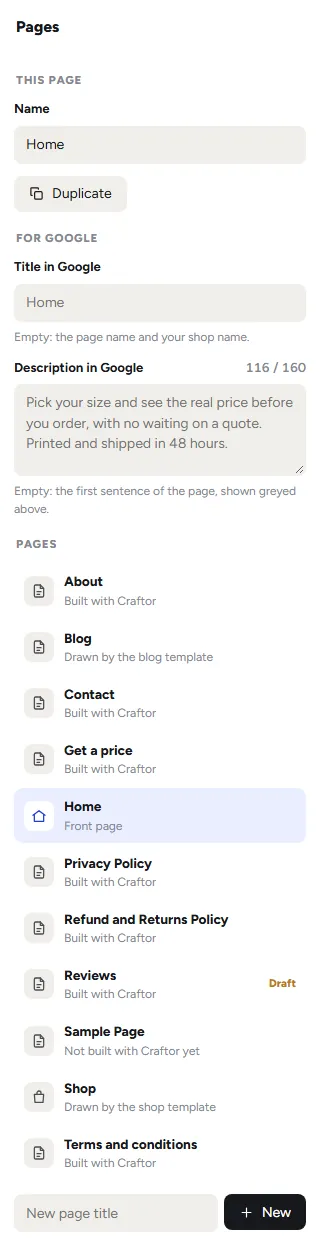
No SEO plugin? Open Pages in the editor: under For Google, give the page its title and the description Google shows under it (about 160 letters; the count turns red past that). Left empty, the description is the page’s first real sentence, shown greyed in the box. Craftor also gives every page the address Google should count, what shows when the page is shared, breadcrumbs, your blog posts as articles and your shop’s search for Google’s search box under your name.
With an SEO plugin, Craftor leaves all of that to it, so nothing is said twice. Keep using Rank Math, Yoast or your SEO plugin for titles, descriptions and sitemaps, in WordPress’s page editor as always. Every time a page goes live, Craftor writes the page’s words into its own content, so the plugin’s checks read the whole page and its automatic descriptions come from your words. A page with a Page content section keeps its own content instead.
Every page gets one main heading: the hero’s, or a heading whose Text type is Main page heading, or else the first heading on the page. Once your address is in Style, Your shop, the home page tells Google your shop’s name, address, phone and email for local searches.
Undo, drafts and publishing
Every change is kept as a draft as you go, and the top bar says Draft saved; Undo (Ctrl Z) steps back through your changes. Preview opens the page as a visitor sees it. Nothing reaches your customers until you click Publish, and if a section still has made-up words in it, Publish asks first, since visitors would read them as true. Changes to the header, the footer or the site style change every page when you publish. History keeps your last 20 versions, to bring one back as a draft: see Save, reuse and bring back your designs.
The Pages panel
Pages, on the left-hand bar, holds the page you are on, your other pages, the templates and the parts every page shares.
- This page: its name, to rename it, then Duplicate, Make it the front page and Move to the bin. The front page and WooCommerce’s own basket, checkout and account pages cannot be binned.
- For Google: the page’s title and description in Google, when you have no SEO plugin; see Google and your SEO plugin.
- Pages: every page, saying whether it is built with Craftor, drawn by a template, or not built with Craftor yet, with Draft beside a draft. Click one to open it.
- A new page: type a title in New page title and click New for an empty page that opens in the editor, or pick one of the ready-made pages listed under it.
- Templates: the ones you have made (product pages, the shop, blog posts, the blog, search results, the page not found), WooCommerce’s basket, checkout and account pages, and the buttons that make a new template; see Product pages and the shop page.
- Parts: the header and the footer, on every page; see Header and footer.
More tools
The editor starts simple. More tools, at the bottom of the left-hand bar, adds the exact spacing, borders, corners and shadows under All design controls, and a section’s Advanced tab (hiding it on a phone, tablet or desktop, an anchor for links such as #prices, and an extra CSS class). Click it again for the simple editor. The editor remembers the choice in your browser. Layers is in the bar on every page with rows and columns, and on any page with More tools on.
Was this page helpful?
Thanks for telling us.
Sorry it did not help. Tell us what you were looking for and we will add it.