A design you like can be used again: a heading, a row of columns, a whole section or a whole page. Saved designs keeps them, a linked section stays the same on every page that uses it, and History brings back an earlier version.
- Save a design to use again
- Linked sections: the same on every page
- Move a design to another shop
- History: bring back an earlier version
Save a design to use again
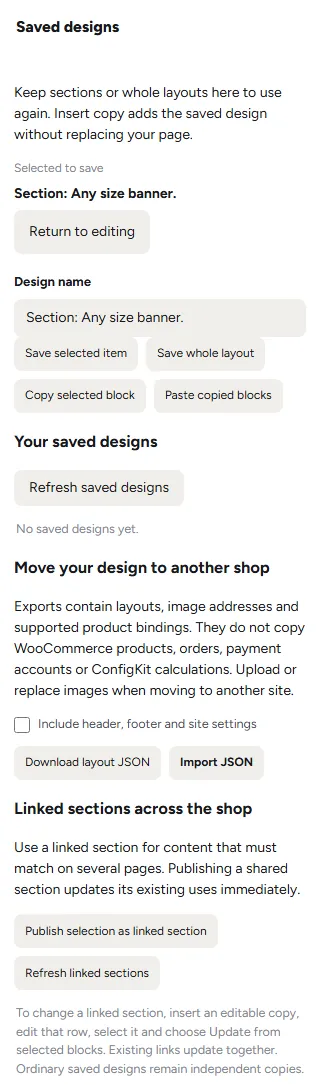
Pick what you want to keep on the page, then in Content open Save and reuse at the bottom: give it a name in Name in your library and click Save to library. Or open Saved designs on the left-hand bar: type a Design name, then Save selected item for what you picked, or Save whole layout for the whole page.
Your saved designs are listed under it. Insert copy puts an editable copy on the page you are on, without replacing anything, and changing the copy never changes the saved design. Refresh saved designs updates the list.
Copy selected block and Paste copied blocks carry a block to another Craftor page: copy it here, open the other page, paste it there.
Linked sections: the same on every page
Some content must match wherever it is: a promise band, a contact block, an opening-hours row. Pick it and click Publish selection as linked section in Saved designs. Add it to other pages with Linked section, under Basics in Add. Publishing a linked section changes every page that uses it at once.
To change one, insert an editable copy, change that row, pick it and choose Update from selected blocks: every page that links it changes together. Refresh linked sections updates their list. An ordinary saved design is a copy, never linked.
Move a design to another shop
Under Move your design to another shop, Download layout JSON saves the page’s layout as a file; tick Include header, footer and site settings to take those too. On the other shop, Import JSON brings it in.
The file holds the layout, the addresses of its pictures and the products it shows. It does not copy WooCommerce products, orders, payment accounts or ConfigKit’s calculations, so put those on the other shop first, and upload or replace the pictures there.
History: bring back an earlier version
History, on the left-hand bar, keeps up to 20 versions of the page, starting when a saved design is replaced. Restore as draft brings a version back as a draft: the live shop changes only when you publish it. Discard draft and use published layout throws away the draft and goes back to what is live.
If the page was saved somewhere else after you opened it, in another tab or by someone else, the editor says Newer saved work exists and saves nothing over it. Your changes are still in the editor: keep them with Download layout JSON before you reload.

Was this page helpful?
Thanks for telling us.
Sorry it did not help. Tell us what you were looking for and we will add it.