WooCommerce’s own pages are built with templates: one design used by many pages. A product page template draws whichever product is being viewed; the shop template draws the shop and its categories.
Make a template
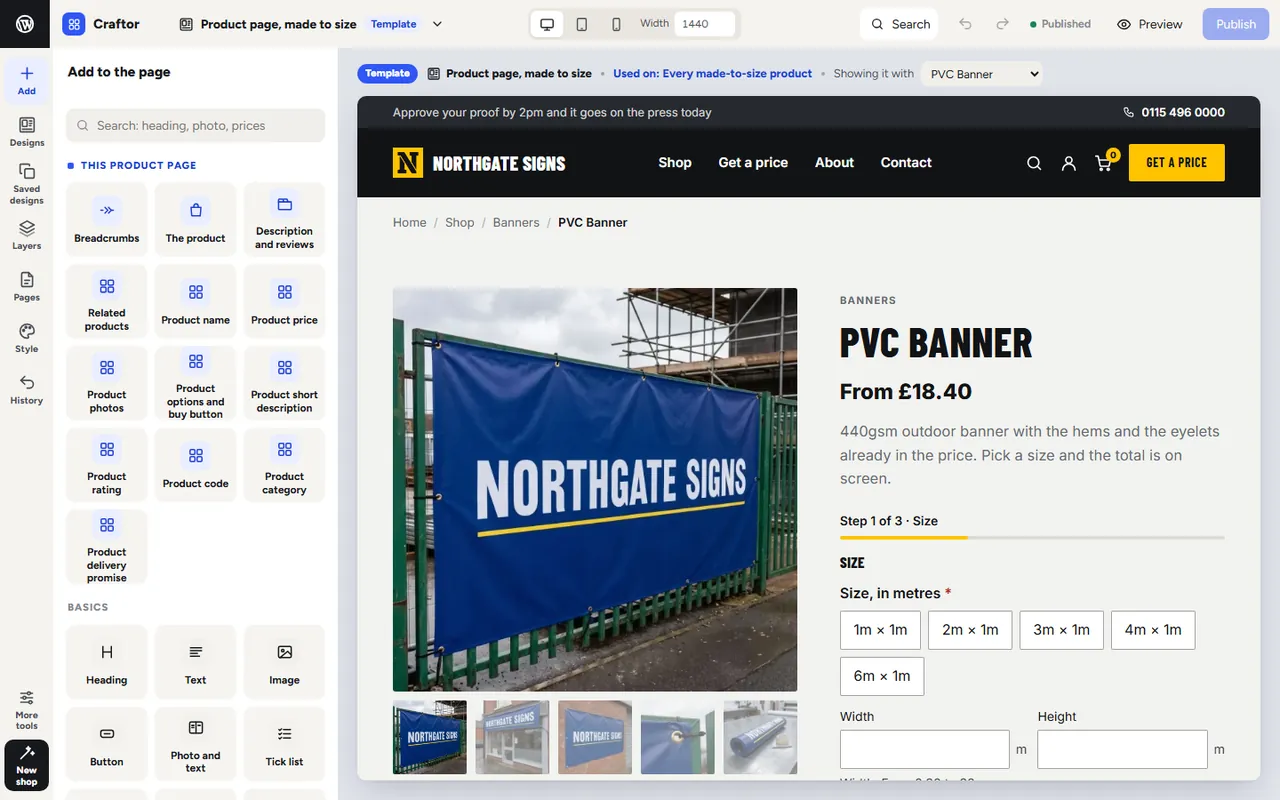
In the editor open Pages. Under Templates, open one or make a product page template or a shop page template. It opens with the sections a product page or a shop page needs, and a product to show it with: pick another from Showing it with at the top.
Which products use it
A product page template shows on every product, on every made-to-size product (one with a ConfigKit configurator), on products in some categories, or on products you name. When more than one could cover a product, a named product wins, then its category, then made to size, then every product. A template still in draft covers nothing, and a product behind a password keeps WooCommerce’s own page.
The parts of a product page
The product page starts with Breadcrumbs; The product, with its photos, name, price, short description, WooCommerce’s own basket form with the configurator inside it, the delivery countdown and the product code; Description and reviews, as tabs, with a tab of your own; and Related products or your upsells. The price the page shows is the price the basket charges, because the basket form is WooCommerce’s own.
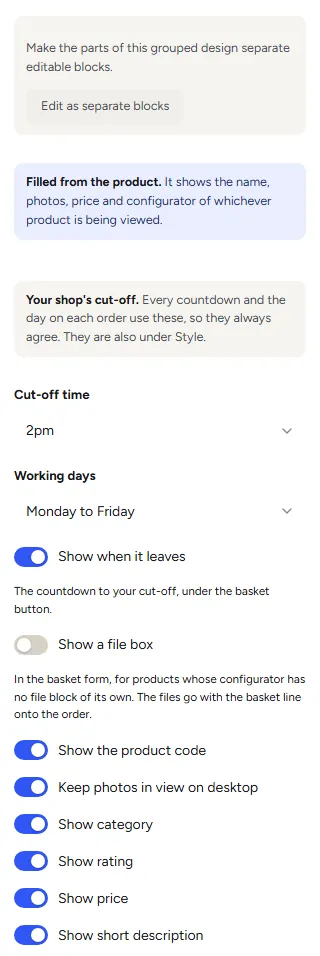
Pick The product to choose what it shows: when it leaves, a file box for products whose configurator has no file block of its own, the product code, the category, the rating, the price and the short description, and the order of the details. Keep photos in view on desktop keeps them beside the details as you scroll.
For a page of your own design, Edit as separate blocks turns The product into its parts, each a block to move and style on its own: Product name, Product price, Product photos, Product options and buy button, Product short description, Product rating, Product code, Product category and Product delivery promise. They are in Add too, under This product page, to put anywhere in the template, in rows and columns like any other block.
The shop page and its filters
The shop template has the shop or category heading and its products, with sorting and page numbers. Pick Shop products to set:
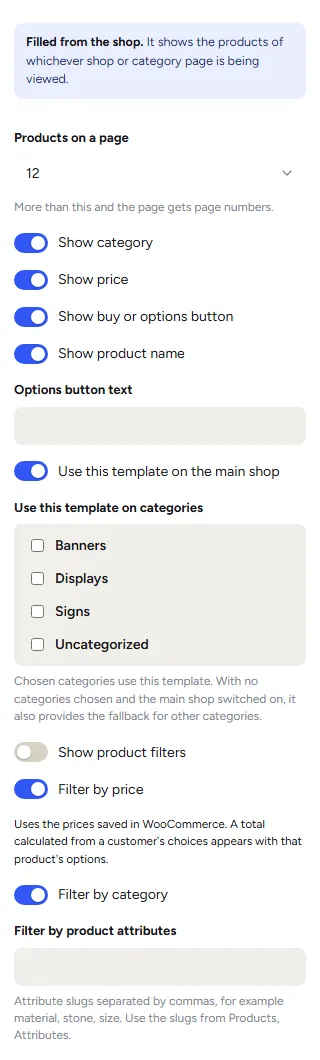
- Products on a page, and whether each card shows its category, price, buy or options button and name, and the options button’s words.
- Where it is used: on the main shop, on the categories you tick, or both. A category with a template of its own uses that one; with no category ticked and the main shop on, this one is used for every other category too.
- Show product filters: by price, by category, and by product attributes, such as material or size (type the attribute slugs from Products, Attributes, with commas between them).
The price filter uses the prices saved in WooCommerce. A price a customer works out with a configurator shows on that product’s own page.
Was this page helpful?
Thanks for telling us.
Sorry it did not help. Tell us what you were looking for and we will add it.