These sections are under Add, in Made for custom products, right after Basics. Each one does what it says on the page: a form sends a real request, a file reaches the order, a date reaches the email.
- Configurator
- Price table
- Quote form
- Artwork upload
- Delivery date
- Measuring guide and Materials
- Sample pack
- Trade prices
Configurator
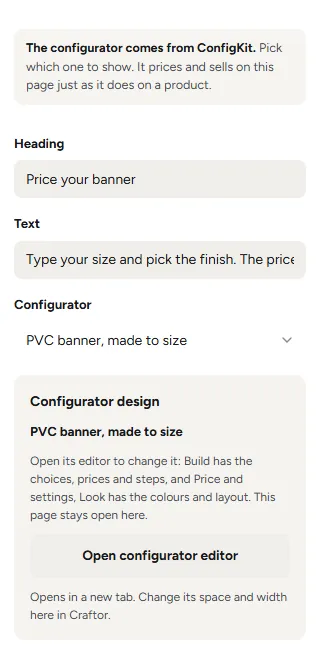
A ConfigKit configurator on any page, pricing and selling there just as it does on a product. Pick it on the page and choose which one in Pick a configurator; give it a heading and words above it if you like. Its space and width are set here in Craftor, like any other section.
To change its choices, prices, colours or steps, click Open configurator editor: ConfigKit’s own editor opens in a new tab, with the choices, prices and steps under Build and the colours and layout under Price and settings, Look. Your Craftor page stays open where it was.
Price table
Sizes down the side, quantities or materials across. With Prices from set to A configurator, every box is worked out by the configurator itself, with its first choice everywhere else, so the table and the configurator never disagree and a price you change in ConfigKit changes the table too. Pick what goes down the side (a size or a choice) and across the top (quantities, or a choice). For a size, type the sizes as rows, like 2m x 1m; a size the configurator would refuse shows as a dash. With Typed in, the table shows your own rows and prices.
Quote form
For jobs too odd to price on screen: name, email, phone, postcode, width and height if you want them, what they need, and their photos, drawings or artwork, up to 100 MB each. It arrives in WooCommerce, Requests and in your email, and you answer with one price that becomes an order. See Quote requests and the price link.
Artwork upload
A file box. On a product page the files go with that product into the basket; on any other page they go with the customer’s order. Choose the largest file, 25, 100 or 250 MB. See What arrives on the order.
Delivery date
A countdown to your cut-off time and the day it leaves, from your shop’s cut-off time and working days, the same sum every order keeps.
Measuring guide and Materials
Ways to measure with a picture each, and your materials with a line, a price and a photo. Trade customers see typed material prices at their trade price.
Sample pack
The button opens a short form (name, email, the address to post them to), puts your sample pack product in the basket, or goes to a page. A sample pack product can come back off the customer’s next order: see What arrives on the order.
Trade prices
A box for trade customers, with a button that opens a short form to ask for a trade account, and a log in button. It stays off the page until you set your trade discount, and a logged-in trade customer sees that they are on trade prices instead. See Trade customers and trade prices.
Was this page helpful?
Thanks for telling us.
Sorry it did not help. Tell us what you were looking for and we will add it.