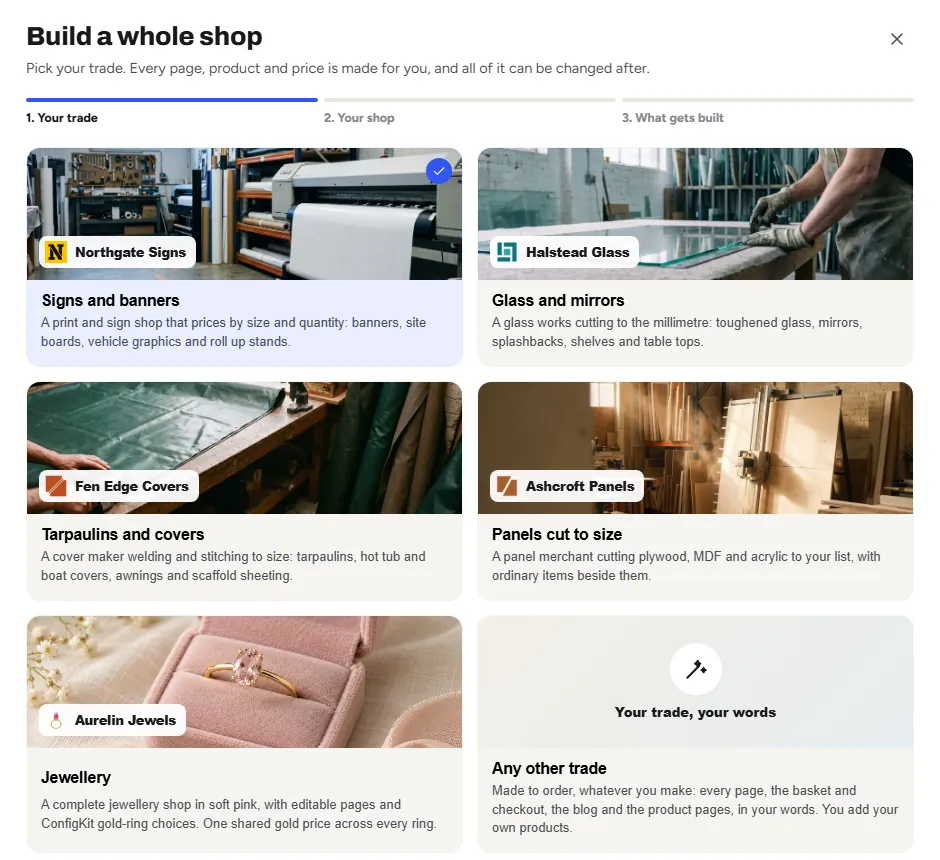
New shop builds a working shop in about a minute, from one of five trades (a sign and banner printer, a glass cutter, a cover and tarpaulin maker, a panel and board cutter, and a jewellery shop) or for any other trade. Pick the closest one to yours, or Any other trade: every word, photo and price can be changed after.
Open New shop
On the Craftor screen click Build a whole shop, or in the editor click New shop at the bottom of the left-hand bar.
The three steps
Your trade
Pick one of the five trades: each comes with its own words, photos and configurators that price the way that trade does. Or pick Any other trade: blinds, gates, furniture, cakes, anything made to order.
Your shop
Type the shop name, phone, email for the contact page and town, check the currency (it starts as the one your WooCommerce shop already uses, and any WooCommerce currency works), add your logo and pick a look. Your details go on every page: the header, the footer, the contact page and the terms. For Any other trade, also say what you make, such as garden gates, and add a photo of your work: your home page then opens with Garden gates, made to your size.
What gets built
Untick anything you already have, then click Build my shop. When it is done, See it as a customer opens the shop, and Start editing opens the home page in the editor.
What gets built
- Home page: hero, trust band, products, the configurator, how it works, recent jobs, reviews and questions. The reviews part starts empty: the editor says Add your real reviews, and it stays off your live page until you type your customers’ own words or show your product reviews.
- Product pages with a live price: the configurator on every made-to-size product, with the delivery date, and a page for the shop and its categories.
- Get a price page: one page where any job can be priced, or sent for a quote. The jewellery shop has Design your ring instead, with its rings to choose from.
- About and Contact, written for your trade with your phone number and address in, and a Reviews page that waits as a draft until you have real reviews to put on it (not for Any other trade or the jewellery shop).
- Header, footer and menu, with your logo, your promise in the top bar and your opening hours.
- Basket, checkout and account: WooCommerce’s own, in your look, with a heading, your promises, your phone, and on the checkout the steps and the day it leaves, shown before paying.
- Privacy, terms and returns pages, filled with your shop name, ready for you to check.
- Six example products with photos, and ConfigKit configurators priced for that trade (not for Any other trade: you add your own products). In the jewellery shop, three of the six are rings whose price ConfigKit works out from one gold price per gram for the whole shop, each ring with its own weight, stone and making cost; see shared prices.
- Blog, search and page not found: the page for each blog post, the blog and its categories, search results, and a helpful page for broken links, plus a Blog page for your posts. See Blog, search and the page not found.
Nothing is deleted. A page already at one of these addresses, or the privacy, terms and returns pages WordPress and WooCommerce keep, is built over. Building the same trade again builds over what it made the first time, so nothing is doubled, and a gold price you have already set is kept.
Before you open the shop
Check the example prices
The six example products show like any product, but the basket refuses them until you have checked the price. Their prices are in pounds, and a shop in another currency shows the same numbers (the jewellery shop also has its own prices for Mexican pesos), so check every one. Open each one in Products, check its price, and untick Example price on its General tab. For the jewellery shop, first type your own price for one gram of 24k gold in ConfigKit, Settings, Shared prices: every ring works its price out from it.
Put in your real reviews
Click the reviews part of the home page and type what your customers said, their name and their business, or switch it to your product reviews. Then open the Reviews page in the editor, add them there too, and publish it.
Read the policy pages through
Read the privacy, terms and returns pages and change anything that is not how you work.
Change what you like
Every page is made of sections, rows, columns and blocks you can move, change and delete. See Build and edit a page.
Was this page helpful?
Thanks for telling us.
Sorry it did not help. Tell us what you were looking for and we will add it.