The Style panel holds what every page shares. Change it once and every page built with Craftor follows when you publish. The header and footer are shared too, and open from Pages.
- Looks, colours and fonts
- Text styles, any width and your own font
- Your shop
- Orders: cut-off time, working days and trade discount
- Header and footer
Looks, colours and fonts
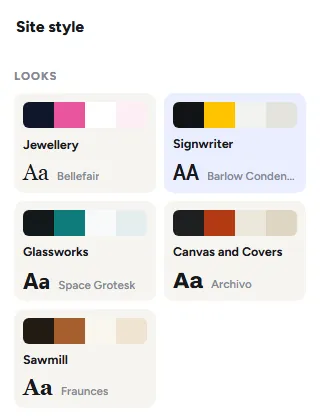
Style starts with five looks, each a set of colours and fonts: Jewellery, Signwriter, Glassworks, Canvas and Covers, and Sawmill. After picking one you can change any part of it:
- Colours: Accent, Text, Background, Light band and Dark band. The two bands are the backgrounds a section can take to stand out from the page. Click a colour to pick another.
- Fonts: one for headings and one for text, and headings in capitals if you like.
- Buttons and cards: how round their corners are.
- Layout: the content width (1140, 1280 or 1440) and the space between sections (Tight, Normal or Roomy).
A block or a section can still have its own colours, words and space: see Give anything its own look.
Text styles, any width and your own font
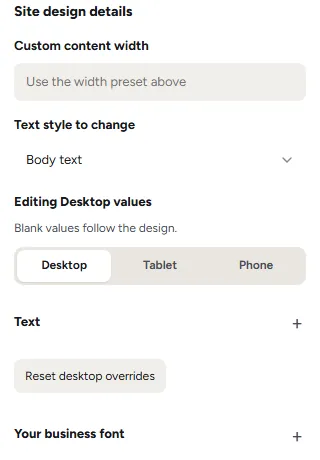
Under the shop’s details, Site design details sets the text of the whole site, the way a block’s All design controls set one block:
- Custom content width: any width, in place of the three in Layout.
- Text style to change: main headings, section headings, small headings, body text or buttons. Pick one, pick the screen (desktop, tablet or phone), and set its Text: font, size, weight, line height, letter spacing, capital letters and alignment. Blank values follow the look, and Reset desktop overrides puts that screen back.
- Your business font: choose your own font file from the Media Library (WOFF2, WOFF or TTF). Then pick Your uploaded font as the font of a text style.
A block that has its own size or font keeps it.
Your shop
Shop name (WordPress’s own site title), phone, email, address, opening hours, and your promise for the top bar, such as the cut-off time. The header, the footer, the call buttons and the Contact details section all use these.
Orders: cut-off time, working days and trade discount
The cut-off time (11am, 12 noon, 2pm or 4pm) and the working days (Monday to Friday, or Monday to Saturday) drive every delivery countdown and the day each order says it leaves; see What arrives on the order. Put the day it leaves on each order can be switched off. The trade discount is the percent trade customers get off every price; see Trade customers and trade prices.
Header and footer
Open Pages and, under Parts, click Header or Footer, or click them on the page. They sit on every page, so a change there changes the whole shop when you publish. The header’s Content has:
- Top bar with your promise, its words and the phone number; left empty, they come from your shop details.
- Button and where it goes.
- Menu: your main menu or none, and its links, each with its address, in the order you put them.
- Logo: Change or Remove, and the shop name beside it if you like.
- Search: the whole shop with products first, only the products, or no search; and the account and basket icons.
- Menu with submenus: for a menu that opens, add its links and put the parent’s name in the third box.
Edit layout as separate blocks turns the header into columns, text, pictures, the menu and buttons you place yourself, like any other row of the page. The footer has its line about you, the Help links, your address and hours and the payment line, and the same choice. Both also have settings for the logo’s size and place, the space in the menu, the icons, and the footer’s columns and their order.

Was this page helpful?
Thanks for telling us.
Sorry it did not help. Tell us what you were looking for and we will add it.